Does the footer area of your website seem like wasted space? If you would like to add some links or images to your footer area, you can do so by editing the template in your SMF admin dashboard. You can also remove the links and version number as well, giving you some more space. While technically allowable to remove the copyright, it is considered rude to do so since Simple Machines allows their program to be used free of charge. Follow the instructions below to find out how to modify the footer in your SMF 2.0 website.
Changing the footer content in SMF 2.0
- Log into your SMF admin dashboard.
- From the main page, click on the Admin link from the upper menu. This brings a second menu that appears just below the first. From there, hover over Configuration and click on Current Theme from the popup submenu.
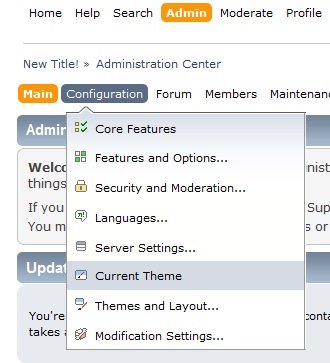
- A third menu will appear on the screen below the second. Find and click on the Modify Themes link to continue to the next screen.
- You will see the different themes you have available under the Modify Themes section. Find the theme you want to modify and click on the Browse the templates and files in this theme link.

- This brings you to a page where you will see various sections of code. Do a find (ctrl+f) for the word ‘footer’ and locate the section that has the following code:
<div id="footer_section">
This is the beginning of the footer area code. From here you can edit the code with HTML. For our example, we will add some text with our own copyright. You can see the line we added below highlighted in blue.
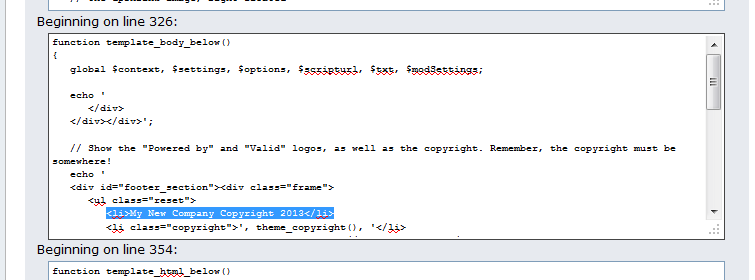
- After adding the code, select the Save button at the bottom of the page. You can now refresh your site to see the either the new content or removed content.
Before After 

