DokuWiki, like most wiki software, does not allow certain HTML code to be placed inside the website. This is because wiki’s are designed to be open for all to edit and contribute to. Common hacks are done by using code in a site to compromise the software security. To get an iframe to work in your DokuWIki site, you will need to install a plugin for the iframe to work. This article will explain how to insert an iframe into your DokuWiki using the iframe plugin.
Setting up the iframe plugin
- Log into DokuWiki.
- Go to the following URL and get the URL for your iframe plugin.
https://www.dokuwiki.org/plugin:iframe
You should have a URL like the following.
https://www.dokuwiki.org/lib/exe/fetch.php?hash=0a7954&media=http%3A%2F%2Fdokuwiki.jalakai.co.uk%2Fplugin-iframe.tar.gz
Important! Plugins can change versions over time. If the above URL does not work, make sure you visit the plugin site to get the newest version of the plugin.
If you do not know how to install a plugin, please visit the tutorial on Installing plugins in DokuWiki.

Once you have the plugin installed, Go to Admin > Configuration Settings and configure the iframe plugin.
Select “Allow JavaScript urls” and save the changes.
Note! You want to allow Javascript urls to prevent issues in the future if you use a JavaScript URL. Otherwise the iframe will not display the JavaScript link.
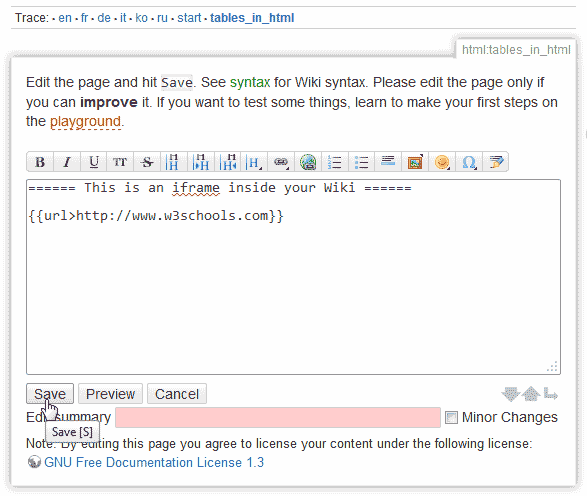
Now you will need to place the iframe code in your wiki page. The following is the code you use to insert an iframe into your DokuWiki site.
iframe syntax:
{{url>https://www.website.com}}iframe Syntax with attributes:
{{url>https://www.website.com width,height noscroll noborder alignment|alt-text}}Example usage:
{{url>https://www.website.com 400px,200px noscroll noborder left|This is my iframe to w3schools}}
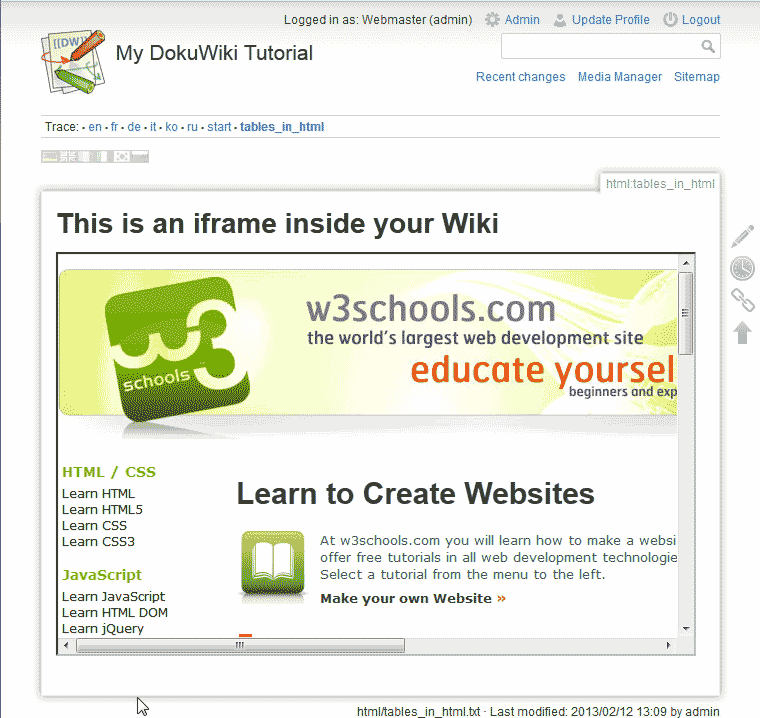
After you save the changes you should see your iframe load the site in your wiki page.
