When you export a database, you are creating a backup file of the database. This backup file is usually a .sql file (a text file), and can be used to copy and import the database onto another server. In this article we’ll show you how to export your database.
- Log into phpMyAdmin
If you are an InMotion Hosting customer: Log into your cPanel and click the phpMyAdmin icon under the Databases heading.
If you are not an InMotion Hosting customer and do not use cPanel, please contact your hosting provider for more help.
-
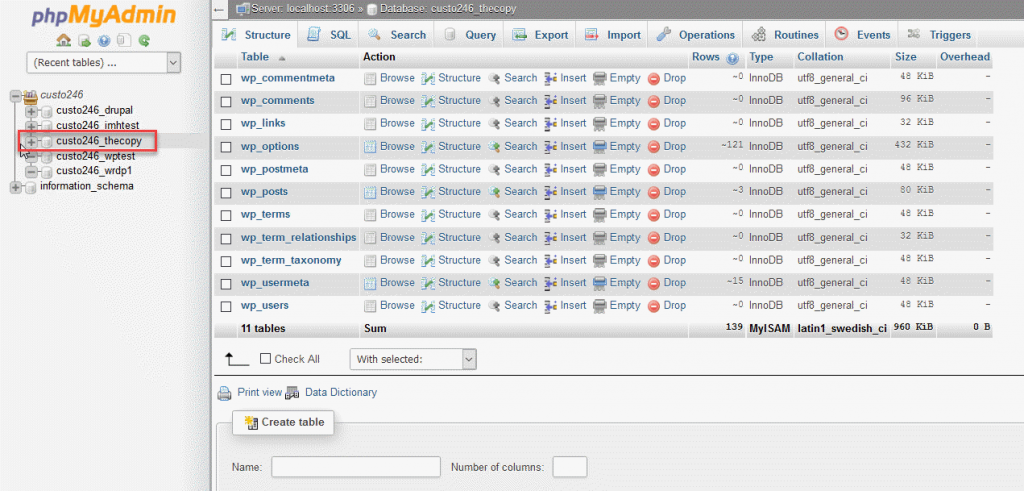
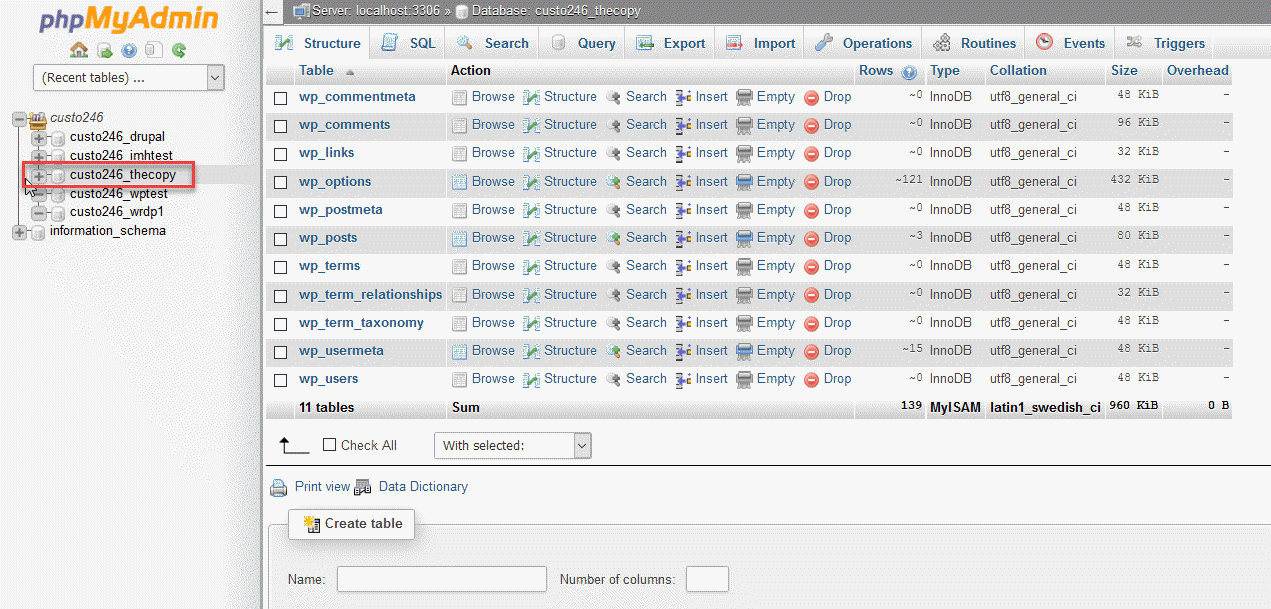
Click on the database you are working with in the left menu
-
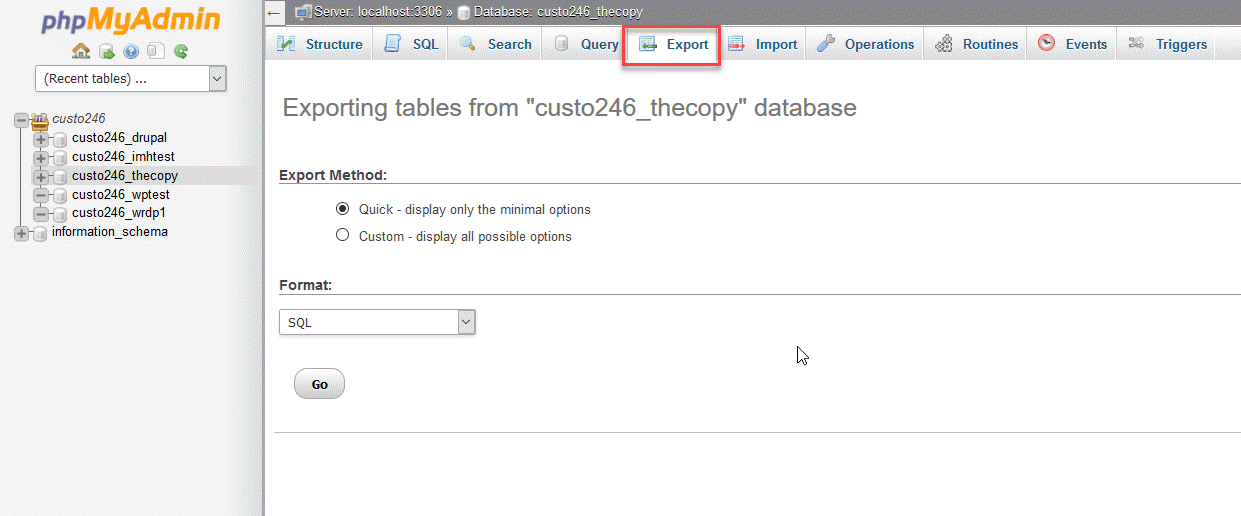
Click Export in the tabs along the top of the screen.
-
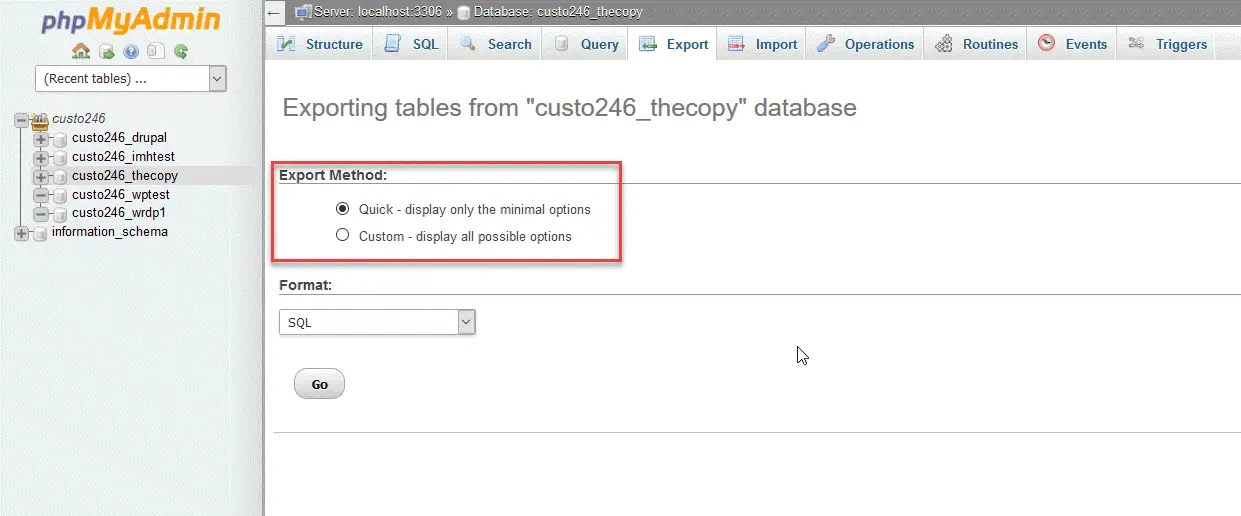
The export option that we are providing instructions for is the Quick method. Click on the radial button for Quick. If you want more complete control, then click on Custom. You will need to be familiar with the exporting MySQL databases in order to use these options. If you are not, then please consult with an experienced database administrator or developer.
-
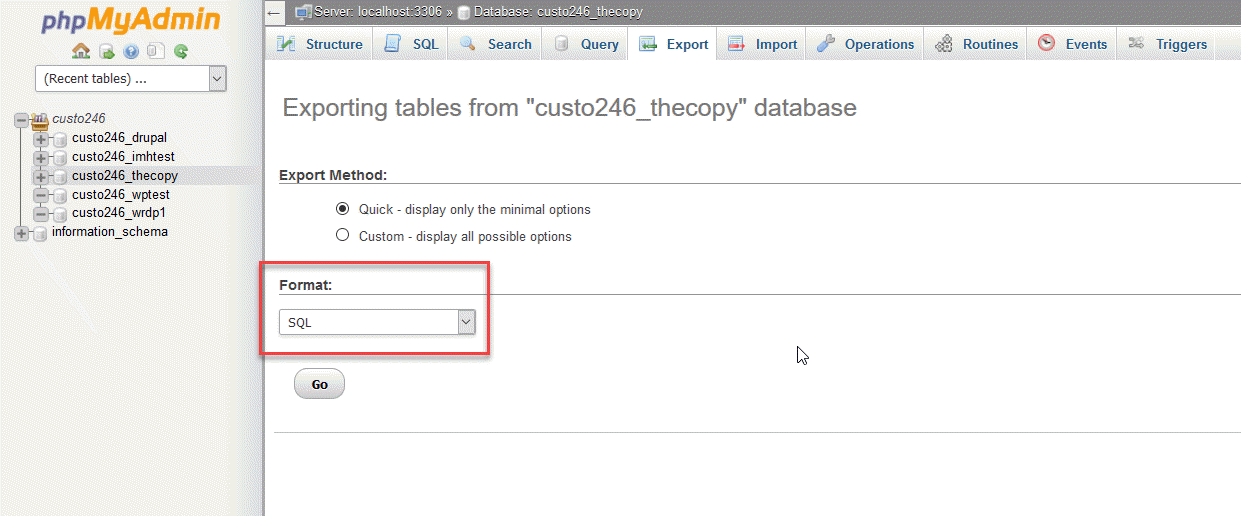
Next, you will need to click on the format of the export file. By default, it should be on SQL, so you don’t need to change anything.
-
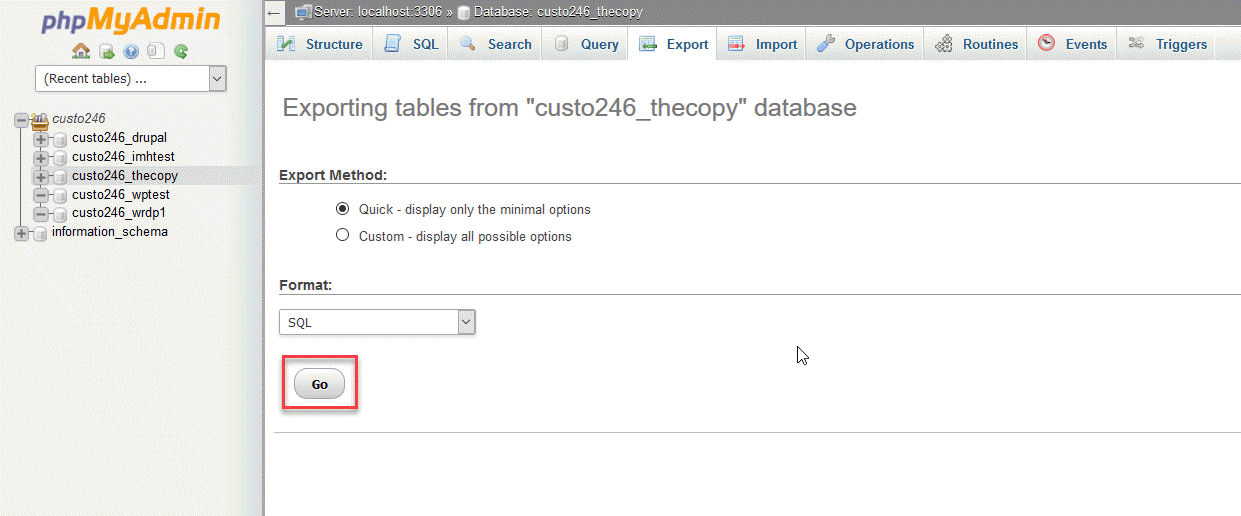
Click on the Go button in order to perform the export.
- You will be prompted to either open or save the file. Please select the option to save the file and then save the somewhere you’ll remember (such as directly on your desktop).




Congratulations, you have just exported a copy of your database!