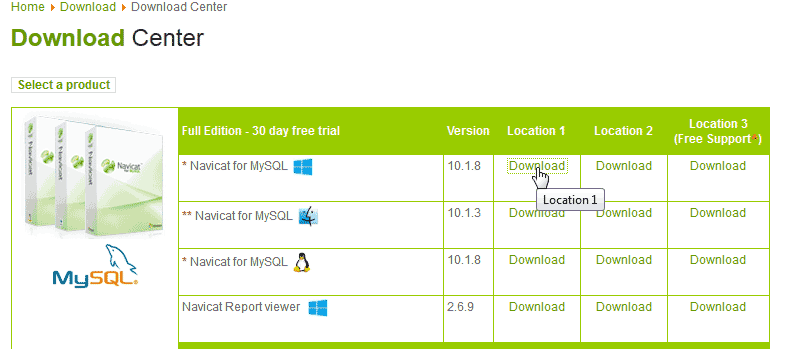
You can connect to your server MySQL databases using Navicat. Navicat is a “Remote MySQL database tool” that allows you access to your database from your local home computer. To connect with navicat you will need to download the software. We will download the following version:
Navicat for MySQL 10.1.8
Download and Install Navicat
You can download navicat at the following url. This version is a Trial version. Navicat is not free they do require a payment to get the Trial removed from your installation.
https://www.navicat.com/en/download/navicat-for-mysql
Once you get the Executable for the program saved to your computer. Click the Installer icon to install Navicat.
Add your IP to Remote MySQL
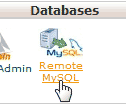
Before you can get Navicat to connect, you will need to add your IP to the Remote MySQL connection.
You can do this by Logging into your cPanel click the Remote MySQL icon in the Databases section.
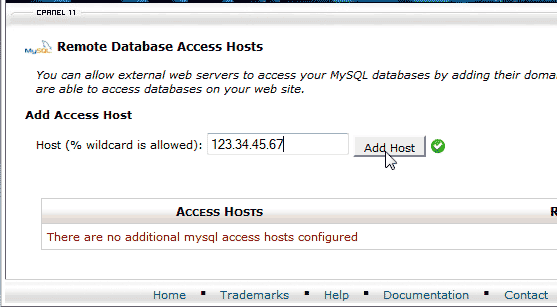
Add your IP to the Add Access Host and Click Ad host.
For more detailed information on how to do this please see our article on Setting up a Remote MySQL connection in cPanel.
Steps to connect to your database with Navicat
- Open Navicat.
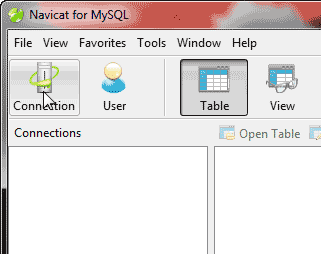
Click the Connection button at the top right of Navicat.
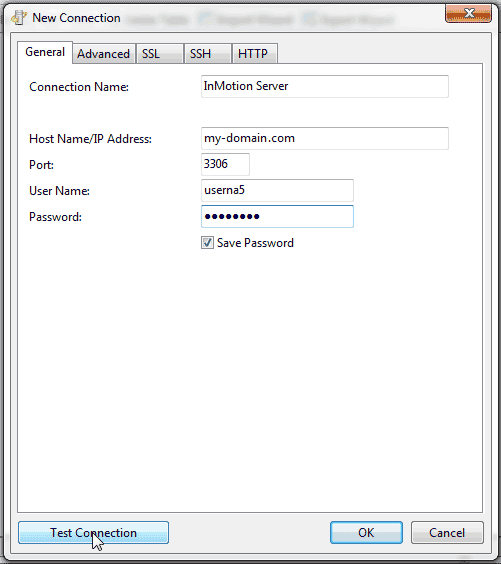
Enter your Database Connection credentials.
Database Credentials
Connection name: Name this whatever you want
Host Name/IP Address: Use your Domain name or Your cPanel IP address
Port: 3306
User Name: Your cPanel user or database user that was created
Password: he cPanel or created user passwordClick Test Connection.
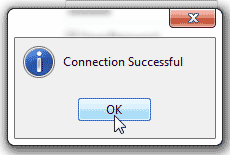
You should get a Connection Successfulpop up.
If not you will need to check the IP in Remote MySQL or check your username and password you are using. You also may need to use the IP and not your domain.
Click Ok.
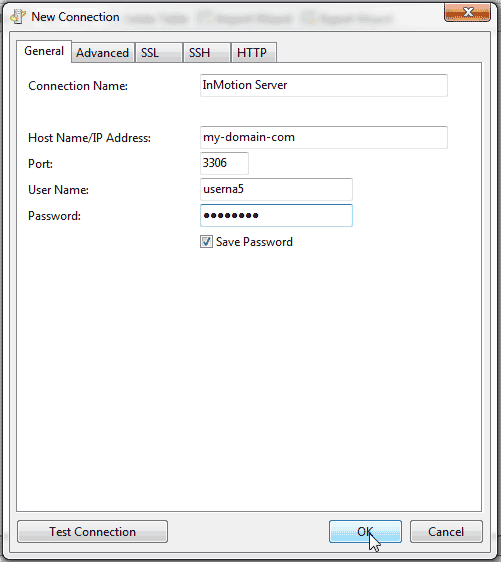
Click Ok again to accept the Connection Settings.
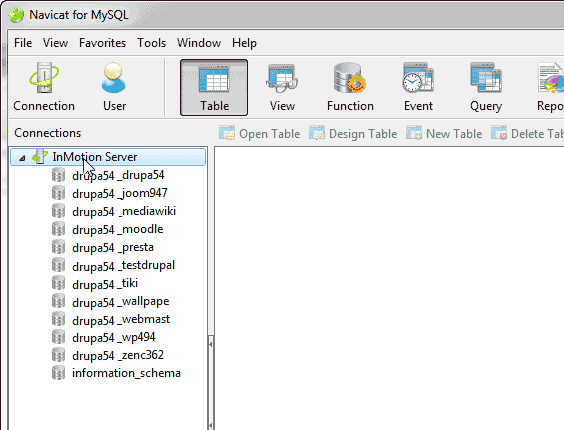
Your Database connection will show in the left pane listing the names of the database. Click one of the databases to look at the tables.
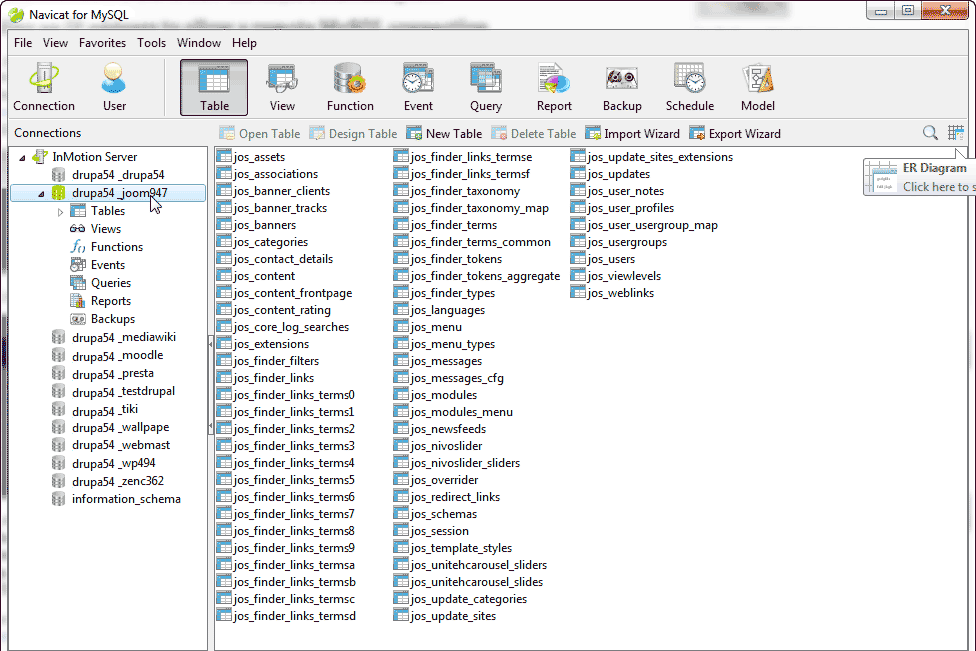
Now you can see all the options in Navicat. The tables will list in the main window.





