When integrating Elasticsearch with WordPress, you will need a way to pass the data in WordPress over to the Elasticsearch server. Typically, this is done with a plugin such as ElasticPress. In this article, we will show you how to install the ElasticPress plugin on your WordPress site.
Note: Installing the plugin alone will not enable ElasticSearch. For full steps on using ElasticPress, please review our article on integrating Elasticsearch with WordPress.
- First, log into your WordPress admin dashboard.
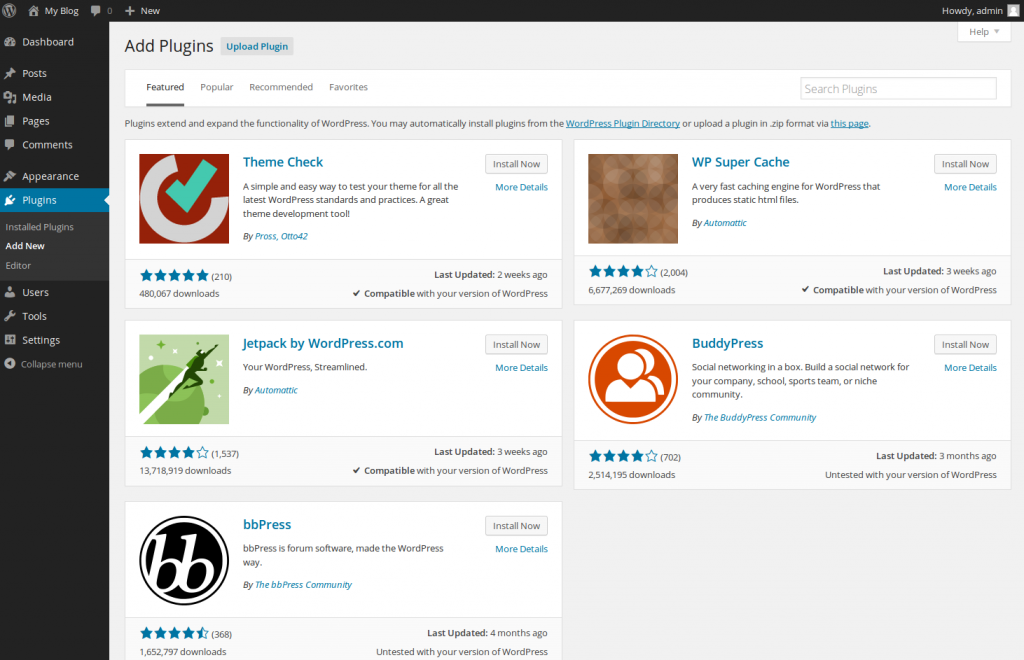
Once logged in, hover over Plugins on the left side menu, and click on Add New.

In the search box at the top right, enter ElasticPress and press the Enter key on the keyboard to perform the search.
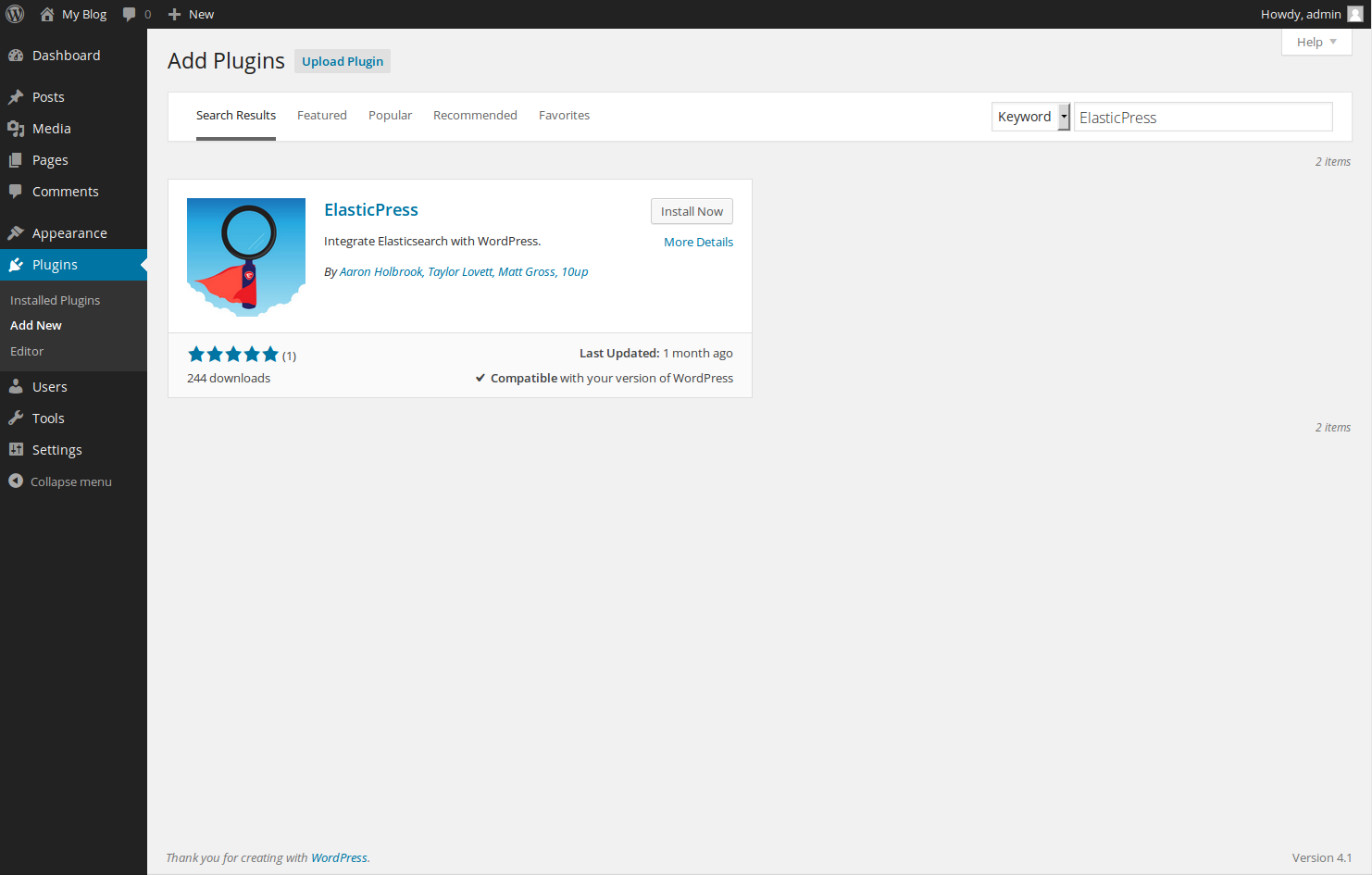
You should now see your search results, with the first result being the plugin you want. Click on Install Now.
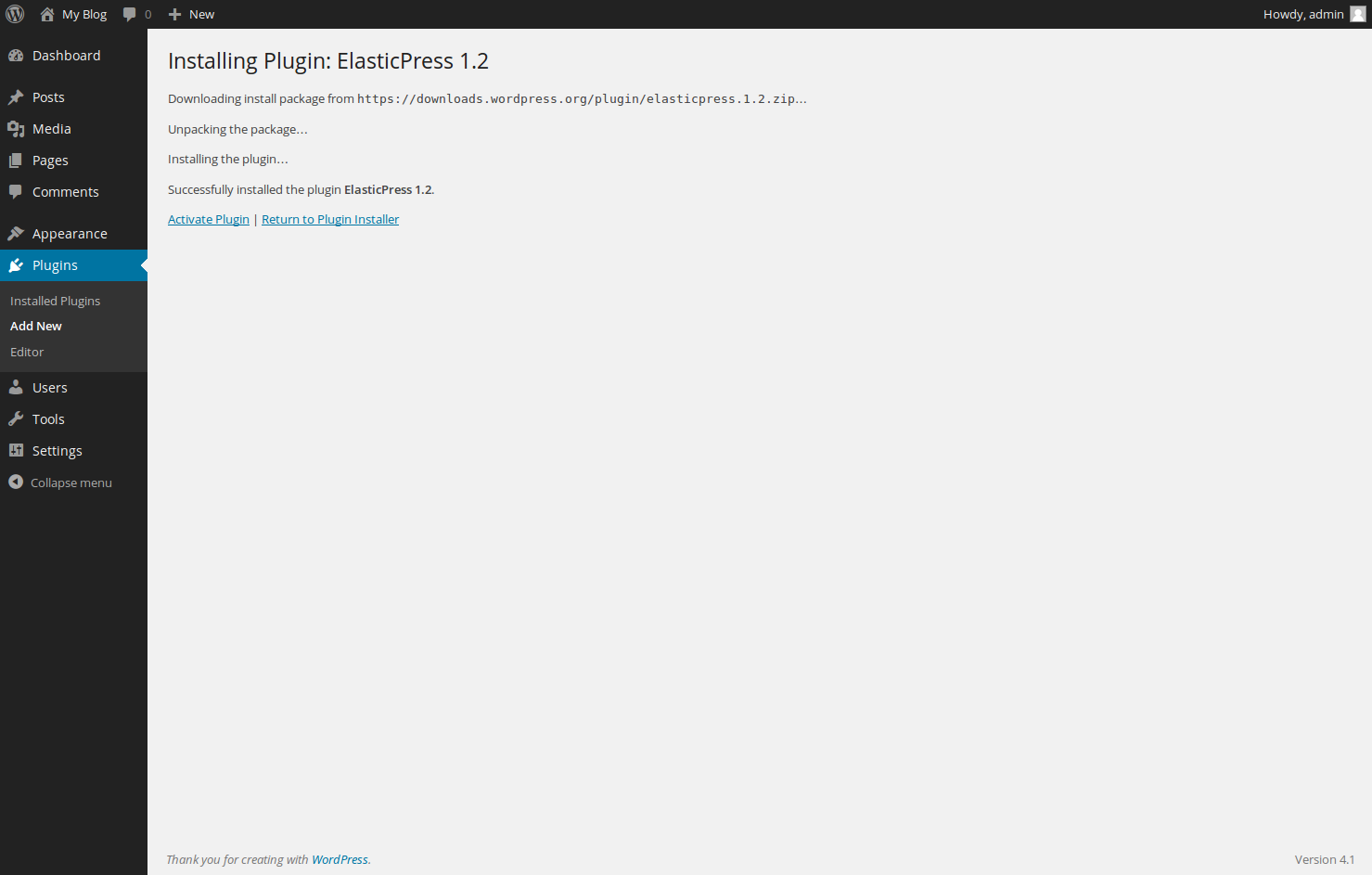
WordPress will now automatically handle the download and installation of the ElasticPress plugin. Be sure to click Activate Plugin so that it is active.
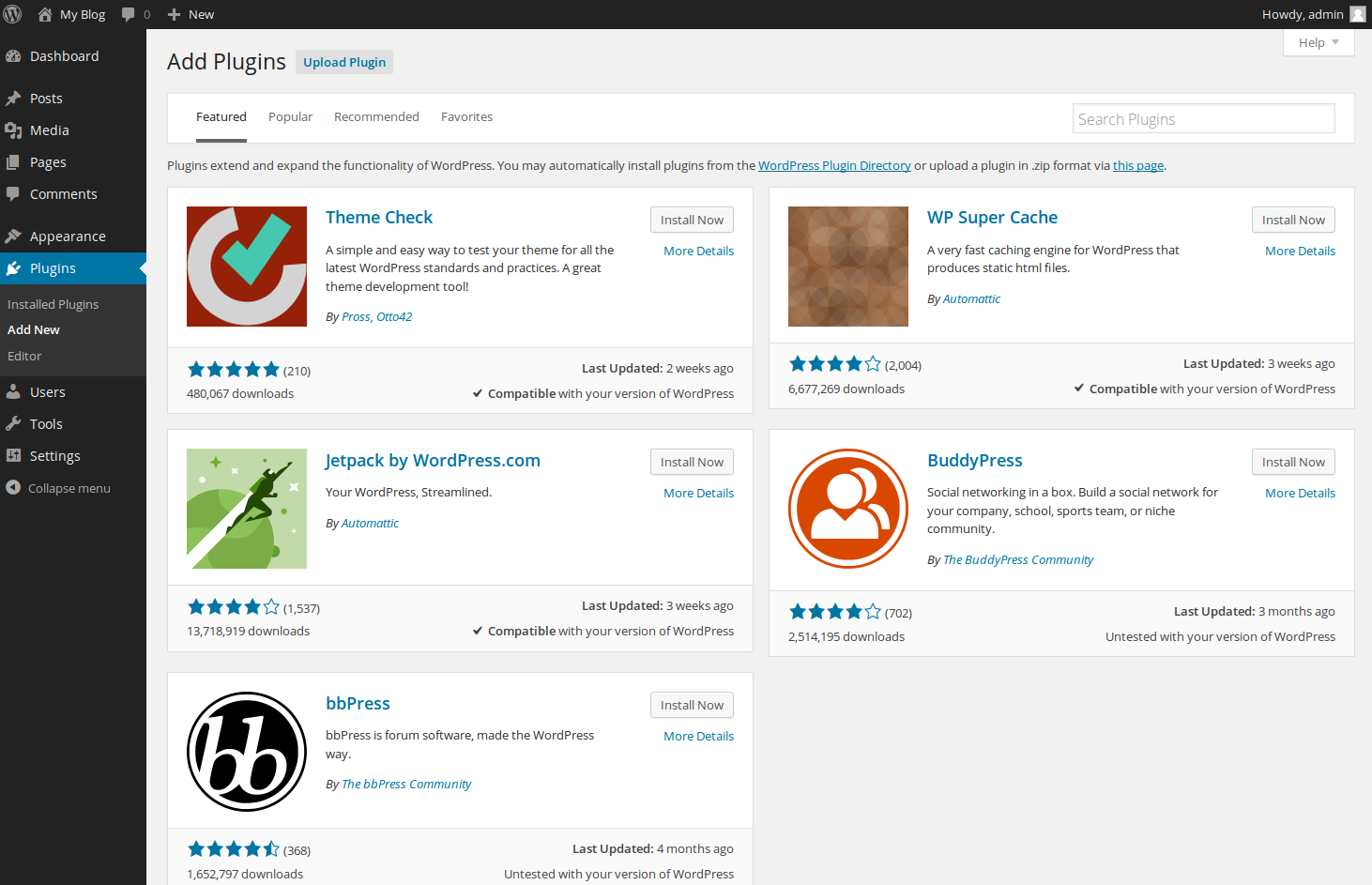



You have now successfully installed the ElasticPress plugin. Head back over to our article on integrating Elasticsearch with WordPress to continue the setup of ElasticPress.
