
In this article we’ll go over how you can copy a cPanel account from either your previous cPanel host, or another server of ours. To you InMotion VPS or dedicated server with root access set up, and just the cPanel account password of the account you’re copying over.
These steps should work for copying an account from any cPanel server version 3.0 or later.
However if you are copying the account from a cPanel server newer than 11.24.1, this method has the benefit of utilizing the cPanel XML-API to generate the backup, which is much more reliable and operates the same way as if you tried to copy an account from another server with root access.
- Log into WHM.
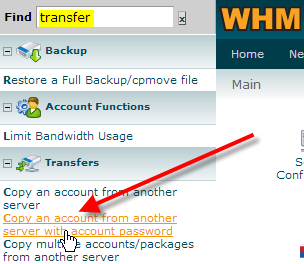
In the top-left Find box type in transfer
Click on Copy an account from another server with account password.Important! if you’re not seeing the Transfer option, be sure you logged in with your root user.
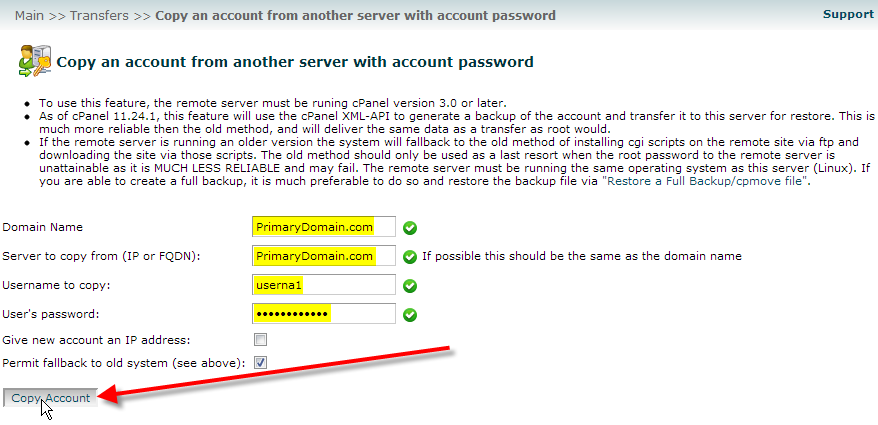
Domain Fill in the domain name of the cPanel account you’d like to copy over. Server to copy from (IP or FQDN) Enter in either your domain name, or your remote server’s IP address. Username to copy Enter the cPanel username of the account you’re copying over, followed by that account’s password. If you happen to have free additional IP addresses assigned on your server. You can select Give new account an IP address to have it automatically assigned one of those available IP addresses.
By default Permit failback to old system should be selected. Please note as mentioned in the notice at the top of the account copy page that this isn’t ideal, but if it’s the only option you have hopefully it will still work for your account.
- cPanel will now try to go out to the remote cPanel server and copy over the account you’ve specified. In this case you can see that because the old cPanel server is also a newer version it’s using the cPanel XML-API for the backup process.
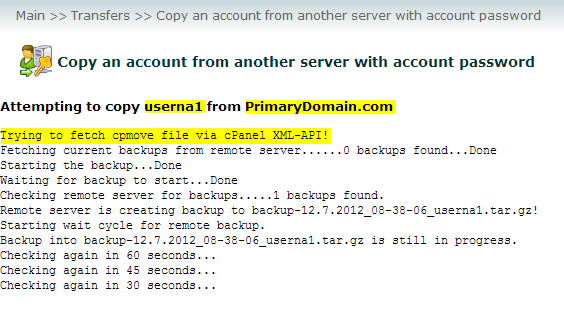



It will keep checking on the old server every minute to see if the backup has completed. While the copy process is taking place DO NOT close your web-browser.
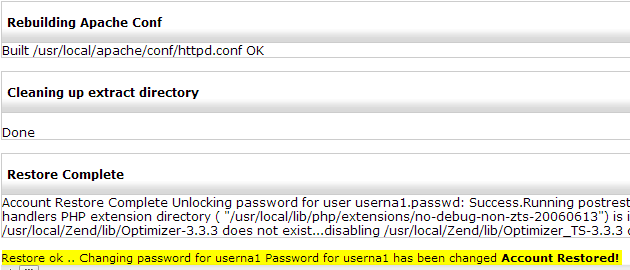
Depending on the size of your account the backup and copy process could take from a minute to much longer. Once it’s done you’ll see a Account Restored! message at the bottom of the page..
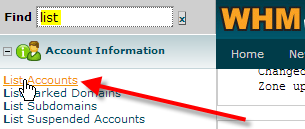
While you’re still in WHM, up in the top-left Find box
Type in list, then click on List Accounts.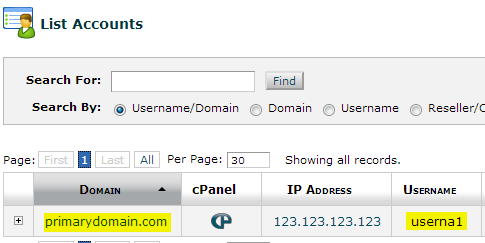
You should now see the account that we copied over userna1 on your server:


Now that you’ve successfully copied over your account from an old server to your new server, you’ll want to be sure to check it on the new server using the temporary URL, or by modifying your local hosts file.
Once you’ve verified that everything seems to be properly copied over you’ll want to update your domain’s name servers to point to us so that when people try to access your domain name the new IP address of your new server is where they’re getting directed to.