
If your domain does not have privacy protection enabled, you can update the owner contact information associated with its registration directly in the Account Management Panel (AMP). This guide walks you through editing your domain registration details and completing the required verification steps, so the change takes effect.
Important: Changing the registrant name, organization name, or email address triggers the Change of Registrant (also called a WHOIS Change of Registrant) process. Both the original and new email addresses must approve the change, or it reverts after the confirmation window closes. Leave the Billing and Technical contact fields set to InMotion Hosting’s information unless you have a specific reason to change them.
Modify Domain Registration Details in AMP
Log in to AMP at https://secure1.inmotionhosting.com/amp, then follow these steps.
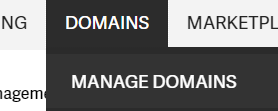
- Hover over Domains in the top navigation and select Manage Domains.
- Click the domain name you want to update.
- Select Review or change your registration details?

- Click Edit next to the contact section you want to update (Owner, Administrative, Technical, or Billing).

- Enter the updated information, then click Submit.

Complete the Change of Registrant Verification
After you submit a change to the registrant name, organization, or email address, ICANN’s Transfer Policy requires both the prior and the new registrants to confirm the update. Check both inboxes and click the verification link in each email promptly.
- Confirmation emails go to both the original address and the new address on file.
- Both recipients must follow the verification link. Under ICANN’s Transfer Policy, the request expires if it is not confirmed within the window set by the registrar, after which the registration details revert to the original information. At InMotion Hosting, that window is seven days.
- Following a Change of Registrant, ICANN’s Transfer Policy applies a 60-day lock that prevents the domain from being transferred to another registrar. If you are transferring ownership to a new party who plans to move the domain to another registrar, choose the opt-out option before you submit the change so the new owner can initiate a transfer without waiting for the lock to expire.
Troubleshooting
The Edit button is grayed out or missing
Domain privacy protection masks your WHOIS contact data and disables direct edits through AMP. Disable domain privacy first, then return to the registration details screen to make your changes.
The verification email never arrived
Check the spam or junk folder for the address associated with the domain. If the email is not there after 15 minutes, confirm the address on file is correct in AMP and contact InMotion Hosting support to have the verification email resent.
The changes reverted before they took effect
This means one or both verification emails were not approved before the confirmation window closed. Return to AMP, re-enter your updated domain registration details, and submit again. Both recipients will receive new confirmation emails.
Conclusion
You have submitted your updated domain registration details. If you changed the registrant name, organization, or email, watch both inboxes and approve the verification links before the confirmation window closes. Consider enabling domain privacy to protect your contact information from public WHOIS lookups.