
The Mastodon social media platform is steadily gaining more popularity as Twitter and Facebook users tire of timelines manipulated for political purposes. For those who are part of the federating social network, there are plugins that allow you to automatically share new WordPress posts as toots (same as Twitter’s tweets).
The Share on Mastodon WordPress plugin works without issue and is covered below.
While the Mastodon Autopost plugin seems to be one of the most popular Mastodon server WordPress integrations, we couldn’t get it working with WordPress 5.8.2.
Automatically Post to Mastodon Social Media Account
- Install and enable the “Share on Mastodon” WordPress plugin.
- In the WordPress dashboard under “Settings,” select “Share on Mastodon.”
- Type in your Mastodon instance URL.
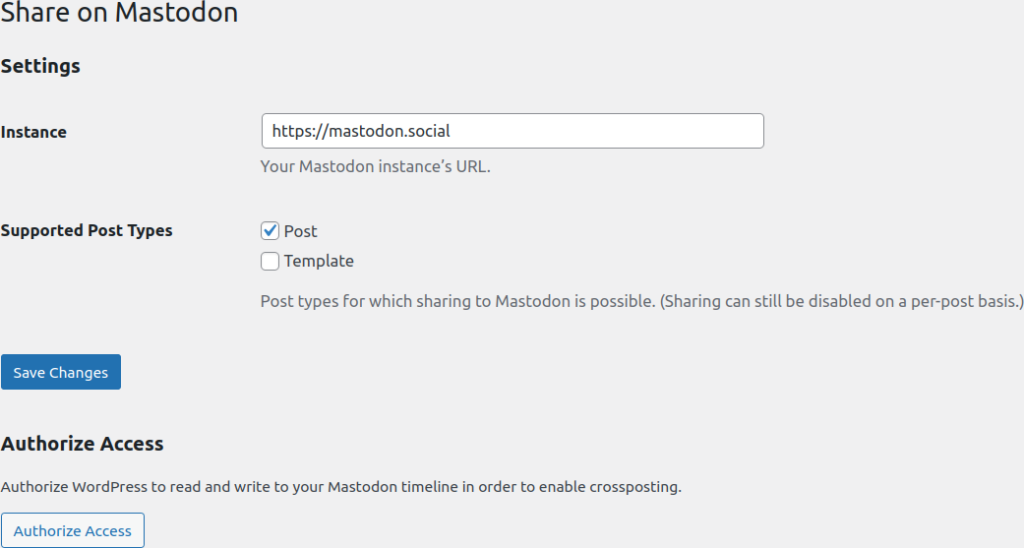
- Check the “Post” checkbox.
- Save changes.
- Near the bottom select “Authorize Access.”
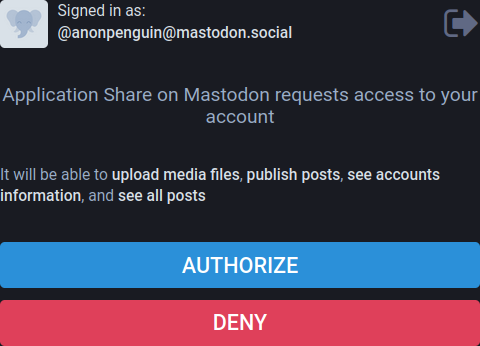
- Log into Mastodon, then select “Authorize” to allow WordPress to upload media files and posts as Mastodon toots.
- Create or edit a WordPress post.
- On the bottom of the post sidebar, you’ll see a “Share on Mastodon” section, with the feature enabled (checked) by default.

Publish or update the post. - The Mastodon section will now display a direct link to the toot.
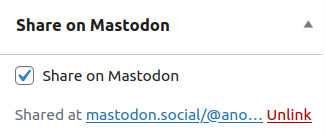
If you delete the linked toot at any point, you’ll need to unlink the old URL in WordPress to retoot the post.
Though there aren’t additional features in the dashboard for the Mastodon integration (as of version 0.6.4), the plugin developer offers code snippets to further customize automated toots. To make adjustments, log into SSH (or cPanel Terminal) and navigate to your WordPress root directory. Now edit the plugin PHP file.
nano wp-content/plugins/share-on-mastodon/share-on-mastodon.php
To include WordPress post tags as hashtags in Mastodon toots for social media search engine optimization (SEO), add the following to the bottom of the PHP file:
add_filter( 'share_on_mastodon_status', function( $status, $post ) {
  $tags = get_the_tags( $post->ID );
  if ( $tags ) {
    $status .= "\n\n";
    foreach ( $tags as $tag ) {
      $status .= '#' . preg_replace( '/\s/', '', $tag->name ) . ' ';
    }
    $status = trim( $status );
  }
  return $status;
}, 11, 2 );
To change a toot’s visibility from public to private, add the following:
add_filter( 'share_on_mastodon_toot_args', function( $args ) {
  $args['visibility'] = 'private'; // Only followers will get to see this message.
  return $args;
} );
Learn more about the auto-posting to the Mastodon social media network at https://github.com/janboddez/share-on-mastodon.
For the most secure WordPress site, you need secure hosting. That’s why InMotion Hosting crafted WordPress Hosting with rigorous server-side security - so you can spend less time hardening your hosting and more time creating your website.
