
In this article, we cover how to manage BlaB! AX chat rooms.
Do more with InMotion Hosting Shared Hosting.
Room Settings
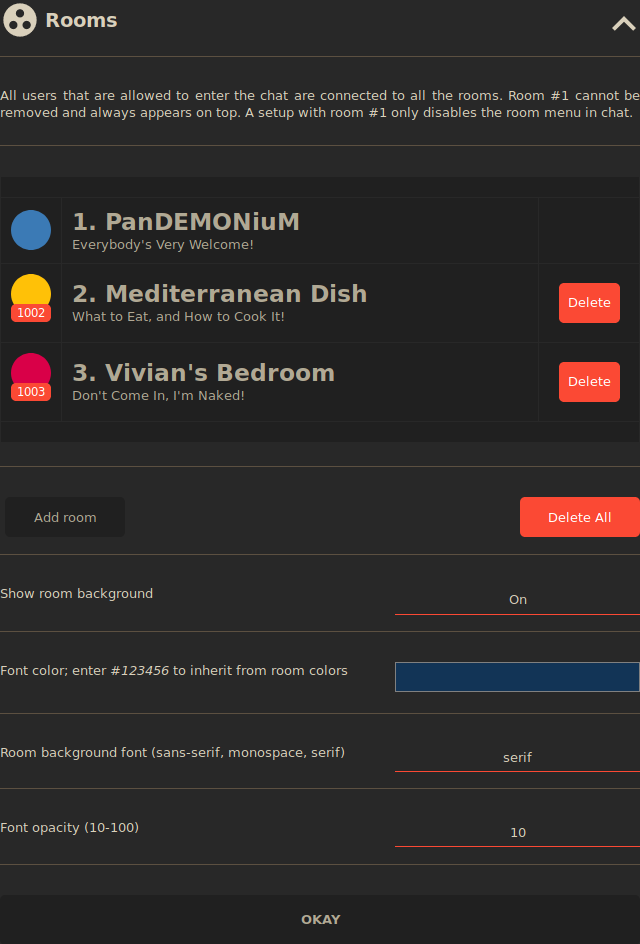
- Log in to BlaB! AX as an administrator.
- Click the triple-dot icon in the upper-left corner to view user options.
- Click the “A” admin button.
- On the left, click Rooms.
Add Rooms
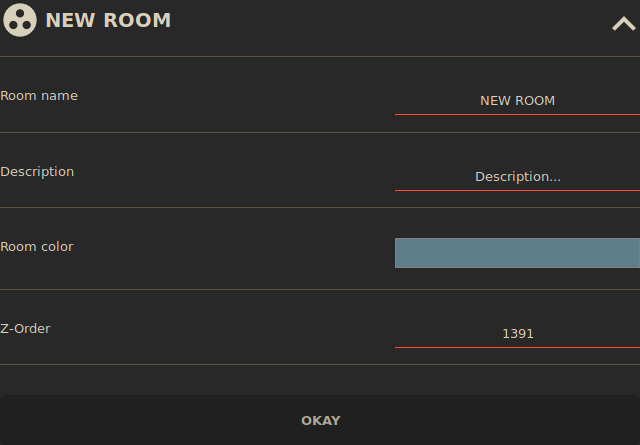
- Click Add room.
- Click NEW ROOM in the rooms list.
- Edit the Room name, Description, Room color, and Z-Order (order from the top of the list).
- Click OKAY.
Delete Rooms
- To delete a room, click Delete on the right of the room. Click OK to confirm.
- To delete all rooms, click Delete All under the list of created rooms. Click OK to confirm.
Global Room Options
These settings apply to all rooms.
- Show room background – Toggle Off to remove room name text from background
- Font color – Change background room name text color
- Room background font – Change background room name text font
- Font opacity – Change transparency
Click OKAY once done.
For better security you should consider disabling guest users.