
phpMyAdmin is where you work with the data inside your MySQL databases, whichever PHP application sits on top of them. This guide covers the interface, what each tab does, and how to handle the tasks that bring most people here: backups before an update, imports after a migration, oversized tables, and corrupted records.
Before You Start
Database changes are permanent. There’s no undo button, no revision history, and no confirmation prompt for most destructive actions.
Before making any changes in phpMyAdmin:
- Export a copy of the database using the Export tab.
- Create a full account backup through cPanel’s Backup Wizard if the application stores files that reference database records, such as media libraries or product images.
- Test the change on a staging copy when one is available.
A single mistyped SQL query can delete months of content or break every page on your site. Five minutes on a backup saves hours of recovery work, and that pattern holds regardless of platform.
How To Confirm Which Database Your Site Uses
Accounts with several installs often show a dozen similarly named databases, and the naming convention on cPanel servers (cpuser_something) does not tell you which site owns which. Open the application’s configuration file over FTP or File Manager and read the value directly.
| Application | Configuration file | Where the database name appears |
|---|---|---|
| WordPress | wp-config.php | DB_NAME |
| Drupal 9, 10, and 11 | sites/default/settings.php | $databases['default']['default']['database'] |
| Joomla 4 and 5 | configuration.php | public $db |
| Magento 2 and Adobe Commerce | app/etc/env.php | db > connection > default > dbname |
| Laravel | .env | DB_DATABASE |
| PrestaShop 8 | app/config/parameters.php | database_name |
| OpenCart 4 | config.php | DB_DATABASE |
The same files list the table prefix. Magento defaults to no prefix, Drupal usually has none, and WordPress ships with wp_ but installers frequently randomize it. Check before you write a query against a table name you assumed.
What Does phpMyAdmin Do That cPanel’s Database Tools Do Not?
cPanel’s MySQL Databases tool handles the container and the keys. It creates databases, creates users, assigns privileges, and repairs tables. It never shows you a single row of data.
phpMyAdmin handles the contents. Browsing tables, running queries, exporting backups, importing dumps, and editing individual records all happen there. Both tools are available on Shared, VPS, and Dedicated accounts running cPanel, and phpMyAdmin ships with Control Web Panel as well.
The practical split looks like this:
- Creating a database and user for a new install: cPanel’s MySQL Databases.
- Backing up before you update a plugin, module, or extension: phpMyAdmin’s Export tab.
- Restoring a site on a new server: phpMyAdmin’s Import tab.
- Tracking down which table is consuming 4GB of disk: phpMyAdmin’s Structure tab.
How to Access phpMyAdmin in cPanel
- Log into your cPanel account.
- Scroll to the Databases section.
- Click the phpMyAdmin icon.
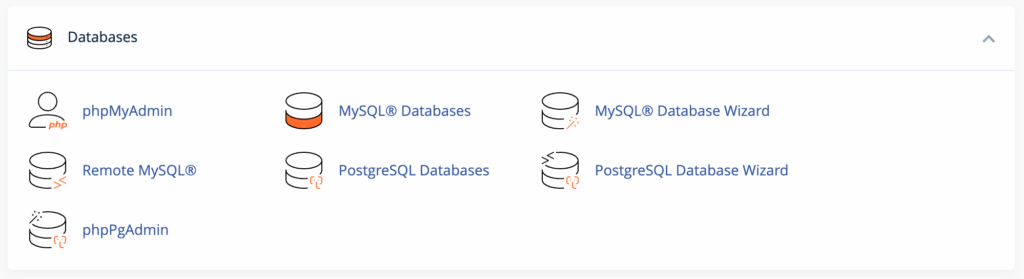
- phpMyAdmin opens in a new browser tab. You’re automatically logged in with your cPanel credentials, so you’ll only see databases that belong to your account.

Understanding the phpMyAdmin Interface
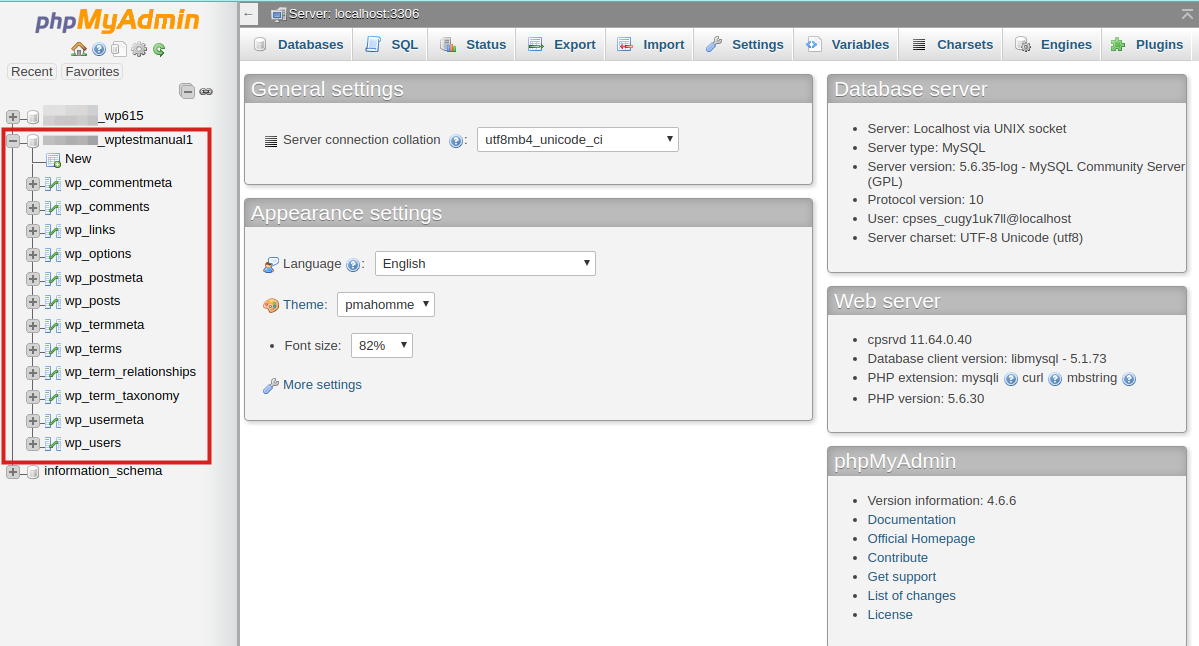
The navigation panel on the left lists every database your account can reach. Click a database to expand its tables, then click a table to view its rows.
The main panel on the right shows details for whatever you selected, with action tabs across the top. Before you select anything, it displays server information: MySQL or MariaDB version, default character set, and the phpMyAdmin version you are running. Support teams ask for those values often, so it is worth knowing where they live.
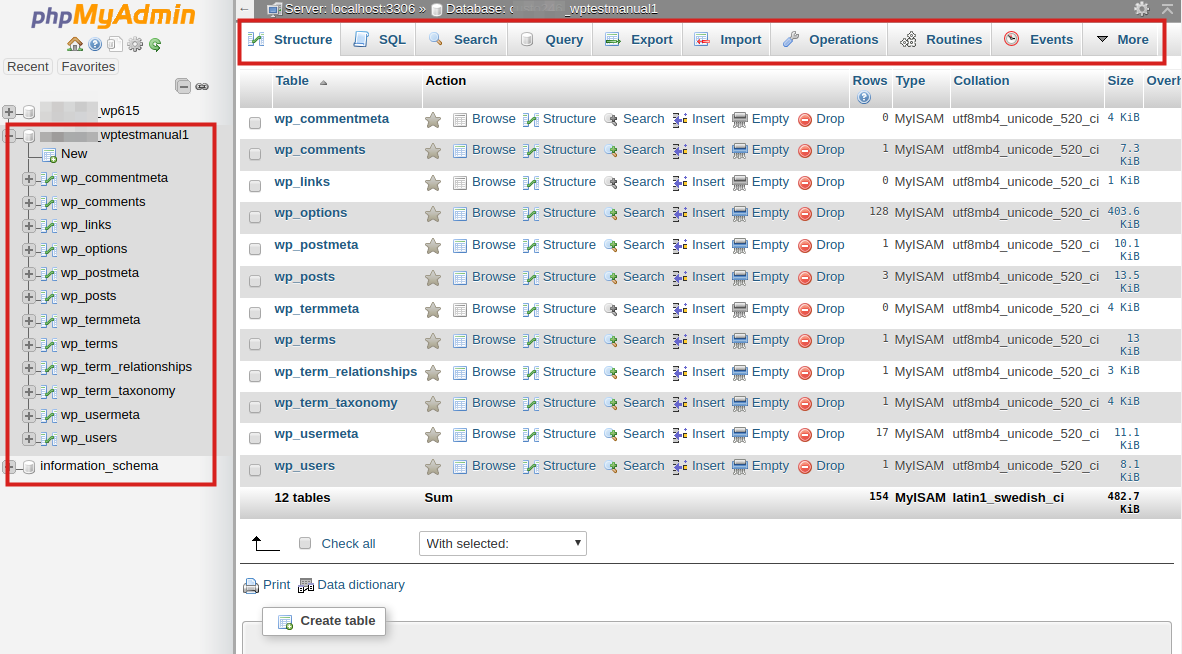
Selecting a database loads a table list with row counts, on-disk size, and storage engine for each table. Nearly everything you see will use InnoDB, which has been the MySQL default since version 5.5. Tables still running MyISAM are usually leftovers from an old migration and behave differently during repairs.
Click a table name to view its contents. phpMyAdmin shows the first 25 rows and pages through the rest with the controls at the bottom.
The Database Menu Tabs
When you select a database, a row of tabs appears across the top of the main panel. Each tab serves a specific purpose.
Structure
Shows all tables in your database along with their row counts, sizes, and storage engines. You can:
- Create new tables
- View or modify individual table structures
- Drop (delete) tables
- Check, analyze, or repair tables in bulk
Select multiple tables using the checkboxes, then use the “With selected” dropdown to perform batch operations.
SQL
Opens a text area where you can type and execute raw SQL queries. The syntax highlighting helps catch errors before you run them.
Common uses:
- Search-and-replace operations across multiple tables
- Bulk updates that would take too long through the interface
- Running queries provided by plugin support teams
- Deleting spam comments or revisions in bulk
phpMyAdmin displays the results below the query box. For SELECT queries, you’ll see a table of matching rows. For UPDATE or DELETE queries, you’ll see how many rows were affected.
Search
Finds values across one or several tables without writing SQL. Enter a term, choose the tables and columns to check, and phpMyAdmin returns every match. Useful when you need to find where a stray configuration value or a hardcoded URL is stored.
Query
A visual query builder. Pick tables, choose columns, set conditions from dropdowns, and phpMyAdmin writes the SQL. Building a query here and then reading the generated code is a reasonable way to learn JOIN syntax.
Export
Creates a downloadable backup file of your database. You’ll use this before making major changes, when migrating to a new host, or as part of a regular backup routine.
Quick export downloads the entire database in SQL format with default settings. This works for most backup and migration scenarios.
Custom export lets you choose specific tables, change the output format (SQL, CSV, JSON, XML), and adjust options like adding DROP TABLE statements or compressing the output.
Import
Uploads a database file to restore from a backup or complete a migration. Supported formats include SQL, CSV, and compressed archives (.gz, .zip).
The Import tab shows your server’s maximum upload size. If your database file exceeds this limit, you’ll need to use an alternative method. More on this in the Import File Size Limits section.
Operations
Contains maintenance and administrative tasks:
- Rename database: Change the database name (creates a copy with the new name, then drops the original)
- Copy database: Duplicate the entire database
- Collation: Change the character encoding
- Table maintenance: Optimize, repair, check, or analyze tables
The Operations tab is also where you’ll find options to truncate (empty) the database or drop (delete) it entirely.
Common phpMyAdmin Tasks
Exporting Before an Update
Core updates, extension updates, and theme changes all write to the database, and a failed migration script is the most common way a working site breaks during routine maintenance.
- Select the database in the left panel.
- Click the Export tab.
- Leave the format as SQL and click Export.
- Save the
.sqlfile somewhere outside the account, not inpublic_html.
That last point matters. A backup sitting in a web-accessible directory is a backup anyone can download.
Importing After a Migration
- Create an empty database and a database user in cPanel’s MySQL Databases tool, then grant that user All Privileges.
- Open phpMyAdmin and select the new, empty database.
- Click the Import tab.
- Choose your
.sqlfile and click Import. - Update the application’s configuration file with the new database name, username, and password.
Large imports run for several minutes. Leaving the browser tab open until it finishes avoids a half-loaded database.
Finding Large Tables
Rather than guessing, ask the server. Run this on the SQL tab and substitute your own database name:
SELECT table_name AS "Table",
       ROUND((data_length + index_length) / 1024 / 1024, 2) AS "Size (MB)"
FROM information_schema.TABLES
WHERE table_schema = 'your_database_name'
ORDER BY (data_length + index_length) DESC;
The usual offenders vary by platform, though the underlying cause is nearly always logging, caching, or queued jobs that nobody prunes.
| Application | Tables that grow fastest | What fills them |
|---|---|---|
| WordPress and WooCommerce | wp_posts, wp_postmeta, wp_options, wp_actionscheduler_actions | Post revisions, plugin metadata, autoloaded transients, scheduled jobs |
| Magento 2 | report_event, quote, sales_order_grid, index tables | Visitor tracking, abandoned carts, reindexing |
| Drupal | watchdog, sessions, cache_* | Log entries, session records, cached render output |
| Joomla | #__session, #__action_logs | Session rows, administrator activity logs |
| Laravel | sessions, jobs, failed_jobs, cache | Database session and queue drivers |
| PrestaShop | ps_connections, ps_guest, ps_connections_source | Built-in visitor statistics |
A database that has doubled in size without a matching increase in content is almost always one of these tables, not your actual data.
Optimizing Tables
OPTIMIZE TABLE reclaims space and rebuilds indexes after heavy delete activity. It genuinely helps after you purge a few hundred thousand log rows. It does very little on a database that has only ever grown.
- Select your database.
- Click the Structure tab.
- Check the boxes next to the tables you want to optimize (or click “Check all”).
- From the “With selected” dropdown, choose Optimize table.
- Click Go.
InnoDB tables report that they do not support optimize, then get rebuilt anyway. That message is expected behavior, not an error.
Repairing Tables
If you’re seeing errors about corrupted tables, try the repair function.
- Select your database.
- Click the Structure tab.
- Check the boxes next to the affected tables.
- From the “With selected” dropdown, choose Repair table.
- Click Go.
phpMyAdmin attempts to fix any corruption. This works well for minor issues, particularly with MyISAM tables. Severe corruption may require restoring from a backup.
You can also use cPanel’s built-in repair function: go to MySQL Databases, scroll to Modify Databases, select your database from the Repair dropdown, and click Repair Database.
Running SQL Queries
The SQL tab accepts any valid MySQL query. That being said, cleanup queries against log and revision tables are low risk once you have a backup. Anything touching orders, customers, or payments is not.
Remove WordPress post revisions:
DELETE FROM wp_posts WHERE post_type = 'revision';Clear Drupal’s log table:
TRUNCATE TABLE watchdog;Delete Laravel failed jobs older than 30 days:
DELETE FROM failed_jobs WHERE failed_at < DATE_SUB(NOW(), INTERVAL 30 DAY);Two cautions. TRUNCATE fails on any table referenced by a foreign key constraint, which rules it out for most Magento and PrestaShop tables. And truncating a session table logs out every active user, including customers with items in a cart.
Resetting an Admin Password Directly in the Database
Only on WordPress, and only because it accepts an MD5 fallback. Edit the row in wp_users, select MD5 from the function dropdown on the user_pass field, enter the plaintext password, and save. WordPress rehashes it on the next successful login. Full steps are here.
Every other major PHP application rejects this approach:
- Drupal 8 and newer stores a salted hash in
users_field_data. Use Drush:drush user:password admin 'NewPassword'. - Magento 2 stores
hash:salt:versioninadmin_userusing the encryption key fromapp/etc/env.php. Adobe’s guidance is to create a new admin account from the CLI withbin/magento admin:user:create. - Laravel applications hash with bcrypt or Argon2. Generate a hash through
php artisan tinkerbefore writing anything.
Pasting a plaintext password into these tables locks the account rather than opening it.
Why Do Find and Replace Queries Break Serialized Data?
A common migration query looks harmless:
UPDATE wp_posts SET post_content = REPLACE(post_content, 'http://oldsite.com', 'https://newsite.com');On plain text columns it works. On columns holding PHP serialized arrays it corrupts them, because serialized strings carry a byte-length prefix. Change oldsite.com to mynewlongerdomain.com and the stored length no longer matches, so the application silently discards the value. Widget settings vanish, theme options reset, and shipping configurations empty out.
Serialized data appears in wp_options and wp_postmeta, in Drupal configuration blobs, and in Magento and PrestaShop configuration tables.
Use a tool that unserializes, replaces, and reserializes:
- WP-CLI
search-replaceor the Better Search Replace plugin for WordPress. bin/magento setup:store-config:set --base-urlplus acore_config_dataupdate for Magento.- Drush
config:setfor Drupal configuration values.
How To Handle Size Limits on Import File
phpMyAdmin uploads are capped by PHP’s upload_max_filesize and post_max_size directives. Shared accounts typically land between 50MB and 256MB. The Import tab prints your actual limit under the file selector.
Options when the dump exceeds it:
- Compress it. phpMyAdmin accepts
.sql.gzand.sql.zip, and SQL dumps compress by roughly 80 to 90%. - Use cPanel’s Backup Restore. It handles files phpMyAdmin’s uploader cannot.
- Import over SSH. Faster and immune to browser timeouts:
mysql -u username -p database_name < backup.sql. See Importing a Database via SSH.
Databases above 1GB belong on the command line. If you are hitting that ceiling regularly, the workload has usually outgrown Shared hosting, and VPS Hosting with root access and higher PHP limits removes the constraint entirely.
How To Give a Developer Access Without Sharing cPanel
Handing over cPanel credentials gives a contractor your email, DNS, files, and billing-adjacent settings. Scope the access to the database instead.
- Create a dedicated database user in cPanel’s MySQL Databases tool.
- Grant only the privileges the work requires. Reporting and analysis often need
SELECTalone. - Install a separate phpMyAdmin instance in a subdirectory and configure it with those credentials. Instructions are here.
- Alternatively, enable Remote MySQL for their IP address so they can connect with a desktop client.
Revoke the user when the engagement ends. Database users are easy to create and easier to forget.
Troubleshooting Common phpMyAdmin Errors
#1044 or #1045 Access denied. The database user lacks privileges on that database, or you are importing into a database the user was never assigned to. Re-check the assignment in cPanel’s MySQL Databases.
Table doesn’t exist. Nearly always a prefix mismatch. Confirm the prefix in the application’s configuration file before assuming the table is gone.
Script timeout or maximum execution time exceeded. The query or import outran PHP’s limit. Split the file, compress it, or move to SSH.
MySQL server has gone away. Usually a single row larger than max_allowed_packet, which happens with tables storing base64 images or large cached blobs. Importing over SSH avoids it.
Garbled accented characters after import. A collation mismatch, typically a utf8mb4 dump landing in a latin1 database. Set the target database collation to match the dump before importing, not after.
Changes do not appear on the site. Application caching is holding the old values. Clear the platform cache first (wp cache flush, bin/magento cache:flush, drush cr, php artisan cache:clear), then object caching such as Redis or Memcached, then any CDN.
Next Steps
Database work rewards routine over heroics. Export before every update, check table sizes quarterly, prune log and session tables before they reach a few million rows, and act on corruption warnings the day they appear.
Related guides:
- Export a database backup
- Import a database from another server
- Create databases and users in cPanel
- Set up remote database access
If a database problem is affecting a live site, contact our 24/7 support team. A real person answers, and database recovery is not something worth attempting twice.