
In this guide, we’ll show you how to install Node.js on your VPS or dedicated server. Node.js is a server-side JavaScript framework built off the V8 JavaScript engine from Google Chrome that allows for event-driven, asynchronous I/O requests to help handle many concurrent requests efficiently. The best method to install Node.js depends on whether you use a cPanel server or an unmanaged cloud server.
You’ll need root access to follow the steps below.
Install Node.js on cPanel Hosting
- Log into WebHost Manager (WHM).
- Open EasyApache 4 (EA4).
- Under “Software,” select “Customize.”
- Select “Additional Packages.”
- Select the “nodejs10” toggle switch so it turns blue and displays “Install” to the right.
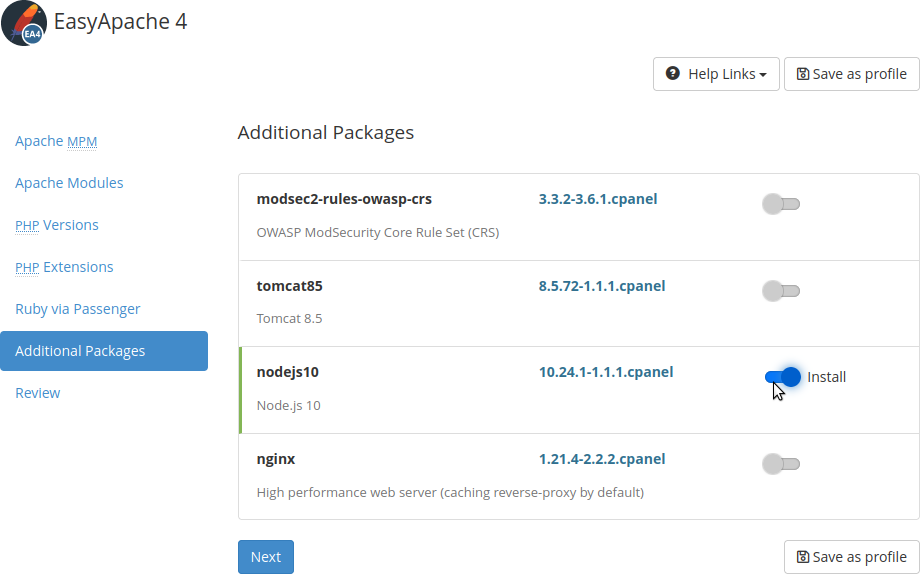
- On the left select “Review.”
- At the bottom select “Provision.”
Install Node.js using NVM
For Cloud Server Hosting and Bare Metal Dedicated Server Hosting, Node.js developers recommend using Node Version Manager (nvm) to install Node.js.
- Log into SSH
- Install nvm, you can use the install script using cURL or Wget:
curl -o- https://raw.githubusercontent.com/nvm-sh/nvm/v0.38.0/install.sh | bash
wget -qO- https://raw.githubusercontent.com/nvm-sh/nvm/v0.38.0/install.sh | bash
- Verify the installation succeeded:
command -v nvm
If you don’t receive output stating “nvm,” restart your server (shutdown -r) and try again.
- Type
nvm install [preferred version number]or install the latest version:nvm install node #
- List installed Node.js versions:
nvm ls-remote
- Open the console:
nvm use noyour hosting plande
- To open the Node.js console and verify Node is running, run
node
- Run this test command:
console.log("Hello, World!");Which should return:
Hello, World!

undefined - Type Ctrl + D to exit Node
Install Node.js using RPM
Those who prefer official Red Hat package manager (RPM) repositories can use the steps below.
- Log into SSH
- Download Node.js version 10 Long-Term Support (LTS) by running:
curl -sL https://rpm.nodesource.com/setup_10.x | bash -
For Node.js v11, run:
curl -sL https://rpm.nodesource.com/setup_11.x | bash -
- To install Node.js, run:
yum -y install nodejs
- To ensure the developer tools needed for npm development are installed, run:
yum install gcc-c++ make
- To open the Node.js console and verify Node is running, run:
node
- Run this test command:
console.log("Hello, World!");Which should return:
Hello, World!

undefined - Type Ctrl + D to exit Node
You should now have a successful installation of Node.js running, and in further guides we’ll go more in-depth with some of the amazing things you can do with Node.js!
 Enjoy high-performance, lightning-fast servers with increased security and maximum up-time with our Secure VPS Hosting!
 Linux VPS cPanel or Control Web Panel Scalable Website Migration Assistance