This article pertains to WHM, a feature only available to VPS Hosting, Dedicated Hosting, and Reseller Hosting users. Shared Hosting users do not have WHM access. See our page for more information on Shared cPanel Hosting.
One of the more important features within WHM is the ability to create individual cPanel accounts. Learn how to resell your own hosting accounts in WHM with the tutorial below.
How to Resell Hosting Accounts in WHM
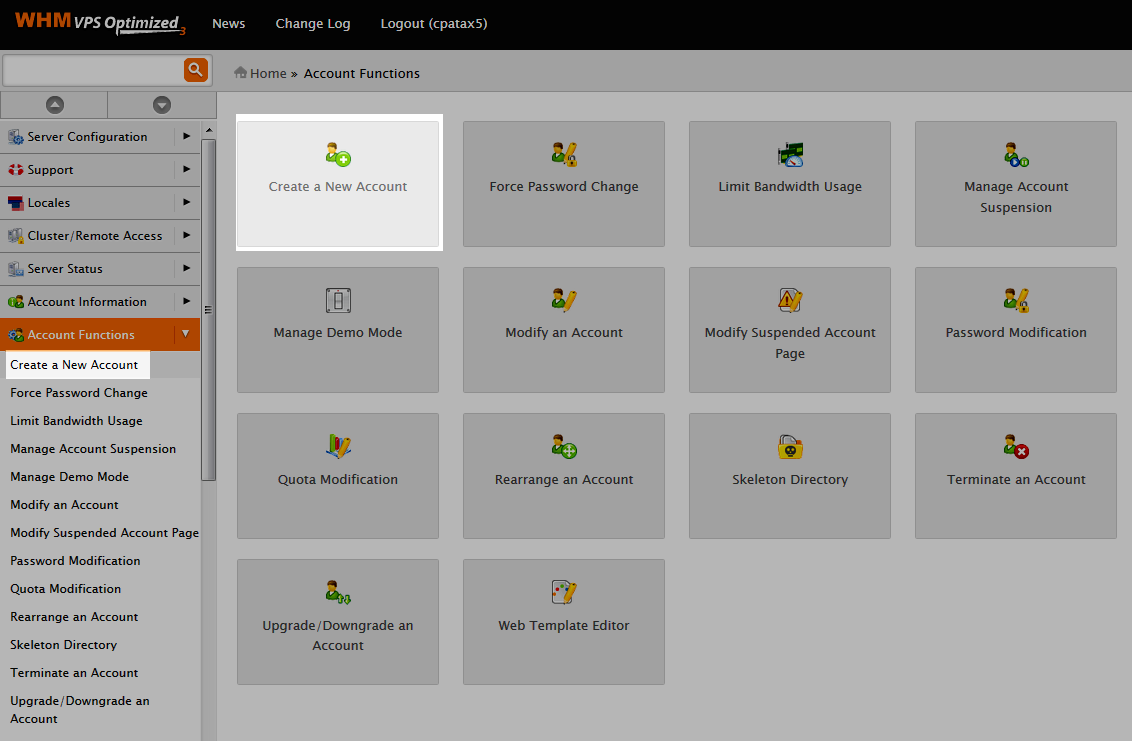
- Log into your WHM: In the left menu under “Account Functions“, click “Create a New Account”

- Fill in the details for the new account. Here’s a brief outline of the settings you’ll be putting in:
- Domain Information: Enter the main domain name on the account, set a cPanel username and password for it, and then enter the email address to be associated with the account.
- Package: WHM allows you to create packages, which make it easier to manage cPanel accounts. For Example, you may have a “Power Plan” package like InMotion Hosting offers. Within that package you could set limits such as the number of addon domains to associate to the account. If you don’t have any packages set, select the “Select Options Manually” option and set those limitations now.
- Settings: Choose the cPanel theme to assign the user (InMotion Hosting currently uses x3) and select the appropriate language for the user.
- Reseller Settings: If you have the access to create a cPanel account, it means that you have reseller permissions. Decide here if this new account you’re creating should have WHM access and be able to create accounts themselves.
- DNS Settings: Decide how the domain’s nameservers should be configured on the server. If the nameservers specified for this domain name are going to be on another server, choose the option “Use the nameservers specified at the Domain’s Regsitrar”
- Mail Routing Settings: Decide how the server handles email for this specific domain. For example, should it attempt to deliver the email locally or should it look at the external MX records and decide? It’s recommended to use “Automatically Detect Configuration” if you’re not sure about this setting.
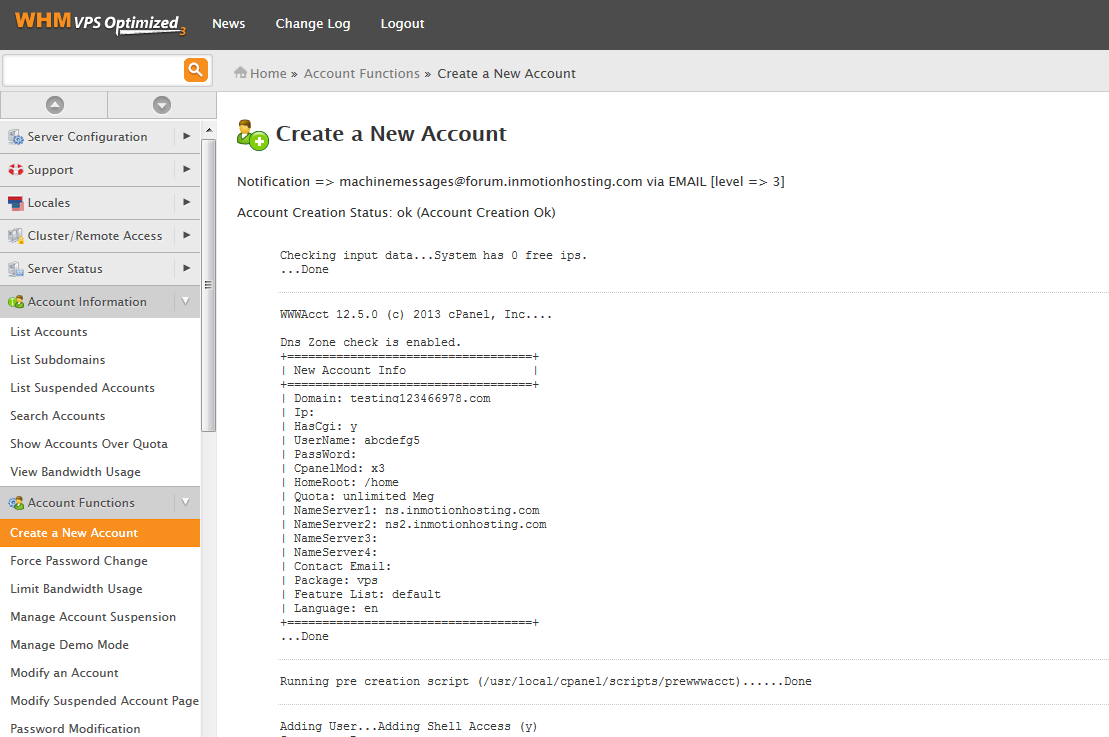
- After you have filled in all of the details above, click the “Create” button at the bottom of the page.
Congratulations, you have just created a new cPanel account!