When you think about embedding video on the pages of your website, you might see yourself copying and pasting long strings of spaghetti code from one page to another. And, once you’ve posted the code, you’re seeing strange errors going off. Don’t worry, embedding video on your webpage is not like this at all. It’s actually quite simple.
With today’s broadband Internet speeds on both desktop and mobile devices, video streaming is more popular and faster than ever. For this reason, and many more, it makes sense to embed video on your webpage. Put it this way, if you’re not using video then your website may get left behind.
Hosting Options for Video Embedding
When it comes to embedding videos on your website, the way you choose to host them has a significant impact on control, customization, and performance. Let’s explore some important considerations:
Self-Hosted Videos
Putting your videos on your own server gives you complete control over the video player’s look and the user experience. This is especially beneficial for businesses looking to maintain a consistent brand identity on their websites.
Hosting videos on dedicated servers or bare metal servers is preferable to shared hosting for several reasons. Firstly, dedicated servers ensure better performance as they provide exclusive resources for your website or application. This exclusivity means that the server’s resources are not shared among multiple users, resulting in smoother video playback and improved overall performance. Additionally, dedicated and bare metal servers offer greater customization options, allowing you to tailor the server environment to meet specific video hosting requirements, implement streaming protocols, and enhance the viewer experience.
Third-Party Services
Opting to host videos on a third-party service rather than self-hosting provides several benefits. Third-party platforms like YouTube, Vimeo, or AWS offer specialized infrastructure designed for efficient video storage, delivery, and playback. One of the primary advantages is the broader reach and visibility that these platforms provide. YouTube, for instance, has a vast user base, potentially increasing the discoverability of your videos. Additionally, third-party services handle the complexities of video encoding, transcoding, and delivery, saving you the effort of managing these technical aspects.
In this tutorial, we’ll show you how to embed video from the following services:
- YouTube (free)
- The Internet archive (free)
- Amazon Web Services (AWS) (paid)
Also, if you’re embedding video into WordPress, it’s even easier to embed videos from third-party service. All you’ll need is the URL of the video.
How to Embed Video from YouTube
YouTube makes it very simple to embed videos. All you need to do is find your video and click the “Share” button to get to the embed code.
- Go to YouTube to get your video
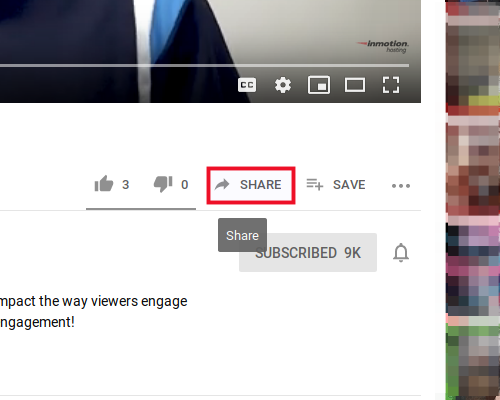 Click the Share button
-
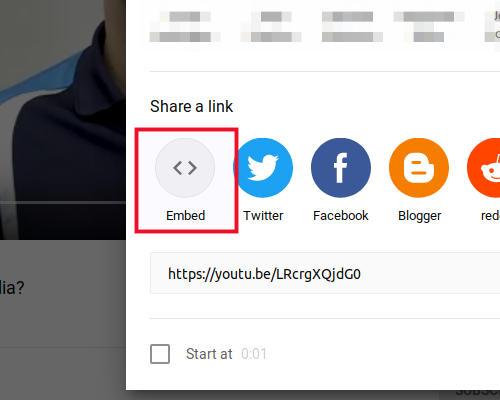 Click embed
 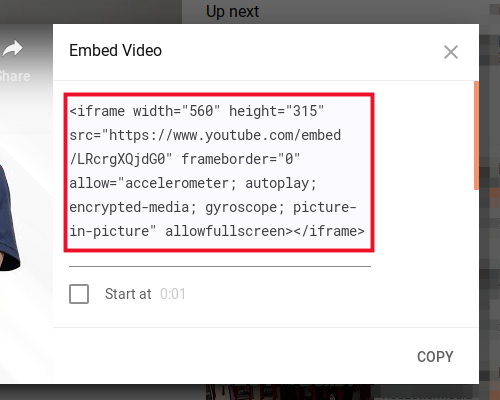 Copy the embed code into the code of your site
Well done! You now have the raw embed code on your website, and the video will render just as it did in the YouTube preview window.
Embed Video From YouTube to WordPress (Easiest Way)
Before we move on to the other video hosting services, we’ll stop and take a look at how the above process works much faster and easier if you’re using WordPress. With WordPress, you don’t need to get your embed code from YouTube. You can actually just copy and paste the video URL itself.
A YouTube video URL may look something like thishttps://www.youtube.com/watch?v=LRcrgXQjdG0
or this: https://youtu.be/LRcrgXQjdG0
Both of the above URLs will work the same.
- Log into your WordPress dashboard
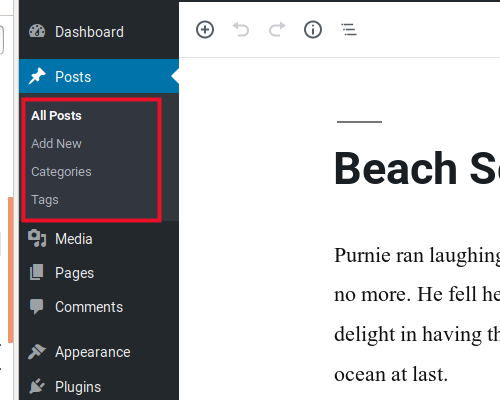 Create a new post or edit an existing one
-
 Paste the URL into the post body (main content area)
You’ll notice the URL is instantly replaced by the video. Easy.
How to Embed Video from the Internet Archive
The Internet archive is a hybrid media and preservation repository, where users may submit as much content as they want. Here, you can upload your own videos and embed them on your website. Or, you can embed content uploaded by others.
- Go to the Internet archive home page
- Search for or select a video
-
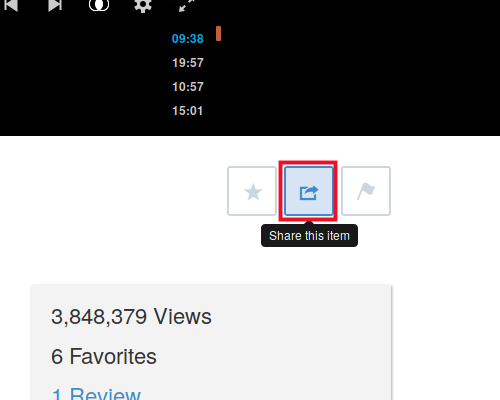 Click the share button
 - Paste the embed into your site
Now, the video will render on your page with the all the video controls necessary to play properly.
How to Embed Video from Amazon Web Services (AWS)
As mentioned above, hosting your own video on a dedicated server is best. But if a dedicated server is out of your budget, you can make use of Amazon’s infrastructure to host your videos. Basically, using AWS, we’re going to create an S3 bucket that acts as a sort hard drive in the cloud where we can store our videos publicly.
Create an S3 Bucket For Storing Video
-
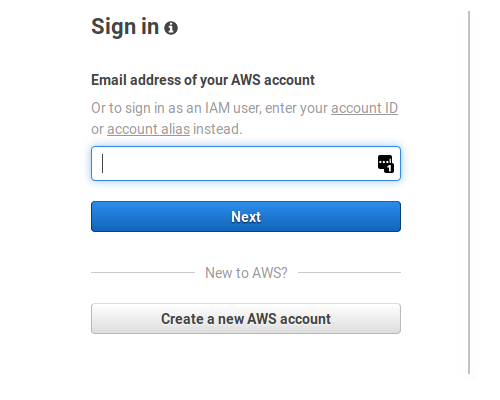 Log into AWS using your Amazon account
 -
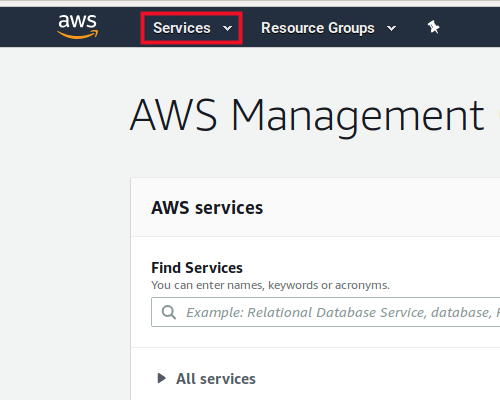 Click the Services dropdown
 -
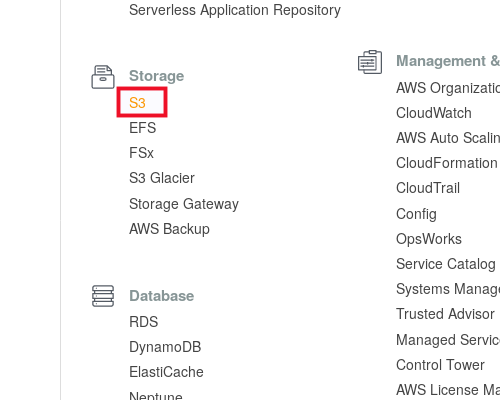 Under Storage click S3
 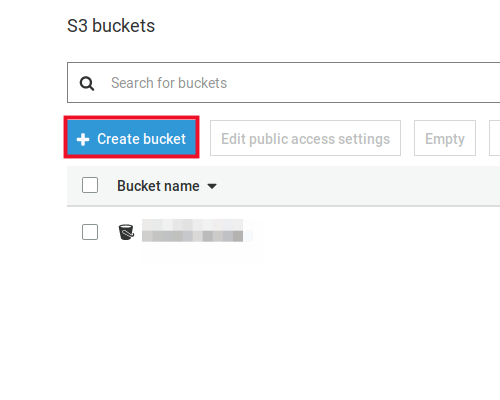 Click Create bucket
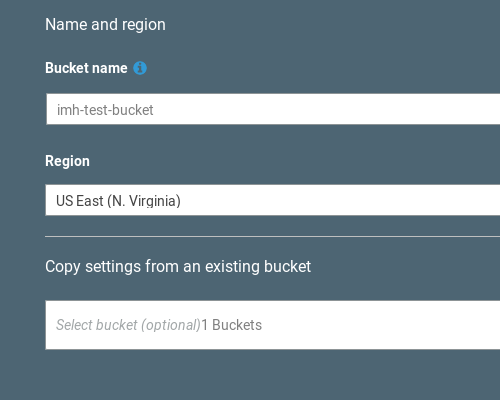 Name your bucket and select a region
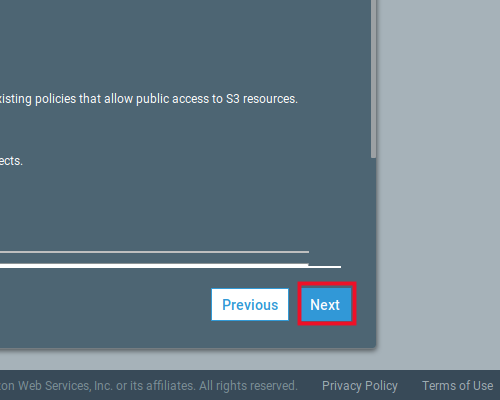 Click Next to select default configure options
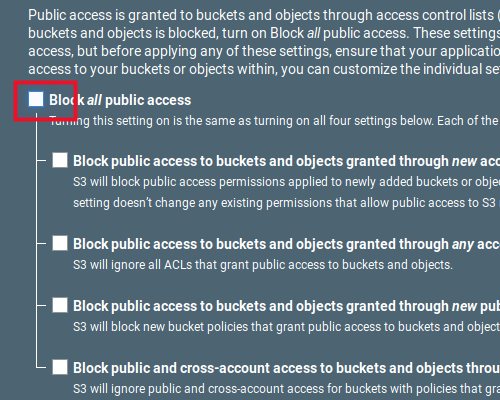 Uncheck Block all public access and click Next
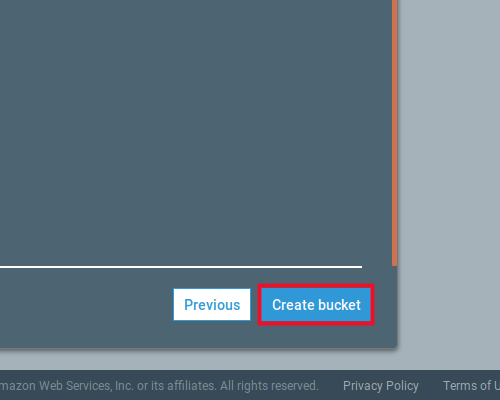 Click Create Bucket after going through options
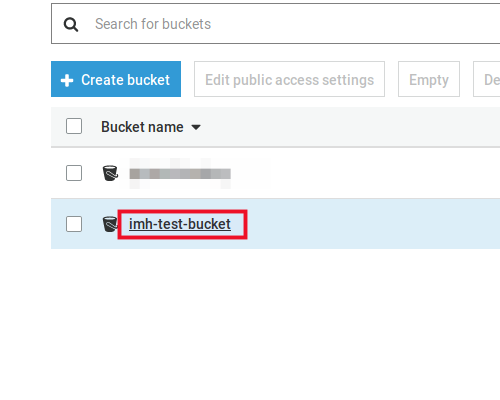 Select your new bucket to add contents
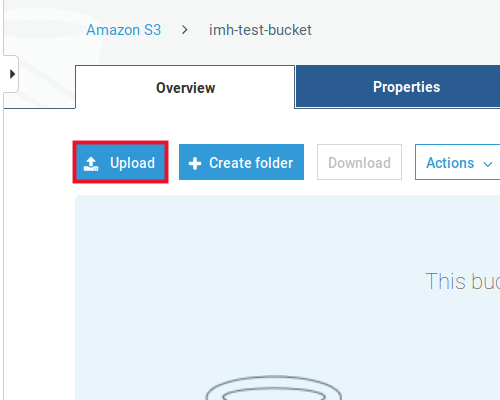 Click Upload to upload a video
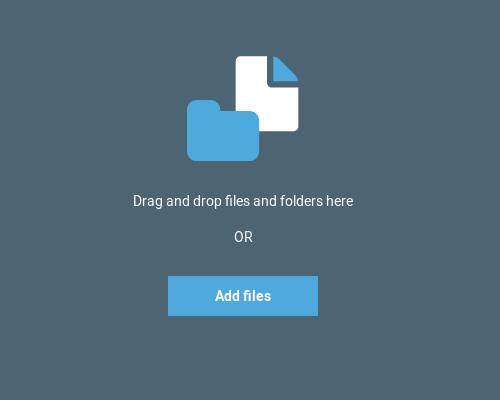 Drag video files into window or click Add files to select the video from your computer
 Click Upload on the upload screen
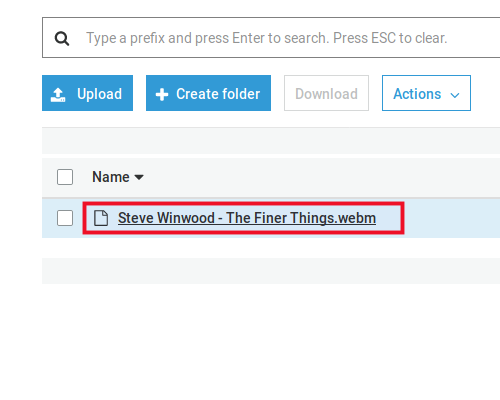 Select the video after the upload completes
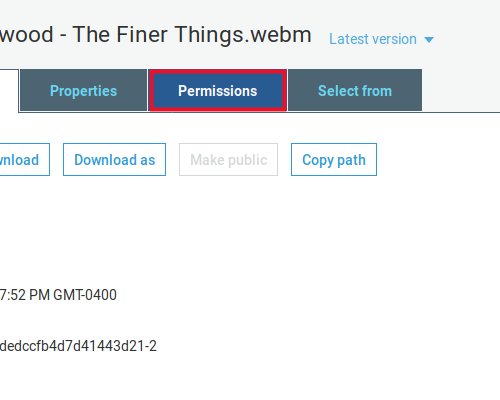 Select Permissions tab from the top
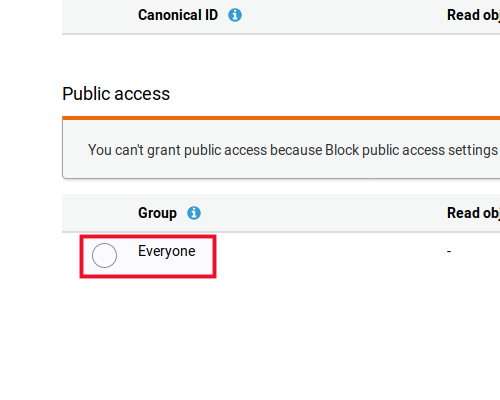 Scroll down to the public access section and click the radio button for “Everyone”
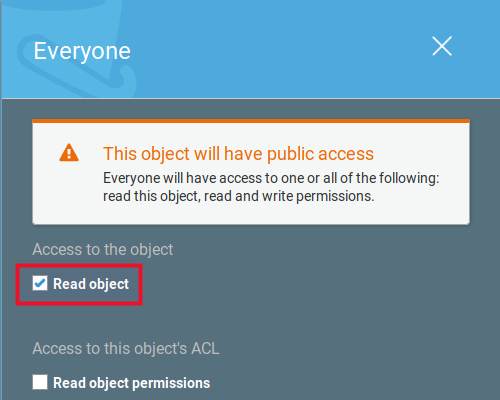 Check the box for Read object and click Save
Congratulations! You just uploaded your video and made it publicly available to the web through AWS. In the section below, we’re going to use the object URL to embed the video on a page of your website.
Use HTML5 Video Tag to Embed the Video
The HTML5 standard introduced a new video tag to allow developers to easily drop a video into any HTML page. First, make sure to grab the URL for your video by click the “Object URL” link in AWS. In order to use the video tag, use a code snippet like this instead of the embed codes we used earlier:
<video width="320" height="240" controls>

<source src="paste-the-object-url-here-between-the-quotes" type="video/mp4">

</video>
That’s it! That’s all you need to know to embed videos on your webpages. Be sure to leave a comment below if you have any trouble with these steps.