
Setting up a new mail app, whether it is Outlook, Apple Mail, or your phone’s built-in client, means finding your incoming server, outgoing server, and port numbers first. This guide shows you where to find your email settings in cPanel, then in Webmail, using InMotion Hosting’s current interface.
Note: On Platform i (InMotion Central) accounts, the interface is different. See email settings in InMotion Central instead.
Prerequisites
- An email account already created on your hosting account. If you have not created one yet, see how to create an email account first.
- Your cPanel login, or your account’s Webmail login.
Find Your Email Settings in cPanel
cPanel keeps every mailbox’s connection settings on one page.
- Log in to cPanel.
- In the Email section, click Email Accounts.
- Find the account you want to configure, and click Connect Devices on its row.
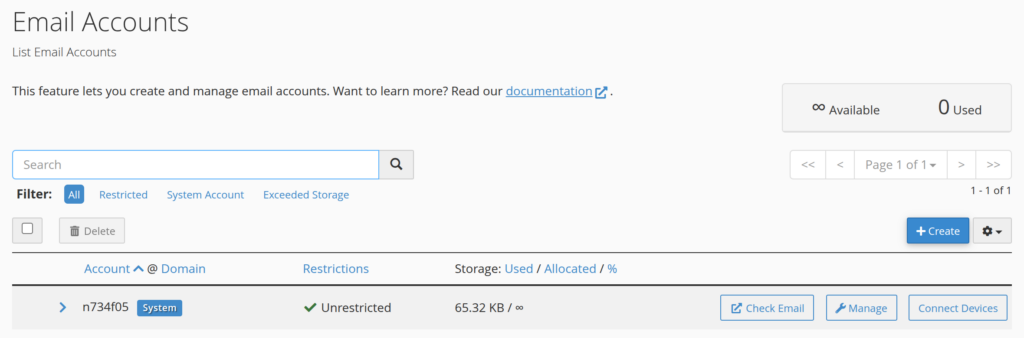
cPanel opens the Set Up Mail Client page for that account. The page starts with a table of automatic configuration scripts for apps like Thunderbird, Kmail, and Outlook, but not every mail app supports auto-config. Scroll past that table to Mail Client Manual Settings, since those values work in any mail app, on any device.
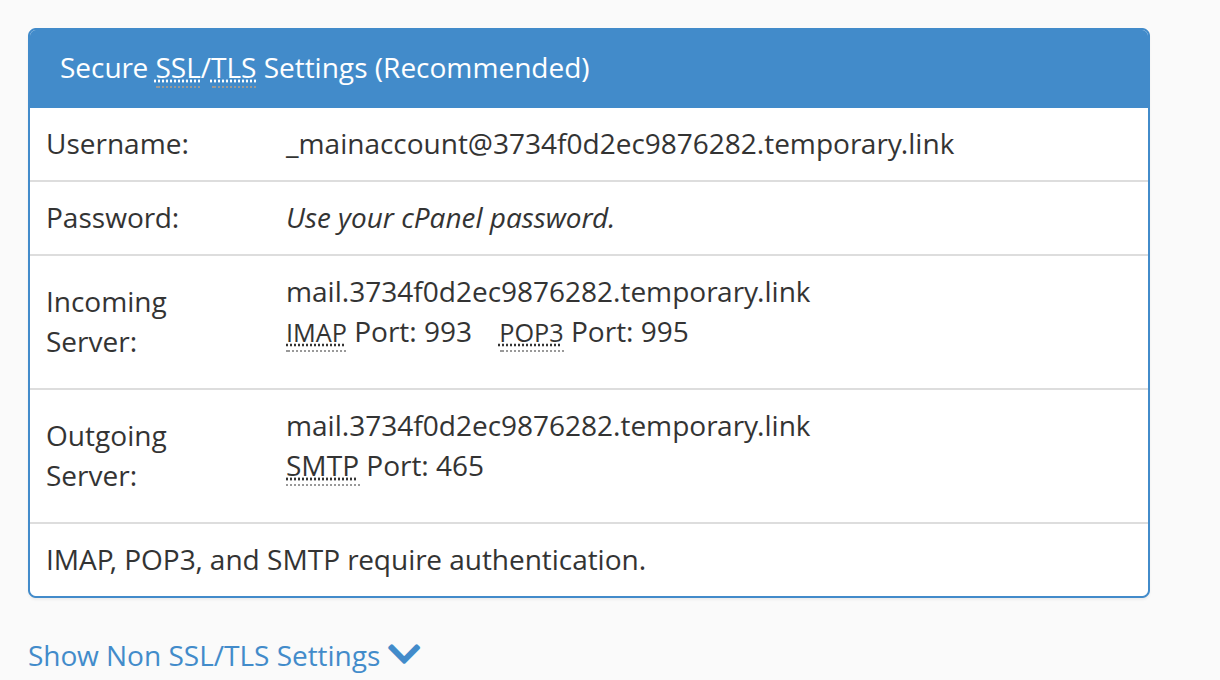
The blue Secure SSL/TLS Settings (Recommended) box holds everything you need. Your username is your full email address, not only the mailbox name in front of the @ sign. For the password, the system account (the one matching your cPanel username) uses your cPanel password; every other mailbox uses that account’s own password.
The incoming server is normally mail.<your-domain> on IMAP (Internet Message Access Protocol) port 993 or POP3 (Post Office Protocol) port 995, and the outgoing server is the same address on SMTP (Simple Mail Transfer Protocol) port 465. cPanel requires authentication on all three protocols.
Tip: Choose IMAP over POP3 whenever you check mail on more than one device. IMAP syncs read status and folders with the server, while POP3 downloads messages to a single device and does not keep them in sync elsewhere.
Webmail provides the identical settings page, so you do not need to open cPanel to find them.
Find Your Email Settings in Webmail
- Log in to Webmail, either directly or by clicking Check Email next to the account in cPanel’s Email Accounts list.
- If Webmail opens to its home page, click the Configure Mail Client tile under Other Webmail Features.
- If Webmail opens directly to your Roundcube inbox instead, click the account name in the top right corner of the page, then click Configure Mail Client in the menu that opens.
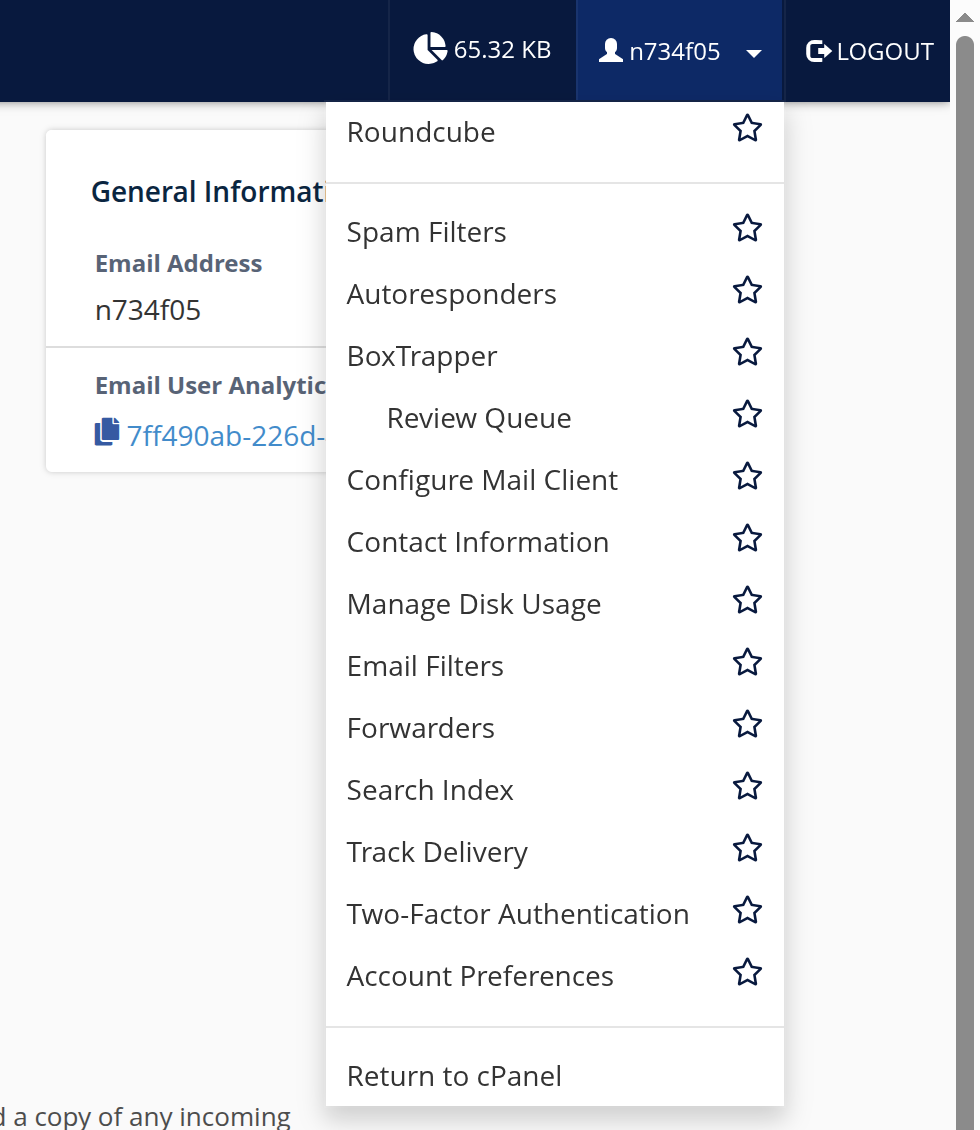
Webmail opens the same Set Up Mail Client page cPanel uses, including the same Mail Client Manual Settings box. Roundcube is the only webmail client cPanel offers now, so this menu and this settings page look the same no matter which mailbox you check.
Email the Settings to Your Device
cPanel and Webmail can email these settings directly to your device instead of you retyping a long server name and port number by hand.
- On the Set Up Mail Client page, scroll to Email Instructions.
- Enter the email address where you want to receive the settings.
- Click Send.

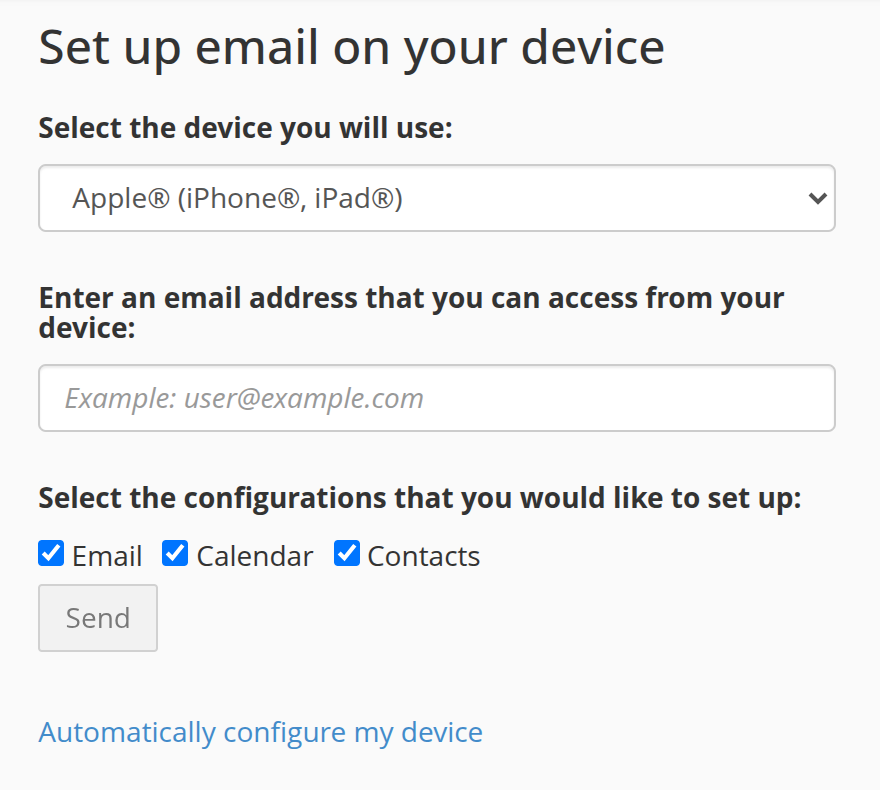
If Webmail opens to its home page instead of your inbox, use the Set up email on your device panel there. Select your device (Apple, Android, or “I’m not sure, send me general instructions”), enter the destination email address, check Email, Calendar, or Contacts as needed, and click Send. The same panel also has an Automatically configure my device link for a hands-off setup.
Tip: iOS and macOS Mail can walk themselves through most of this setup. See cPanel’s auto-config for mail clients for the steps.
When to Use the Server Hostname Instead of Your Domain
Enter the incoming and outgoing server exactly as the Set Up Mail Client page shows it. cPanel chooses that name based on your SSL certificate: it shows mail.<your-domain> when the domain’s certificate covers that name, and the server’s own hostname when it does not. Either way, the name on the page is the one your mail app can validate.
If a mail app still reports a certificate name mismatch, enter the server hostname in the Incoming Server and Outgoing Server fields instead. On Shared hosting, that hostname looks like secure###.inmotionhosting.com. On VPS and Dedicated servers, it is the server’s own hostname, for example vps####.inmotionhosting.com, or a custom hostname the account owner set. Log in to AMP (Account Management Panel) and check the account’s technical details for the exact hostname.
Note: On Reseller accounts, the default server name looks like secure###.servconfig.com instead.
Recommended Email Settings at a Glance
| Setting | Value |
|---|---|
| Username | Full email address |
| Password | cPanel password (system account) or the mailbox’s own password |
| Incoming server | mail.<your-domain> or server hostname, as shown in cPanel |
| IMAP port | 993 |
| POP3 port | 995 |
| Outgoing server | mail.<your-domain> or server hostname, as shown in cPanel |
| SMTP port | 465 |
| Encryption | SSL/TLS |
| Authentication | Required on IMAP, POP3, and SMTP |
Troubleshooting
My mail app rejects my password
Check the username first. Mail apps often default to only the mailbox name, but cPanel and Webmail require the full email address. If the username is correct, confirm which password you need: the system account (matching your cPanel username) uses your cPanel password, while any other mailbox uses the password set for that specific account.
My mail client warns about a certificate name mismatch
This happens when the certificate the mail server presents does not cover the server name you entered, which is most likely if you typed the address by hand instead of copying it from the Set Up Mail Client page. Set the Incoming Server and Outgoing Server fields to the name that page shows. If the warning continues, use the server hostname instead, as described in When to Use the Server Hostname Instead of Your Domain earlier in this article.
Conclusion
Now you know how to find your email settings in cPanel or Webmail: open Connect Devices or Configure Mail Client, and read the Secure SSL/TLS Settings box for your username, servers, and ports. With those values in hand, set up your phone or desktop client using cPanel’s auto-config for mail clients where it is supported, or enter the settings manually anywhere else.