InMotion Central gives you complete control over your email accounts and their settings.
Accessing your email settings can be done with just a few clicks.
In this article, we will show you how to find and manage your email settings in InMotion Central.
How to Find Email Settings
- From your InMotion Central Dashboard, click the Emails tab
- Find the email account you want to manage settings for, then click Manage Email Accounts under that account
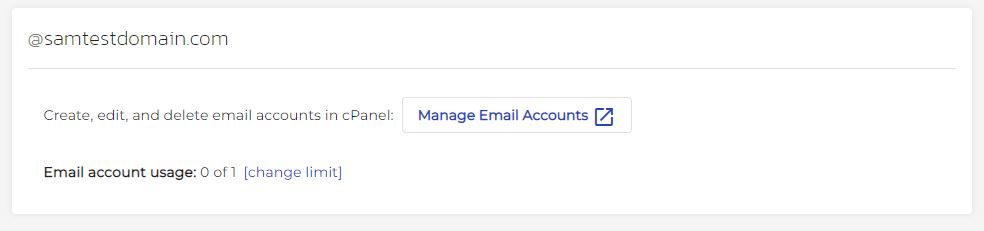
- This will take you to your cPanel. Once there click Email Accounts under the Email section

- Find the email account you want to manage settings for, then click Manage
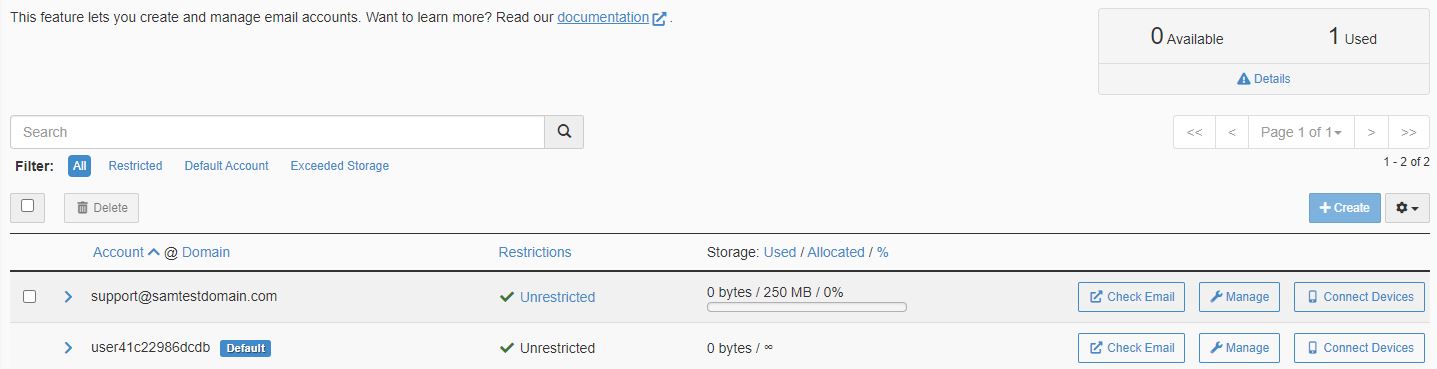
This will display the settings for that account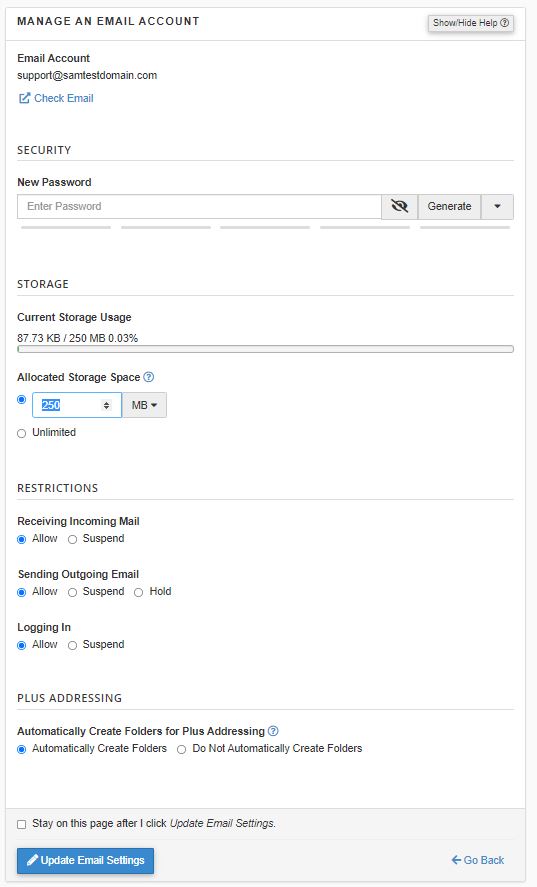
- If you want to make any changes to the default settings, simply select your desired settings, then click Update Email Settings
Manage Email Filters and Automated Responses
- Follow steps 1-4 above

- To access your email filters settings, click Manage Email Filters
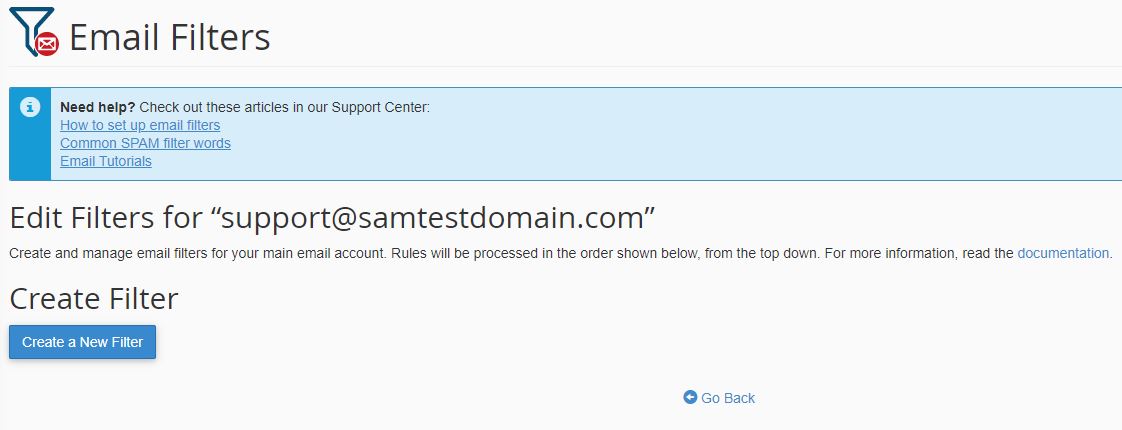
- To set up and manage automated responses, click Send Automated Responses

Congratulations, you now know how to find your email settings in InMotion Central.
Say goodbye to slow loading times and hello to high-performance websites with our WordPress VPS Hosting plans. Experience 40x faster WordPress page load speeds on purpose-built servers that guarantee 99.99% uptime.
 High-Performance VPS Premier Care Free SSL & Dedicated IP Advanced Server Caching