
In this article we’ll discuss why and how to setup the Google custom 404 error page widget on your website. If you happened to have read our previous article on 404 error not found pages, it was discussed how handling 404 requests dynamically can become problematic.
This is because if you continually hit your database dynamically to see if a page exists or not, it can lead to a lot of resource usage from your website, and can result in a slower experience for your site visitors.
You can create a custom 404 error page that is purely HTML code, and then set a 404 error page via .htaccess to help cut down on the resource usage required for fulfilling requests for pages that don’t exist.
Typically most websites will have their entire contents crawled by Google, as they index your website to add it to their search engine results. Using the Google custom 404 error page widget in conjunction with a static 404 error page, will allow users to still easily find possibly related content on your website taking advantage of Google’s index of your site, instead of relying heavily on your own database.
The first thing you’d want to do is generate your Google custom 404 error page widget code from the following URL:
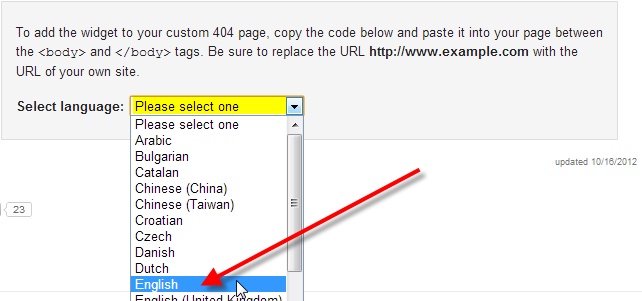
- From the Select language: drop-down, select your language.
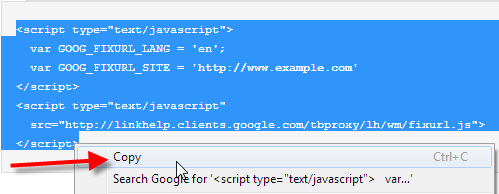
- Hightlight the JavaScript code displayed, right-click and select Copy, or hit (Ctrl-C).
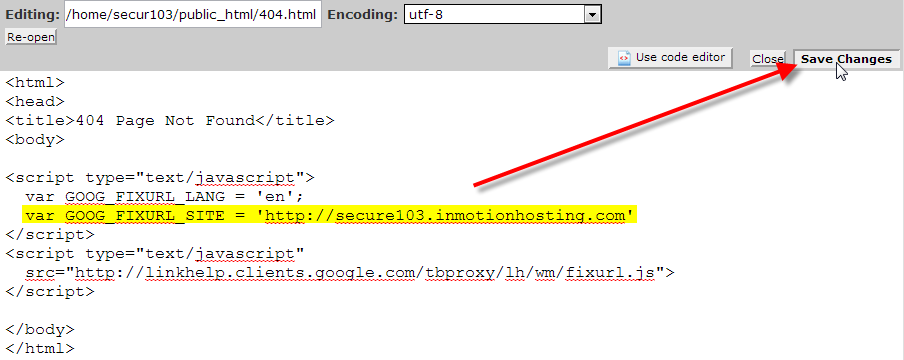
- Next, you’ll want to paste (Ctrl-V) the copied JavaScript code into your custom 404 HTML page in-between the <body> and </body> tags.
You can review our article on creating a custom 404 error page, if you’re unsure of how you would creating or editing this file.
You also want to make sure that you’re replacing the code you copied from Google, for the following:
var GOOG_FIXURL_SITE = ‘https://www.example.com’
So that it uses your actual domain name instead of example.com, then just click on Save Changes if you’re using the cPanel File Manager.
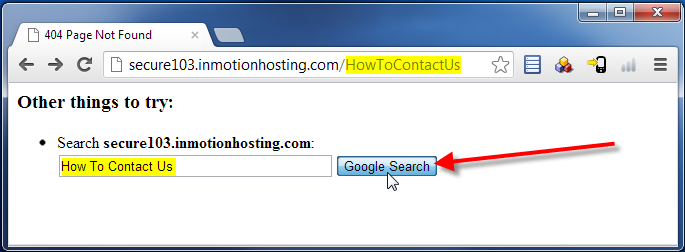
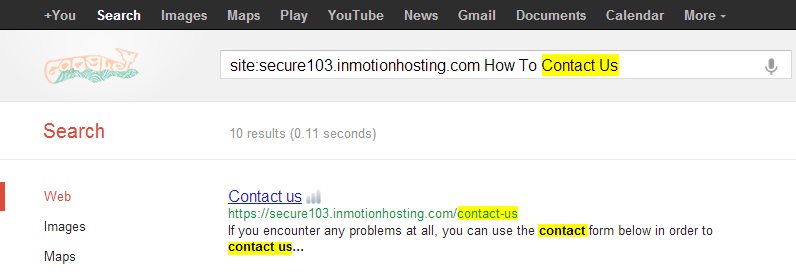
- Now if someone tried to access a page for instance on your domain such as /HowToContactUs that didn’t exist, they’ll be presented a Google search box for your website with those words already typed in. If Google has indexed a page of yours that mentions how to contact you, chances are the visitor will be able to find this using the Google search, instead of the visitor just being serverd a generic messages asking them to try a different page.





Now that you’ve successfully setup the Google custom 404 page widget, you might wish to also adjust the style of it to better fit in with the style of your website. You can do this by modifying the CSS code which is exaplained in Google’s customizing the 404 widget page.