
Why Enable Under Attack Mode?
Cloudflare’s Under Attack Mode (also known as “I’m Under Attack Mode” or IUAM) is a powerful, temporary security feature designed to mitigate Layer 7 (application-layer) DDoS attacks and other high-volume malicious traffic.
When your website experiences a sudden surge in suspicious requests (such as bots flooding your server with traffic), regular security measures may not be enough. Under Attack Mode adds an extra layer of defense by presenting visitors with a brief interstitial (challenge) page—typically lasting about 5 seconds. This page runs automated JavaScript and cookie-based checks to verify that the visitor is a legitimate human user rather than an automated attack script.
Legitimate visitors pass through quickly and then browse normally without seeing the page again (for a period of time). Malicious traffic is blocked before it reaches your InMotion Hosting server, helping prevent downtime, high resource usage, and potential outages.
Use this mode only as a last resort during an active attack. Leaving it enabled permanently can degrade user experience, affect site analytics, and is not recommended by Cloudflare.
When Should You Enable It?
- Your site is under a DDoS attack or experiencing unusually high traffic from bots/scrapers.
- Server resources (CPU, memory) on your InMotion VPS, Cloud, or Dedicated server are spiking.
- Standard Cloudflare protections (WAF, Bot Fight Mode, Security Level) are insufficient.
- You notice symptoms like slow loading, connection timeouts, or unusual spikes in logs.
Note: Cloudflare allowlists major search engine crawlers (Googlebot, etc.), so SEO impact is usually minimal during short-term use. However, avoid prolonged activation.
Prerequisites
- Cloudflare must be fully set up and active for your domain (DNS proxied through Cloudflare).
- You have access to the Cloudflare dashboard.
- For InMotion Hosting customers: Ensure your domain is pointed correctly via InMotion’s nameservers or custom Cloudflare setup. See our guide: How to Set Up Cloudflare with InMotion Hosting.
Step-by-Step: Enable Under Attack Mode
- Log in to your Cloudflare dashboard.
- Select your account and the specific domain (zone) you want to protect.
- Go to the Overview page for that domain.
Note: If prompted, switch to the new Cloudflare Dashboard. - In the Quick Actions sidebar (usually on the right), locate the Under Attack Mode toggle.
- Toggle the switch to enable it. Click Enable if a confirmation prompt appears.
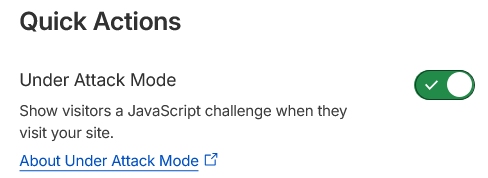
The change takes effect almost immediately. Your site will now challenge all incoming traffic.
How to Disable Under Attack Mode
Simply return to the same Overview page and toggle the switch back to Off. Monitor your traffic and server resources for 15–30 minutes after disabling to ensure the attack has subsided.
Best Practices and Tips
- Duration: Keep it on only as long as the attack lasts (typically minutes to a few hours). Turn it off promptly to restore normal user experience.
- Combine with other tools:
- Enable Bot Fight Mode (free) or advanced WAF rules.
- Use Cloudflare Page Rules for specific paths (e.g., apply stricter challenges to login/admin pages).
- Monitor via Cloudflare Analytics and your InMotion server logs (
htop, Apache/NGINX access logs).
- JavaScript & Cookies: Visitors must have JavaScript enabled and cookies allowed to pass the challenge.
- API/Backend Impact: Under Attack Mode may interfere with API calls or automated services—use Page Rules or custom configurations to exclude them if needed.
- Troubleshooting:
- If legitimate users are blocked: Check for browser extensions, VPNs, or strict privacy settings.
- Attack still getting through? Escalate to Cloudflare support or review your WAF rules.
- High false positives? Consider managed rules or rate limiting as alternatives.
Monitoring During an Attack
While Under Attack Mode is active:
- Watch Cloudflare’s Security and Traffic tabs for blocked requests.
- Check your InMotion server resource usage via cPanel, WHM, or SSH.
- Use tools like
htopor InMotion’s monitoring features to ensure backend stability.