
Two of the most essential needs for a WordPress site are backups and security. The Jetpack Professional subscription includes both of these options within its interface. The security and backups are managed through an Automattic plugin called VaultPress.
All files within WordPress are scanned and kept secure with a powerful and flexible backup service. Additionally, security is maintained by real-time monitoring of the subscribed site.
This article will review where to find the configuration settings and describe the options you’re given for both backups and security with VaultPress.
In this article:
- What is VaultPress
- Finding the Backup and Security Scanning Options
- Jetpack Backups
- Jetpack Security
What is VaultPress?
Before we look at the settings, we need to further define the role of VaultPress. VaultPress is a plugin that can be added to a WordPress site, but in this article the functionality of the plugin is being added to your WordPress site through Jetpack Professional. Automattic created VaultPress to provide reliable security and backups for your WordPress site.
Finding the Backup and Security Scanning Options in Jetpack
To use these settings, you will need to be logged into the WordPress Administrator Dashboard. The backup and security settings are part of the options provided with Jetpack Professional subscription.
You can purchase this subscription separately or you may choose to seek a different hosting solution that provides service. The Jetpack Professional Subscription is part of the WordPress Hosting plans from InMotion Hosting.
- Click on Jetpack in the menu on the left-hand side of the screen.
- Click on Settings in the sub-menu under Jetpack.
- The first screen showing should be the Security screen. The menu at the top of the page will be selected. Click on Security if this is not the case.
- The first item in the Security settings screen is Backups and Security Scanning.
- The Jetpack Professional subscription will automatically enable this setting. If you don’t have the subscription, this option will be grayed out. Click on Configure your Security Scans.
You can now find the settings for your Backup and Security scanning options within Jetpack. These steps lead you to the VaultPress Dashboard page as you can see below:
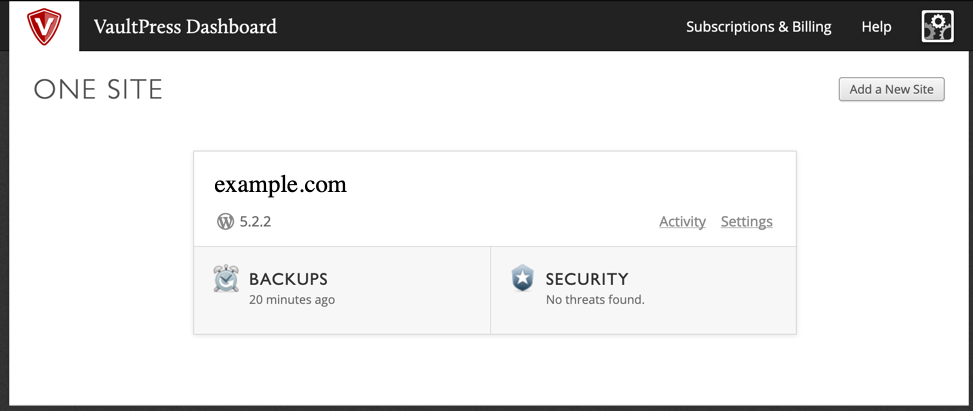
Note that the paid Jetpack subscriptions all include various backup options, but only the premium and professional plans include the real-time security scanning provided with VaultPress.
Jetpack Backups
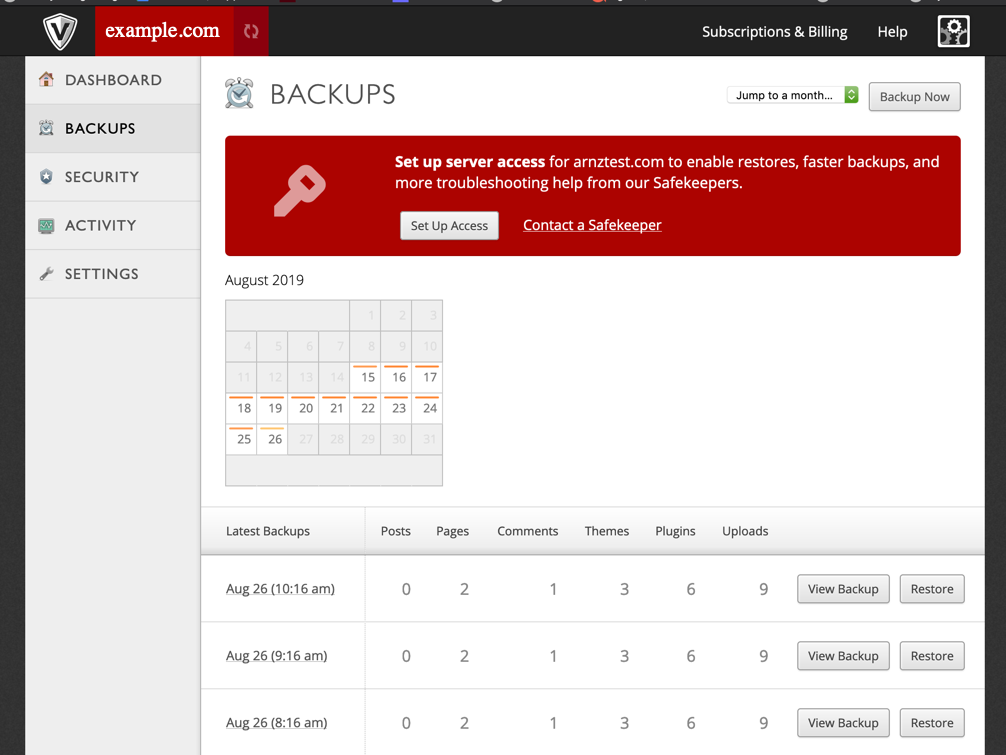
The backups that you get with VaultPress are both daily and real-time (using the Professional subscription). You don’t have to make any settings because they automatically backup everything. You can easily pick a day and then select a backup to restore. The important thing to remember are the differences between the paid subscriptions.
| Personal | Premium | Professional |
| Daily automated backup | Daily automated backup | Real-time automated backups |
| 30-day archive | 30-day archive | Unlimited archive |
*For information please see the Jetpack pricing page.
The Professional subscription is the only plan with real-time backups and unlimited archives. The other subscription plans still offer a very useful 30-day archive with a daily backup. If you want to backup your WordPress site for every hour of the day, then make sure you are using the Professional subscription.
In the screenshot above, you can see the options for viewing the backup and restoring it. VaultPress makes it very simple to restore the backup as needed – just click on the Restore button!
Jetpack Security Scanning
The real-time scanning option provided with Jetpack includes automated scanning for malware and automatic security fixes when a vulnerability is detected.
This gives you peace of mind knowing that you don’t have to make the effort to make changes to your site for security needs. VaultPress does provide you the option to see the history of any actions taken to secure your site.
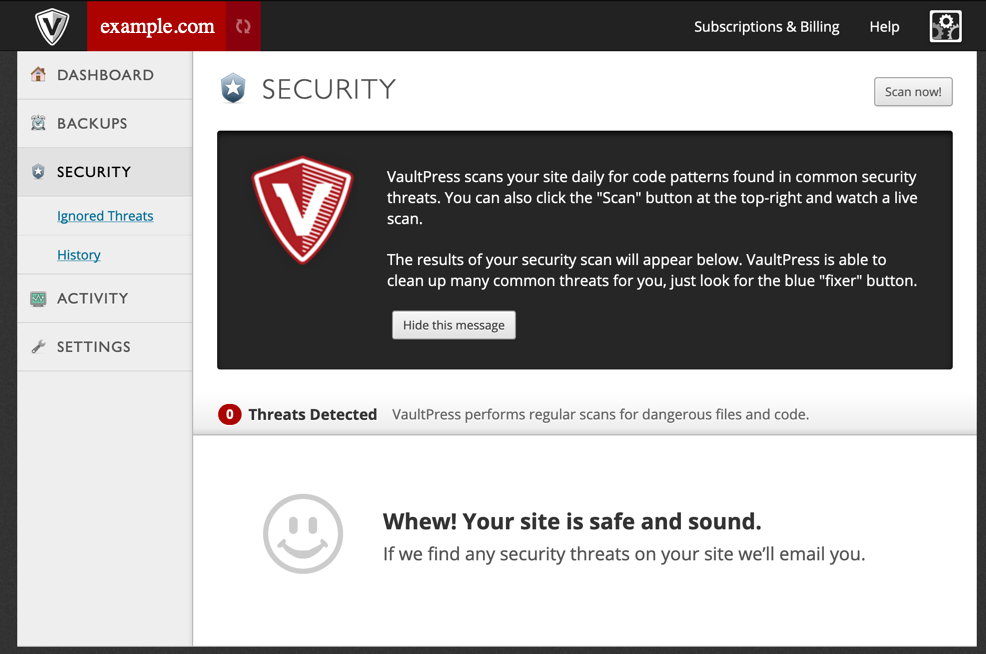
The security screen within the VaultPress Dashboard allows you to see any threats that have been detected. You can see a history of security activity by clicking on History in the menu. There is also a list of ignored threats. These are threats that were detected but ignored. To scan your site at any point, click on the Scan now button in the top right corner of the page.
Congratulations! You can now navigate to the VaultPress Dashboard which gives you access to its Backups, Restorations, and Security Scanning options provided with Jetpack Professional. To learn more about using Jetpack, check out how to connect Google Analytics to your site.
Become a master of WordPress plugins! Protect, optimize, secure, and expand the functionality of your website easily with the help of WordPress plugins!
