You can get dedicated IP addresses through your AMP section. Below is a tutorial on adding a dedicated IP address to your Dedicated server.

Adding an IP Address Through AMP
- Log into AMP.
- Under your account, click Purchase Dedicated IP.
If you don’t see a “Purchase Dedicated IP” link, you can click Marketplace then Dedicated IP instead.
- On the next page, select your domain name from the drop-down menu.
- Next, select the cPanel username associated with the account.
- You will see the dedicated IP price listed at this point, along with your yearly rate. Click Add to Cart to continue.
- After the item is added to the cart, click Continue to cart.
- On the next page, confirm your payment information.
- Read the disclaimer for the IP address assignment. Click Order.
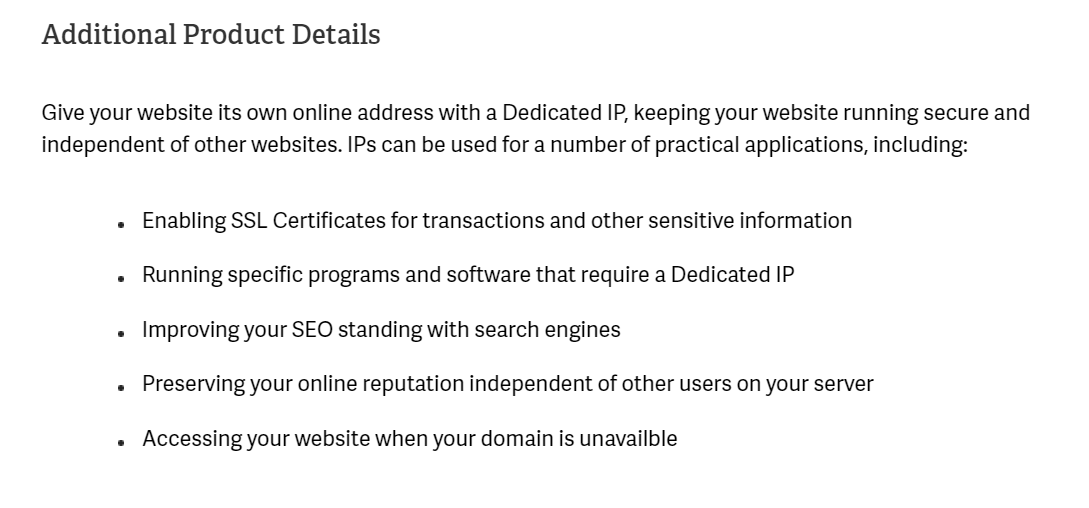 You will then see a confirmation that the request was submitted.
 - Check your email that you signed into AMP with. You will see an initial email explaining the request was submitted.
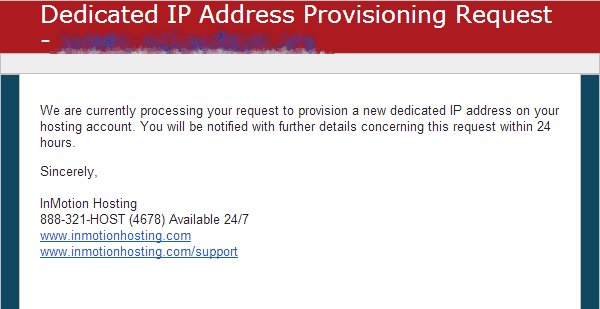
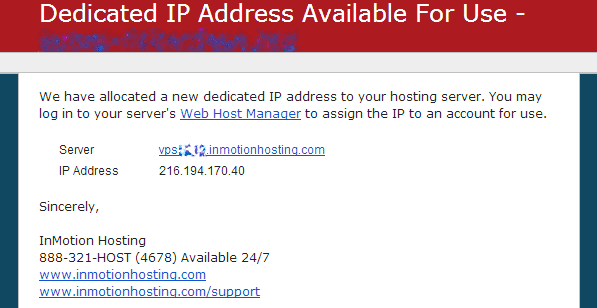
Shortly after you will get an email with your new IP address in the contents. Next you will need to assign the IP address to the domain.
Assigning an IP in WHM (VPS Reseller and Dedicated)
- Log into your WHM.
- You can type IP in the search to narrow the list of options on the left. Look for the IP Functions section and click Change a Site’s IP address.
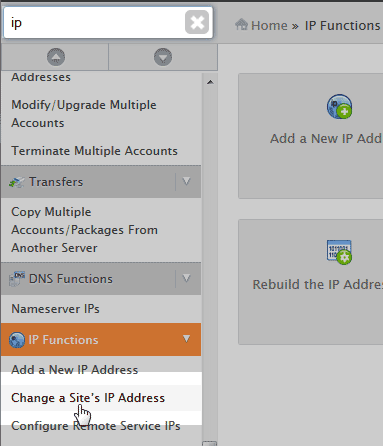
- Select the domain from the list or type the domain you want the IP for.
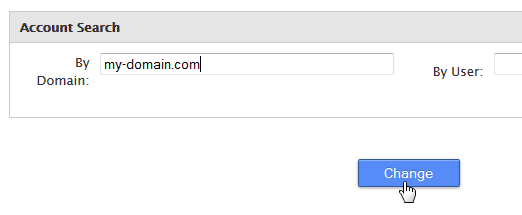
Click Change.
- From the New Address drop box, select the IP address from the list.
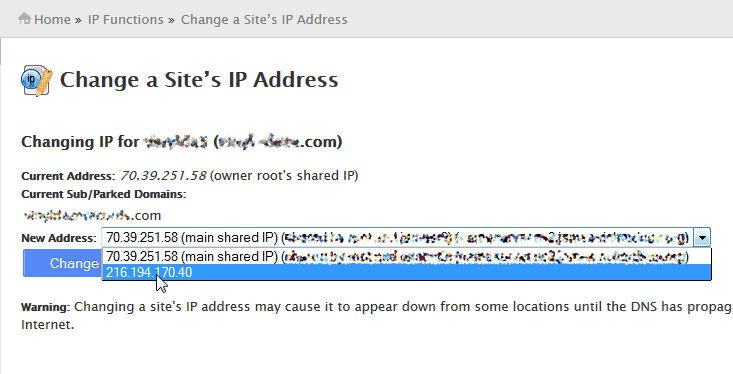
- Click change.
If for whatever reason you cannot get the IP to assign correctly, please feel free to contact tech support.
Dedicated Servers, Your Way
Let InMotion handle security, updates, and optimization with Premier Care, or take full control with self-managed bare metal.