

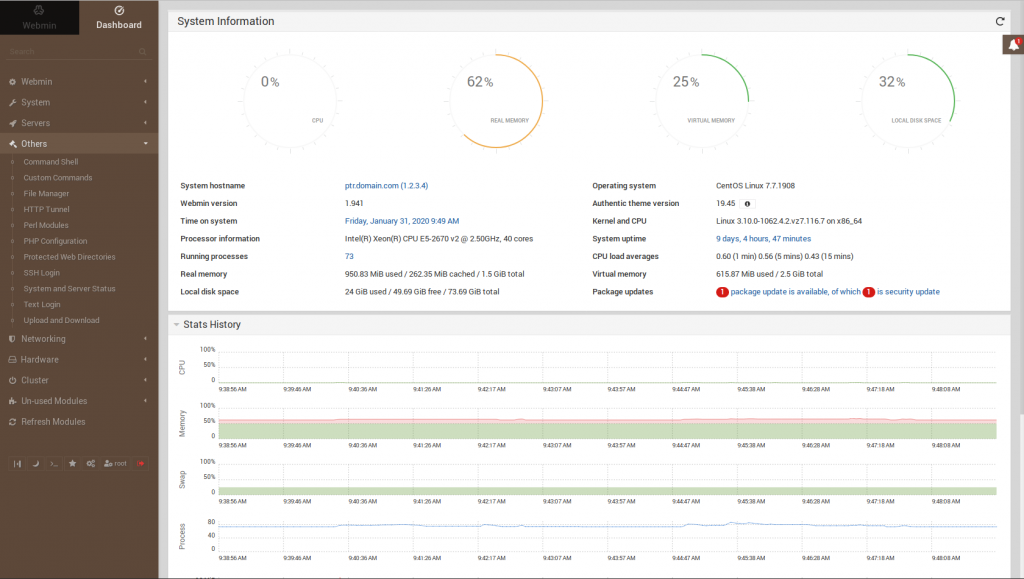
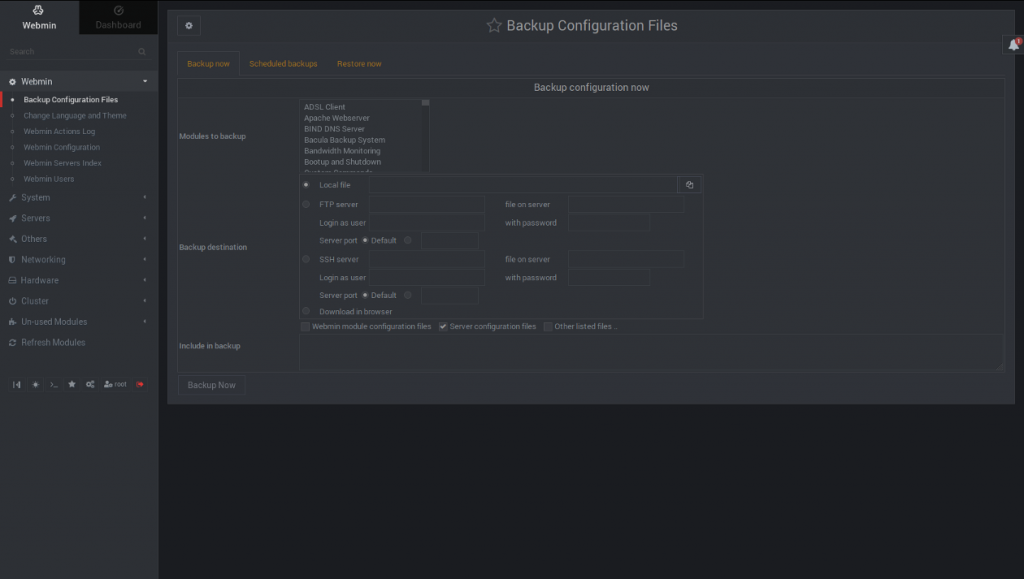
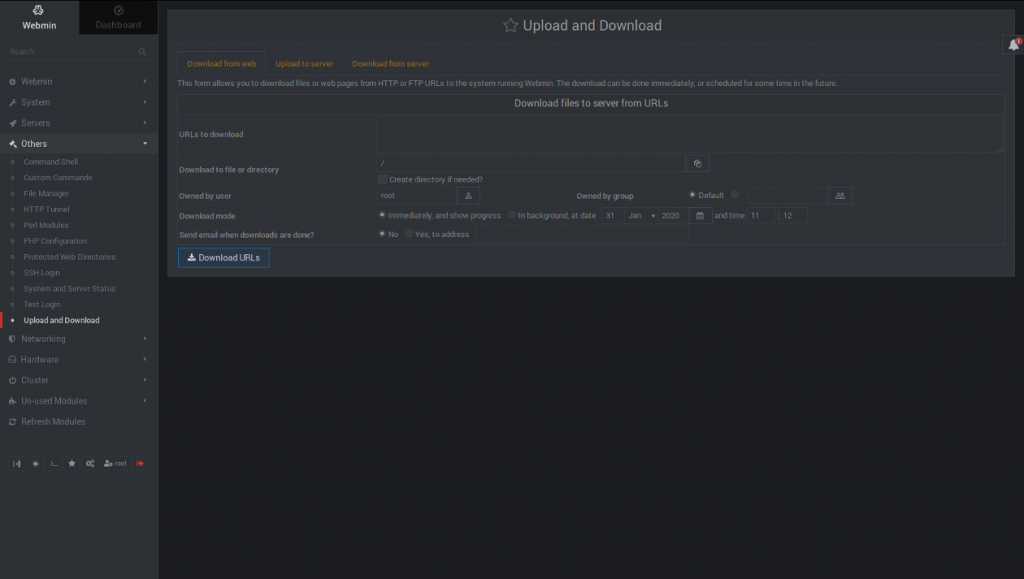
Webmin is a system administration tool that enables you to manage a web server without the command-line interface (CLI). A popular free cPanel alternative, Webmin can complete a long list of sysadmin features natively and with installable modules:
- File, database, and user management
- Language and theme customization
- Scheduled backup configuration
- Resource monitoring
- Server hardening
- DNS Settings
- Manage email
- And much more…
Install Webmin on Ubuntu with APT
This guide was tested on Ubuntu 18.04 and 20.04.
- Log into SSH as root.
- Edit your APT sources file:
nano /etc/apt/sources.list
- Add Webmin to the file:
deb http://download.webmin.com/download/repository sarge contrib
- Download the developer’s GPG key which signed the repo:
wget https://download.webmin.com/jcameron-key.asc
- Add it to your list of trusted keys:
apt-key add jcameron-key.asc
- Update your package lists:
apt-get update
- Install Webmin:
apt-get install webmin
- If applicable, open port 10000 on your server firewall. If you don’t have one installed already, we recommend ConfigServer Security & Firewall (CSF) or Firewalld for managing iptables firewall rules.
- Set a password for the root Webmin user:
/usr/share/webmin/changepass.pl /etc/webmin/ root NewStrongPassword
Add a space before the command to prevent it (and your new password) from being saved in your bash history.
You’ll receive the following notification: “Password for Webmin user root updated successfully.”
Afterwards, log into https://YourServerHostname:10000 or https://YourServerIP:10000 with your Webmin user credentials.
Can’t locate ./acl/md5-lib.pl/ ?
If you receive the “Can’t locate ./acl/md5-lib.pl…” error, try the following steps.
- Navigate to the Webmin directory:
cd /usr/share/webmin
- Rerun the password reset script or try this variation of the command:
./changepass.pl /etc/webmin/ root NewStrongPassword
If you prefer a one-liner to complete the two steps above you can use the following:
cd /usr/share/webmin/ && ./changepass.pl /etc/webmin/ root NewStrongPassword
Fix the Self-signed SSL Certificate Error
You should address the self-signed SSL issue immediately after installing Webmin for better server security. We recommend installing an SSL certificate with Certbot.
If you don’t need cPanel, don't pay for it. Only pay for what you need with our scalable Cloud VPS Hosting.
 CentOS, Debian, or Ubuntu No Bloatware SSH and Root Access