mod_deflate is an Apache module that can be used to compress data using gzip compression before sending it to the user. For bandwidth intensive websites, using this feature can offer a benefit, as the server is compressing data before sending it you will be using less bandwidth. The major drawback to using mod_deflate however is that the server may need to use more resources to compress each file and this in turn can cause performance issues on older servers. As our shared accounts included unlimited bandwidth, using mod_deflate to reduce bandwidth usage is not usually a concern for shared users.
It’s important to understand that gzip compression does not reduce resource usage on a server, nor is it guaranteed to reduce page load times for your website. To reduce possible resource usage and reduce page load time, a better solution is a caching option for your site. There are caching modules or settings for sites created with a content management system (CMS) such as WordPress, Joomla, Drupal, etc.
Please note: Due to the performance issues that can be caused by mod_deflate, it should not be used on older shared servers. Contact Live Support for more information about your hosting account and how to migrate to a new Linux server hosting plan.
How to Install mod_deflate
The mod_deflate Apache module is already installed on our shared hosting servers.
cPanel VPS and dedicated server administrators can install the HTTP compression module in WebHost Manager (WHM).
- Log into WHM as root.
- On the left select “EasyApache 4.”
- Beside “Currently Installed Packages,” select “Customize.”
- Select “Apache Modules.”
- Search for “mod_deflate.”
- Select the mod_deflate toggle switch to turn it blue.
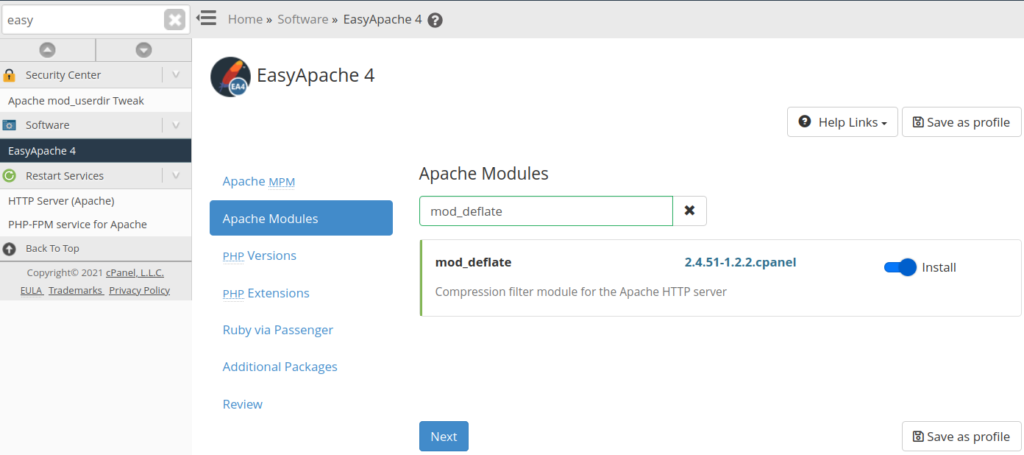
- Select “Review.”
- Select “Provision.”
Cloud server administrators can use the following command to see if the Apache module is already installed and enabled:
apachectl -M | grep deflate
If the output states “deflate_module (shared)” then it is installed.
How to Use mod_deflate
To use mod_deflate, you have two options:
- Use the Website Optimization option in cPanel
- Add a few lines to your .htaccess file
Enabling mod_deflate (gzip Compression) in cPanel
Under Software/Services in your cPanel click on the Website Optimization icon.
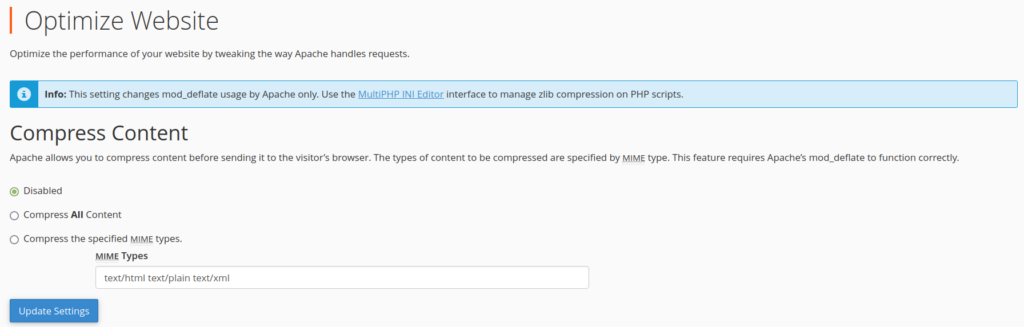
Select Compress all content or specific MIME types. To limit which types of content are compressed, choose Compress the specified MIME types and input the particular MIME types you want to compress.
If you specify particular MIME types, it is best not to add image, video, audio, PDF or other types of binary files. These file formats are already compressed, so it is not necessary to compress these further.
Once you have chosen your settings, click Update Settings to save your changes and enable gzip compression on your account.
To turn off gzip compression, select Disabled on the Website Optimization page and click Update Settings.
Enabling mod_deflate (gzip Compression) in .htaccess
Edit your .htaccess file and add the following code:
AddOutputFilterByType DEFLATE
text/text
text/html
text/plain
text/xml
text/css
application/x-javascript
application/javascript
How to Test if mod_deflate is Working
There are several sites online that you can use to help test whether mod_deflate is working for your site or not. One site we found rather easy to use is https://www.whatsmyip.org/http-compression-test/.
All you need to do is enter your domain and click the “Test” button. Below we have showed before and after screenshots that indicate whether mod_deflate is enabled.


Issues with PHP 7
Various users have reported issues involving the cPanel Optimize Website button and performance with PHP files. This seems to have affected websites using PHP version 7 and up. If you are having trouble using the compression features available from cPanel, you can try making these modifications in your php.ini file.
output_handler = Off
zlib.output_compression = On
zlib.output_handler = ob_gzhandler
Reliable Shared Hosting for Growing Businesses
Get the performance your business website demands with NVMe SSD storage, industry-standard cPanel management, and direct access to hosting experts whenever you need assistance.
 Free Website Migration 24/7 Human Support 100% Money-Back Guarantee