Websites use several different Website coding languages to work. All websites use HTML, CSS, and JavaScript to render the webpage to the visitor.
When the website is loading but the website is not displaying correctly, this is usually due to a coding error on the site. Usually this is caused by JavaScript or CSS errors. This article will focus on diagnosing JavaScript coding errors.
How do I know its a JavaScript problem?
JavaScript is used to make different behaviors happen on your site. These behaviors are all done through the Visitor of the sites browser. Examples of this are Image Slide Shows, Pop Up boxes, Menus, and more. When your website loads, but the behaviors on your site stopped working, this is usually because of the JavaScript code not working.
What happens when your JavaScript fails?
If you have JavaScript’s on your site that are not working you can diagnose them by using your browsers “Error Console“. Each browser has a built in “Error Console” for diagnosing scripting errors on your site. Below will show you how to check the “Error Console” in FireFox, Internet Explorer, Chrome, Opera, and Safari.
Diagnosing a JavaScript error
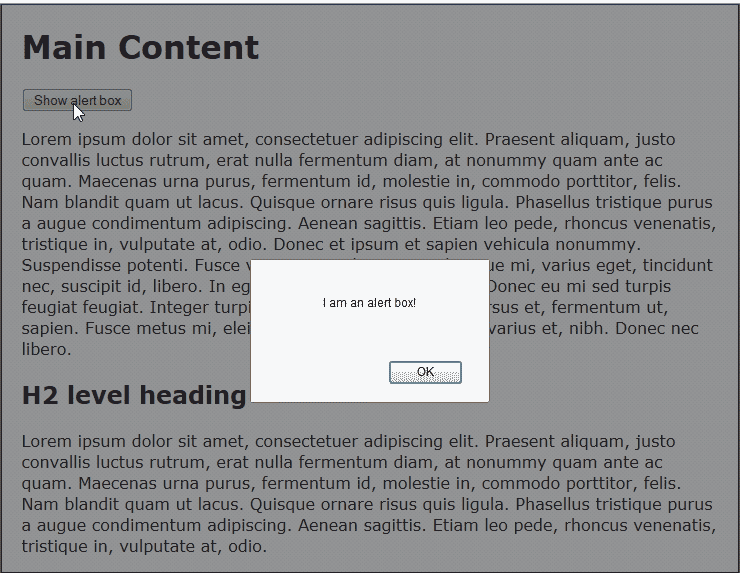
In order to explain how to diagnose a JavaScript error, we will use the simple “pop up” script below (Snapshot to the right shows what it does):
This script simply creates a pop up box that says “I am an alert box!“. We will break the script so that is causes an error by removing one of the quotes like the following.
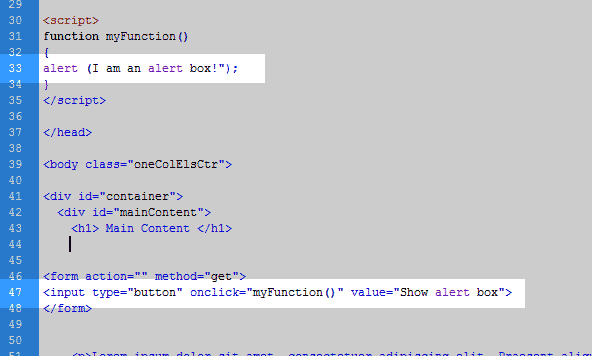
When the website is ran, the code will break where the quote is missing. The snapshot to the right shows the code that’s broken, and where the lines are in the code.
In this case Line 33 is broken. The methods below will show you how to find the lines of broken code through your browser.
Javascript console for FireFox
Using the code example from the “Diagnosing a JavaScript error” section above, We will find the JavaScript error using Firefox.
- Open FireFox.
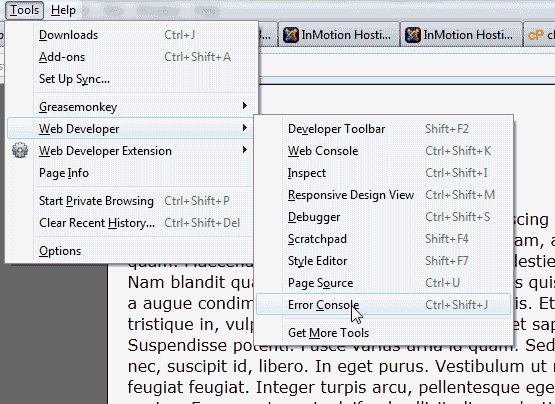
Go to Tools > Web Developer > Error Console. If you do not have Tools at the top you can use the following shortcut:
Ctrl + Shift + J
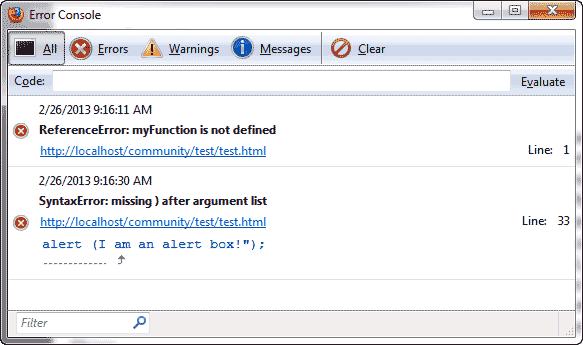
Visit the page with the error. In this case you will see the error on Line 33 in the FireFox Error Console. See image to the right.
Javascript console for Internet Explorer
Keep in mind we are using the code example from the “Diagnosing a JavaScript error” section at the beginning of this article. Below is how to use the Error Console in Internet Explorer.
- Open Internet Explorer.
- Press the function key on your keyboard, F12.
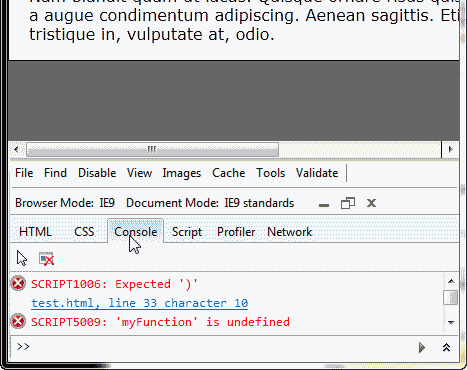
Visit your webpage with the error. You will see the error with the line number of where the error occurs in the document in the bottom Error Console window. The snapshot to the right shows the error on line 33.
Javascript console for Chrome
From the “Diagnosing a JavaScript error” section example towards the top, we will find the JavaScript error on a webpage in Google Chrome.
- Open Google Chrome.
- Click the “Customize and Control Google Chrome” button at the top right side.
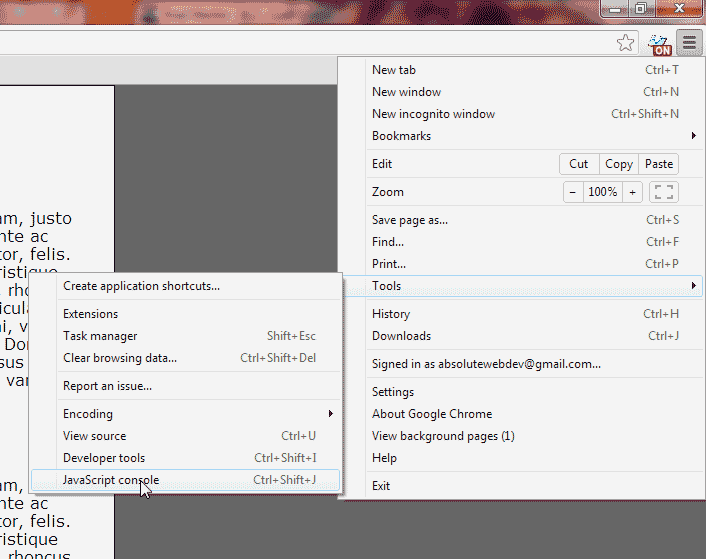
From the drop menu, go to Tools > JavaScript console. Or you can press:
Ctrl + Shift + J
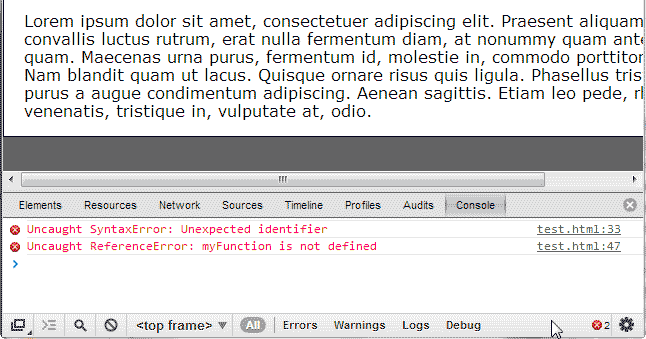
Visit the site with the error. In the Error Console window you will see the error show on line 33. See image to the right.
Javascript console for Opera
Continuing to diagnose the error from “Diagnosing a JavaScript error” section, we will find the JavaScript error on a webpage in Opera.
- Open Opera.
- Click the Opera button towards the top right.
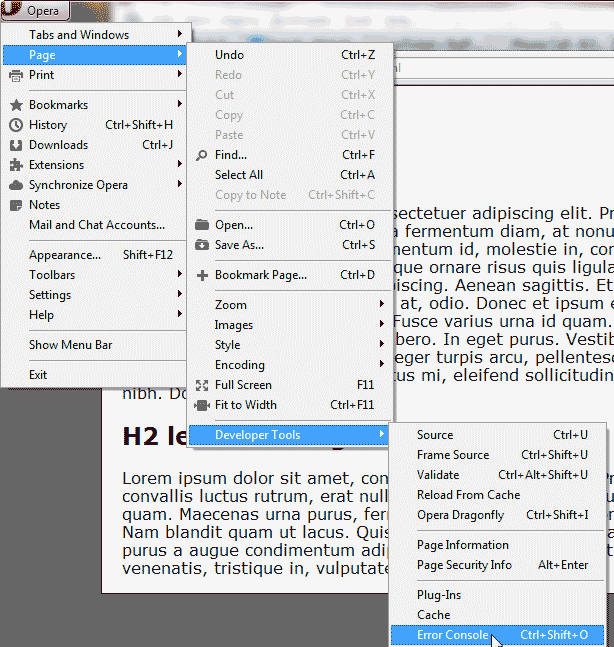
Navigate to Page > Developer Tools > Error Console. Or you can press the following keyboard keys:
Ctrl + Shift + O
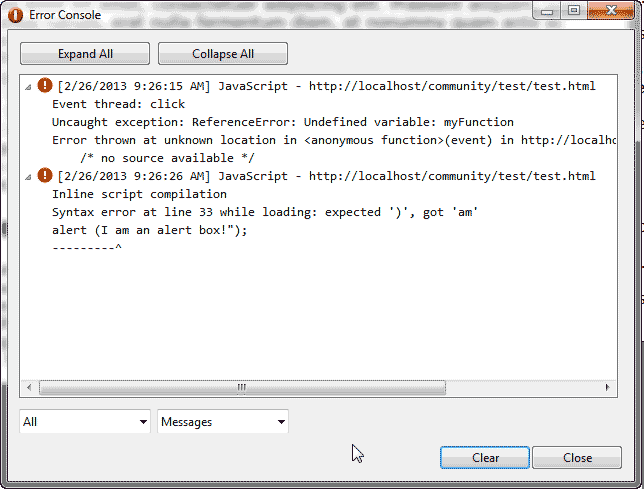
The Error Console will pop up. You can move the window to the side while you visit your site. You will see the errors list when you visit the site with the broken code. The image to the right shows the error on line 33.
Javascript console for Safari
Continuing the previous example error from “Diagnosing a JavaScript error” section, We will look at the Error Console in Safari.
- Open up your Safari browser.
- Click the “Display a menu of general Safari settings” button towards the top right that looks like a gear.
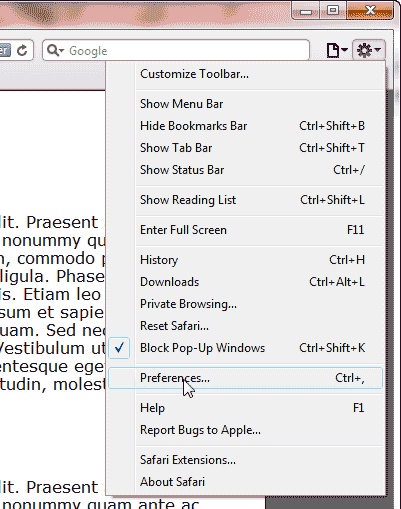
Click Preferences.
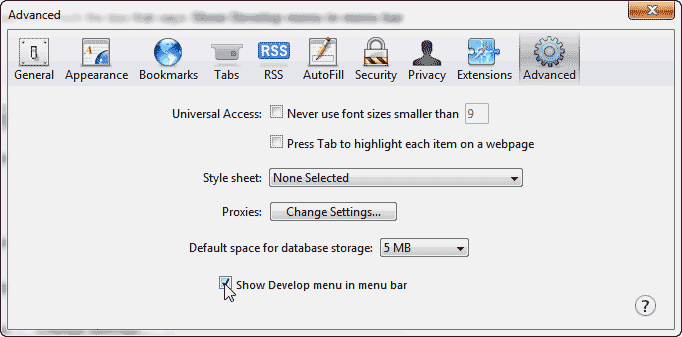
On the Advanced tab, make sure you have the “Show Develop menu in menu bar” box checked.
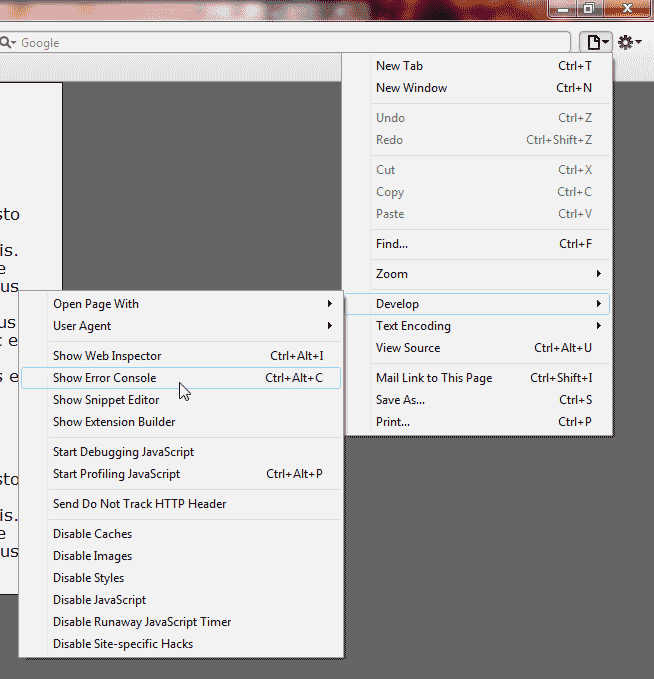
“Display a menu for the current page” icon towards the top right that looks like a paper with a bent corner.
Go to Develop > Show Error Console. Or you can press:
Ctrl + Alt + C
Â
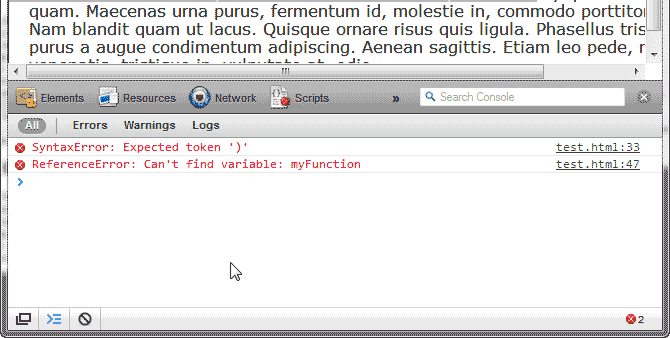
Visit your webpage that is broken and check the Error Console at the bottom. The errors will list when you refresh your browser. In this case you can see the error on line 33 in the snapshot to the right.
