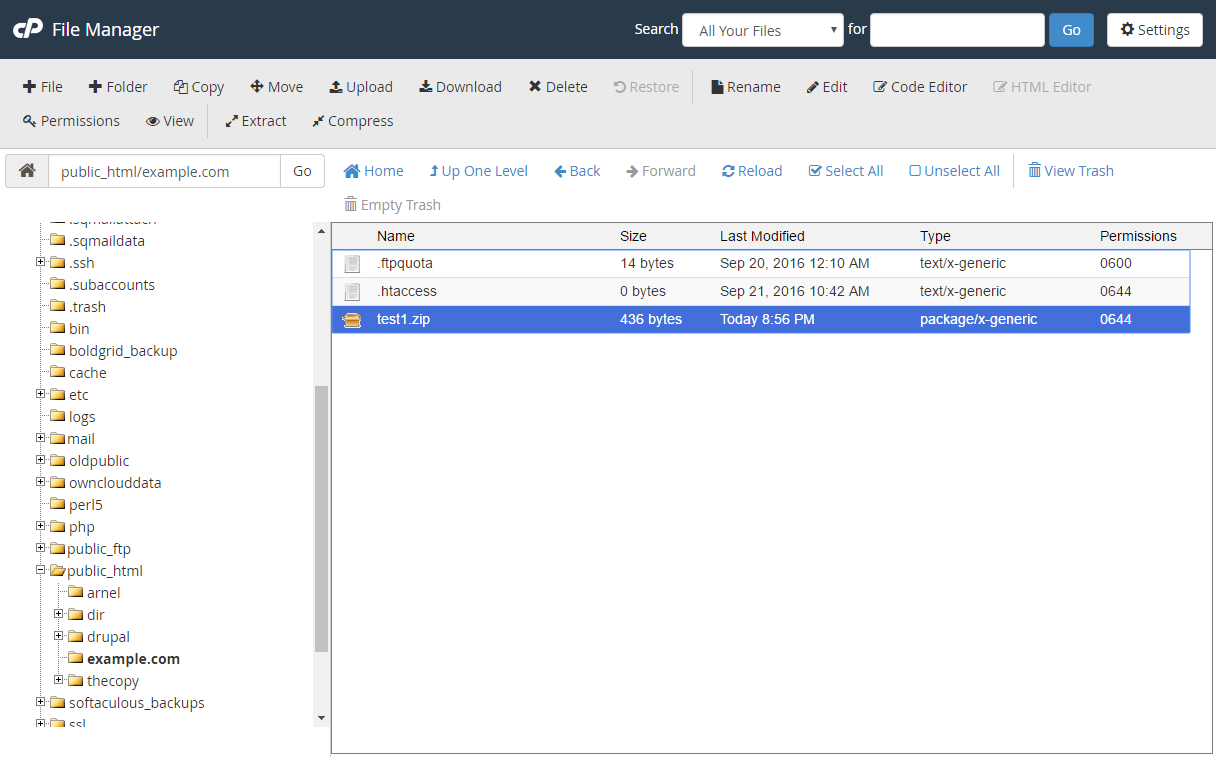
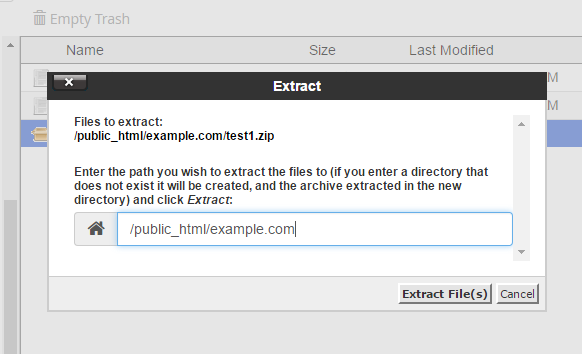
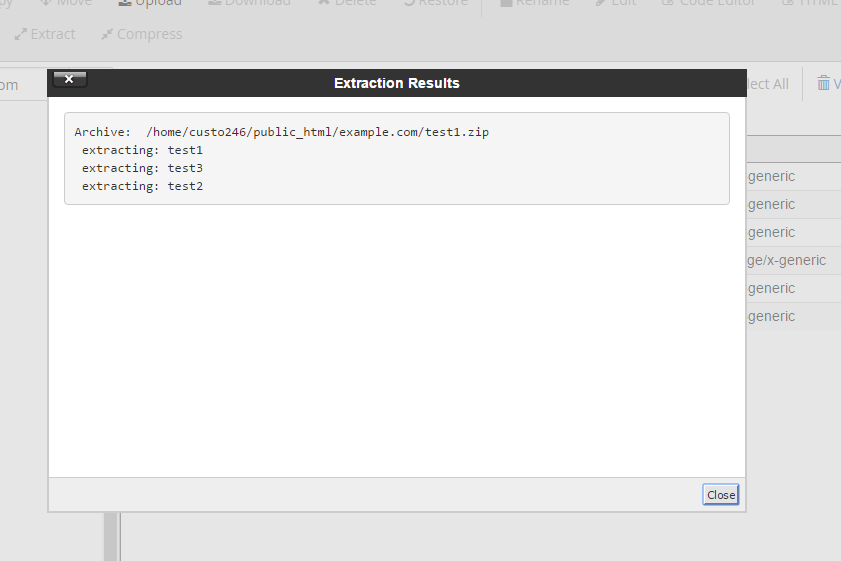
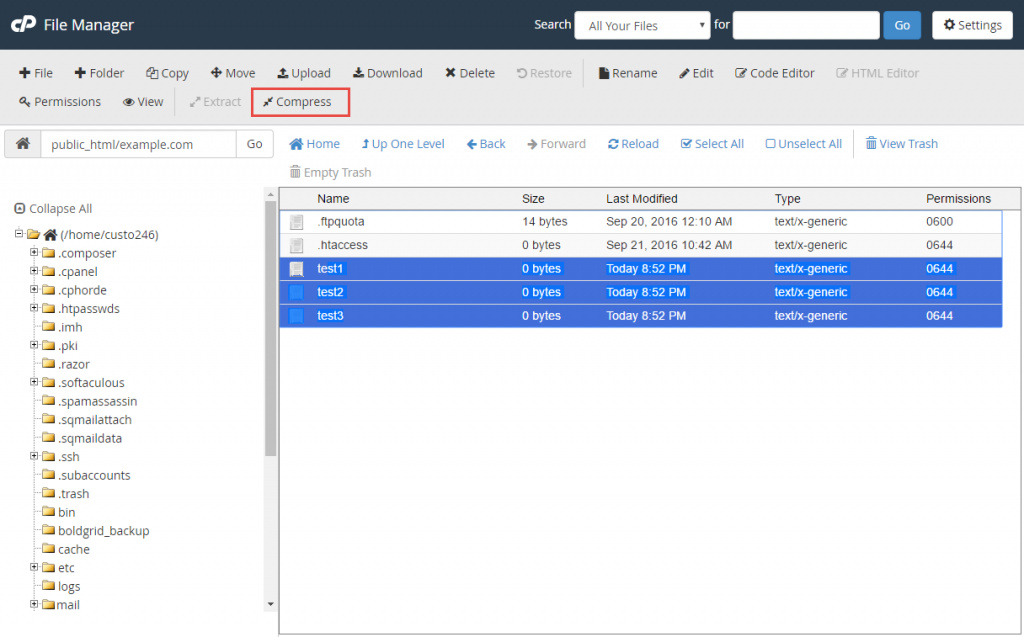
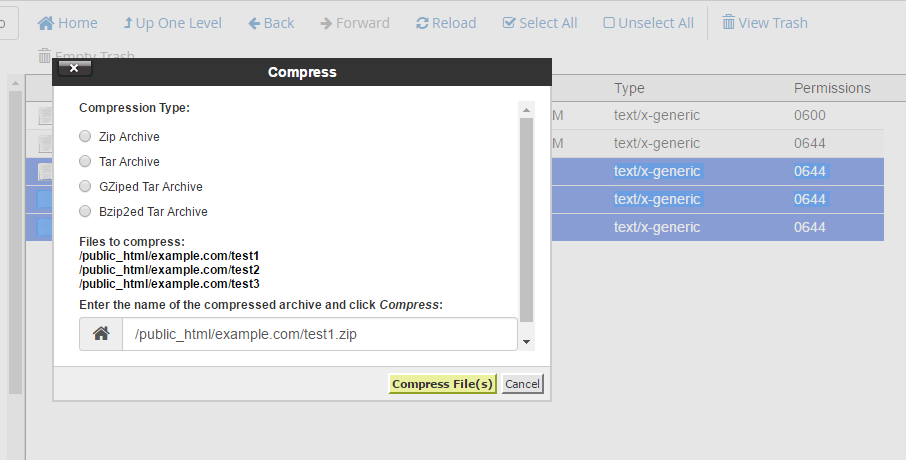
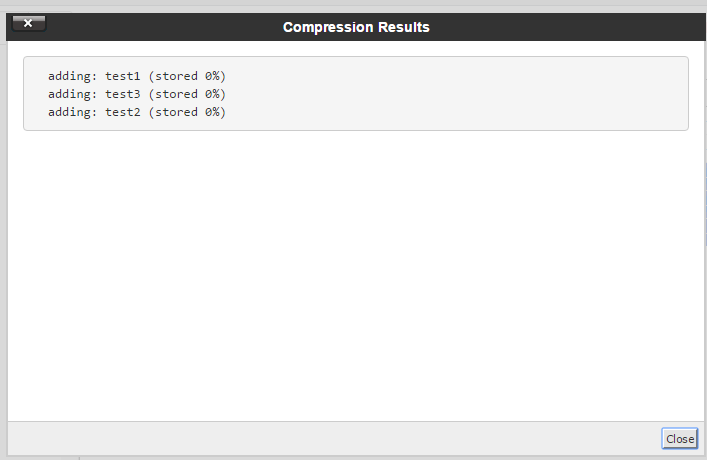
How Can I Compress / Uncompress Files Using the File Manager? Updated on September 23, 2020 by InMotion Hosting Contributor 0 Minutes, 57 Seconds to Read In this tutorial: Compress Files Uncompress Files Your File Manager allows you to both compress (zip) and uncompress (unzip) files. How to Compress Files Go to the File Manager. Navigate to the folder where the files you want to compress are While holding down your Ctrl key, click on each file that you would like included in the compressed file. Click the Compress button at the top right of the page On the “Compress” page, choose which compression you would like to use (such as zip or tar), enter a name for the file, and then click Compress File(s). When the files have been compressed successfully, you’ll see a success page that lists the compressed files similar to the below screenshot: How to Uncompress Files Go to the File Manager. Navigate to the folder location for the file you want to uncompress. Right click on the file and choose Extract On the “Extract” page, choose the directory you would like to extract the files to, and click Extract File(s). When the file has been successfully extracted, you’ll see a success page that lists the extracted files similar to the below screenshot: Share this Article IC InMotion Hosting Contributor Content Writer InMotion Hosting contributors are highly knowledgeable individuals who create relevant content on new trends and troubleshooting techniques to help you achieve your online goals! More Articles by InMotion Hosting Related Articles How to Setup an Email AutoResponder in cPanel How to Set Up the cPanel DAV Daemon How to Install WordPress using Softaculous How to Migrate Your Website Using cPanel How to Use Git Version Control in cPanel How Much Will You Pay For cPanel Licenses? Wildcard Subdomains and DNS How to Create a Subdomain in cPanel Cache Manager for cPanel How to Setup DMARC Records in cPanel
It is possible the file is too big for unzipping in cPanel. You may want to consider logging into your server via SSH and using the tar command to unzip it.
If Winrar is not better than to try with compress. . . . i have ever used this one instead of doing compress files with file explore.
Anybody have any insight as to how long this process takes? Trying to create a zipped archive backup of all my web files and it’s been doing it for 4 days now…. Not sure how to tell if it’s actually doing anything or if it’s stuck. My site is huge, so I know that it will take a while, but 4 days??
Unless you have an unusually large website, it appears to be stuck. 4 days would have to be an absolutely huge site. You may want to try again.
The extract in File Manager seems to skip nested folders in a zip.Any way to get these to extract properly?
Nested folders should extract perfectly fine. It may be this specific zip file that you are having trouble with.
Hello Malcolm, Thank you for contacting us. You can get to the File manager in cPanel, by clicking the File Manager button in the Files section. Step 1 in both sections above, include a link to our guide on Using File Manager in cPanel. Thank you, John-Paul