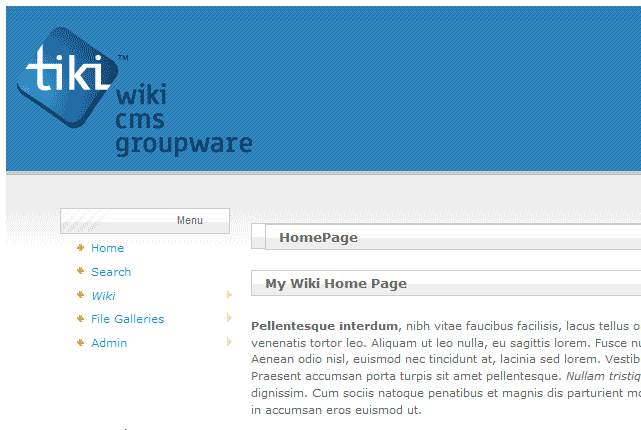
New TikiWiki web sites will have the default Tiki image for the logo. This can be changed by uploading your own custom logo to the server. In order to know where to upload the logo, the path to the file location will need to be discovered. Also, to retain the correct image dimensions and type, it is recommended to edit the original graphic. This article will explain how to find the path for the TikiWiki logo, and how to upload a custom logo to the server.
Finding the Path for the logo
- Log into TikiWiki.

Click the “Modify the Look & Feel (logo, theme, etc.)” wrench at the top right of your Wiki site.
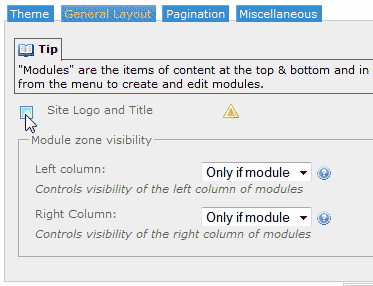
If the Site Logo and Title are not showing.
Click the Site Logo and Title checkbox.
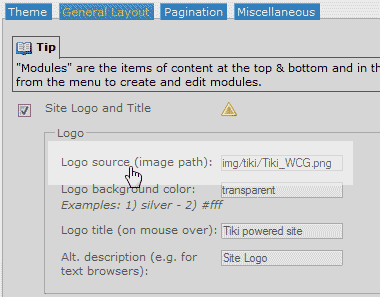
Locate the logo path in the Logo source (image path): text field. The default the path will be the following:
img/tiki/Tiki_WCG.png
This is the location of the logo on your server.
Uploading a custom logo to your server
- Login into your cPanel.
- Go to the File Manager.
Select the location of your TikiWiki site and click Go.
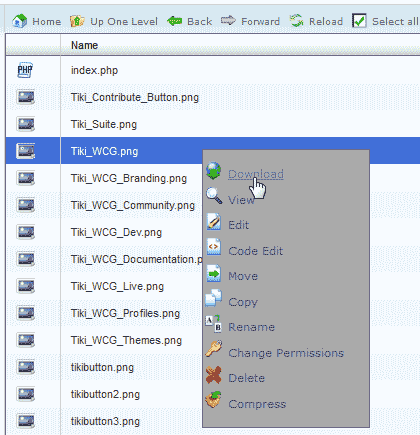
Navigate to the following directory in your File Manager.
img/tiki/Tiki_WCG.png
Right click the file and select download to download the default logo to your local computer.
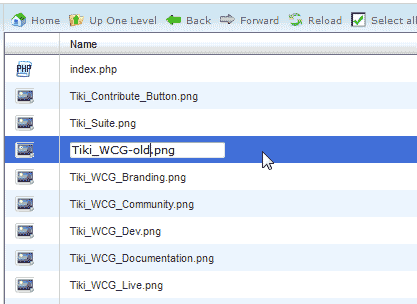
Rename the default TIkiWiki logo to Tiki_WCG-old.png.
The Default logo dimension and type are the following.
– Dimensions 235px X 130px
– The file type is .png (Portable Network Graphic)
- Edit the original image with PhotoShop, Gimp, or another image editing program. This will ensure that the file type, resolution, and size are retained.
Important! If you upload your custom image without retaining the original logo size and file type, you may not get the results you want. The logo can look distorted and overall poor quality.
Save the image.
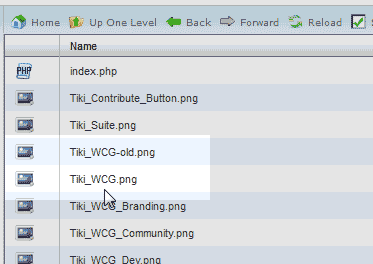
Upload your custom logo to the same directory you downloaded it from. You should see both the renamed and new logo in your files.
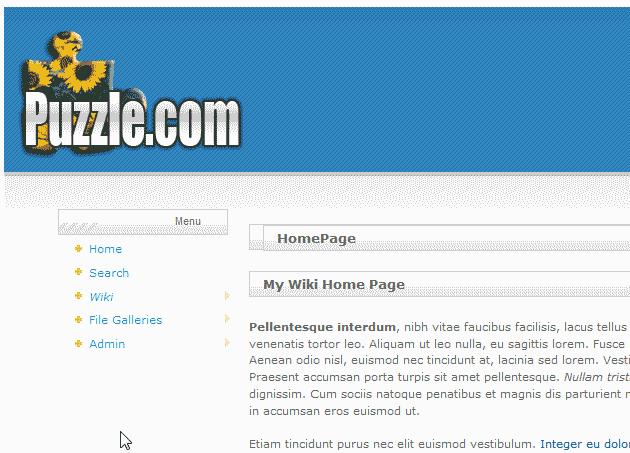
Clear your browser cache. Refresh your WikiTIki site. Now your logo should now display on your site similar to the image to the right.
