When setting up TikiWiki pages, there may be an occasion when you need to add an iframe to a page. TikiWiki has a built in capability to use iframes in pages. The following steps will explain how to enable and insert an iframe in TikiWiki.

Steps to add an iFrame in TikiWiki

  1. Log into TikiWiki.

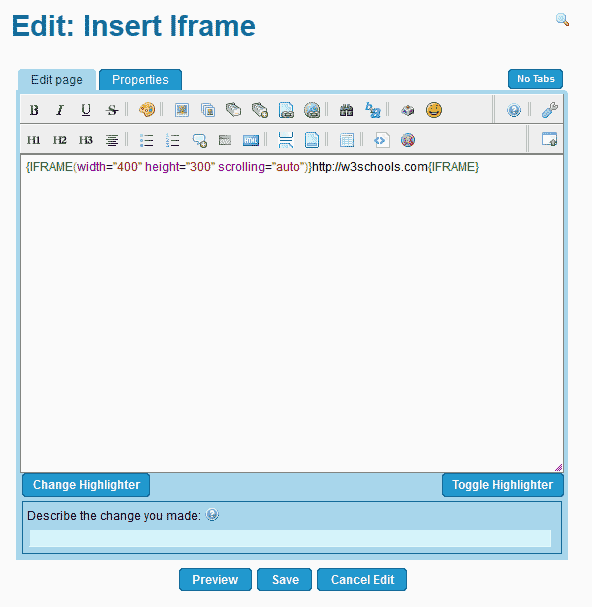
    Edit the page you want to insert the iframe into.

  2. Insert the following code into your page.
    {IFRAME(width="600" height="500" scrolling="auto")}http://website.com{IFRAME}

    Add iframe code to page TikiWikiYou will need to supplement the http://website.com with the url you want your iframe to load.

    Click Save.
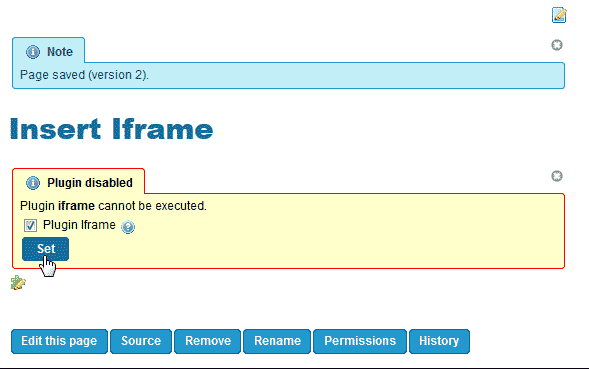

  3. Enable iframe plugin TikiWikiInitially, the iframe plugin is not enabled. You will need to enable it. You should see a "Plugin Disabled" warning. See image to the right.

    Check the Plugin iframe check box and click Set.
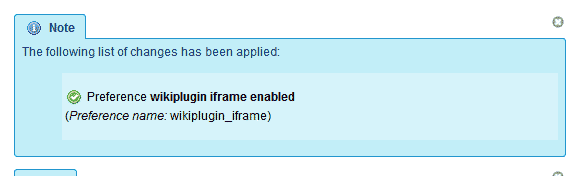

    Confirmed enable TikiWikiYou should have a confirmation saying "Preference wikiplugin iframe enabled".

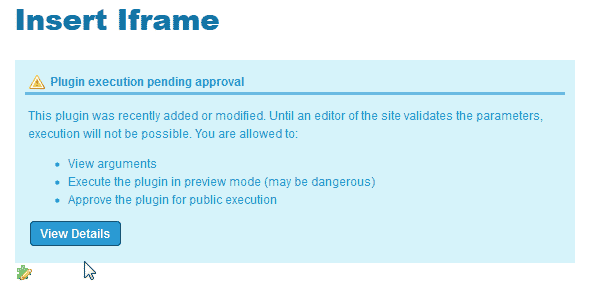
  4. View details of iframe TikiWikiGo back to the page you inserted the iframe into and edit it. When visiting the page, you will get a notification that says, "Plugin execution pending approval".

    Click View details.


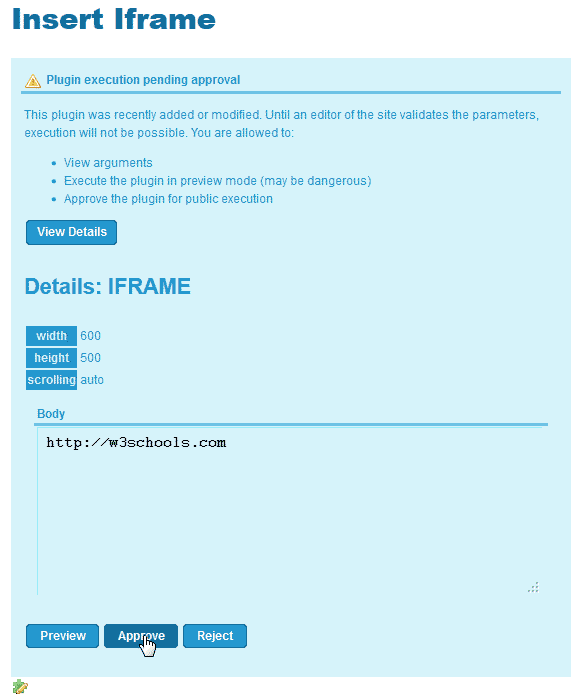
  5. Approve the iframe TikiWikiThe details of what is being inserted into the page will display. Click Approve.
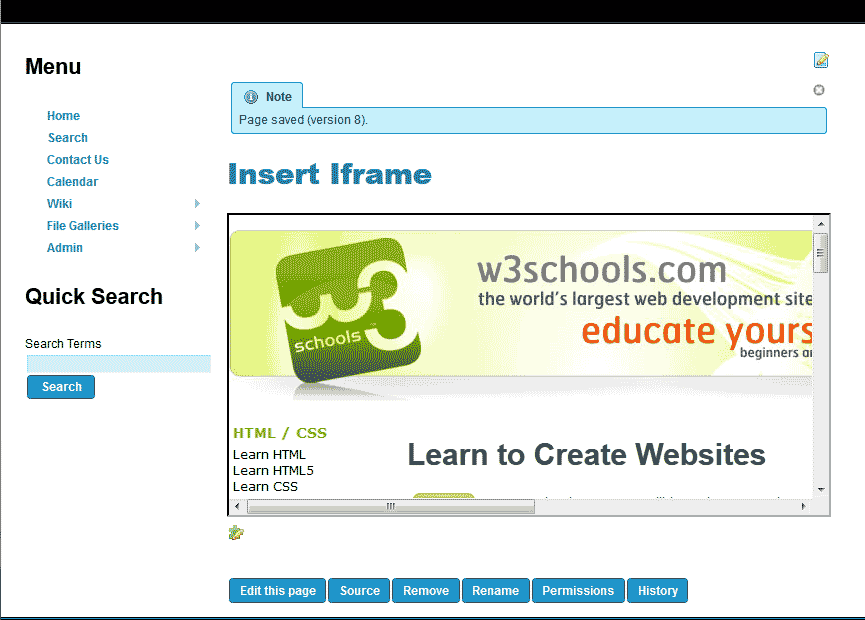
    Page saved with iframe TikiWikiNow you will see the iframe display on your TikiWiki page.
Like this Article?

Login to comment.

Your Opinion Matters

... but we need to know what you're thinking!

I'm James Richardson, your friendly Community Support technician, and I wrote the article you're looking at now. I like to think it's perfect, but I'm sure you have some suggestions. Please, let me know what they are!

Feedback
Your Email Address
Because we'd like to talk with you!

Latest Questions

If you need some help, submit your question to our Community!
We guarantee a response within 60 minutes (8am - 9pm EST, Monday - Friday)
Ask a Question!
Recent Questions
  1. I can't access my website
  2. we-creation.com server down
  3. How do I delete the DNS entry?

Need more Help?

Search

Ask the Community!

Get help with your questions from our community of like-minded hosting users and InMotion Hosting Staff.

Current Customers

Chat: Click to Chat Now E-mail: support@InMotionHosting.com
Call: 888-321-HOST (4678) Ticket: Submit a Support Ticket

Not a Customer?

Get web hosting from a company that is here to help. Sign up today!