Creating and editing pages in TikiWiki
Written by James RichardsonOnce you have finished installing and logging into TikiWiki, the next step in building your TikiWiki site is learning how to create and pages. This article will explain how to edit and create pages in TikiWiki.
Creating and Editing pages
Creating and Editing pages is very simply in TikiWiki. This section will explain how to edit and create pages.
How to Create Pages
- Log into your TikiWiki.
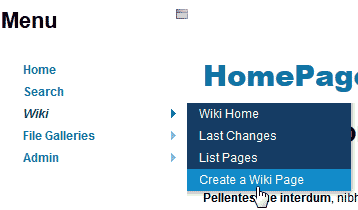
On the left menu, hover over Wiki and click Create a Wiki page.
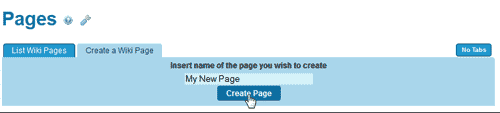
On the Create a Wiki Page, enter the new page title and click Create Page.
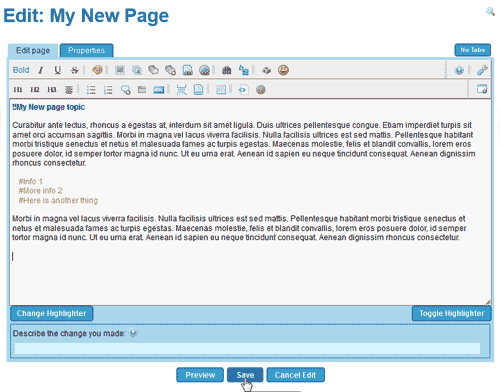
On the Edit page, add the text to the new page and click Save.
How to Edit wiki Pages
- Log into your TikiWiki.

Navigate to the page you want to edit.
Click Edit this page.
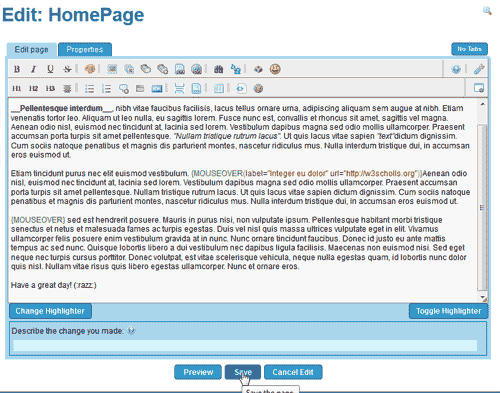
On the Edit page, enter the content for the page and click Save.
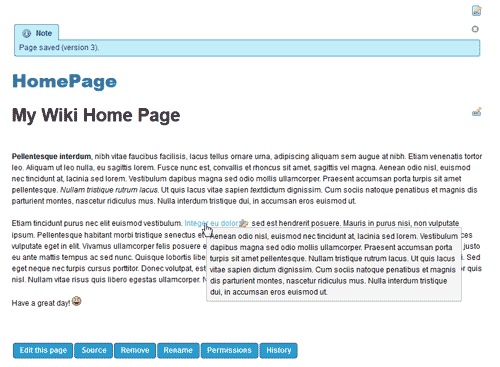
Now the age should look the way you set it up like the snapshot to the right.
Now that you know how to create a page in TikiWIki, lets learn how to delete and restore pages.
Like this Article?
Tweet
Category
102: Adding content to TikiWIki
Adding content to TikiWIki
Creating pages and structures | |
| 1. | Creating and editing pages in TikiWiki |
| 2. | Creating structures or table of contents in TikiWiki |
| 3. | How to delete and restore pages in TikiWIki |
| 4. | Renaming pages and Structures in TikiWiki |
| 5. | Redirecting pages in TikiWiki |
Adding and Formatting content | |
| 6. | How to format TikiWiki page content |
| 7. | Uploading and Hotlinking images in TikiWiki |
| 8. | How do I insert a Youtube video in TikiWiki |
| 9. | How to enable and insert an iframe in TikiWiki |
Latest Questions
If you need some help, submit your question to our Community!
We guarantee a response within 60 minutes (8am - 9pm EST, Monday - Friday)
Recent QuestionsNeed more Help?
Search
Ask the Community!
Get help with your questions from our community of like-minded hosting users and InMotion Hosting Staff.
Current Customers
| Chat: | Click to Chat Now | E-mail: | support@InMotionHosting.com |
|---|---|---|---|
| Call: | 888-321-HOST (4678) | Ticket: | Submit a Support Ticket |

