
Domains purchased through GoDaddy are fully supported on InMotion Hosting servers. To get a GoDaddy domain working with us, the nameservers have to point the domain to our DNS server while making sure to add it to your cPanel if it isn’t your primary domain. It’s a quick process so let’s get started!
Not currently an InMotion Hosting customer? This tutorial shows you how easy it is to make the switch on the backend. Get started today with a VPS Hosting account.
Changing the Nameservers at GoDaddy
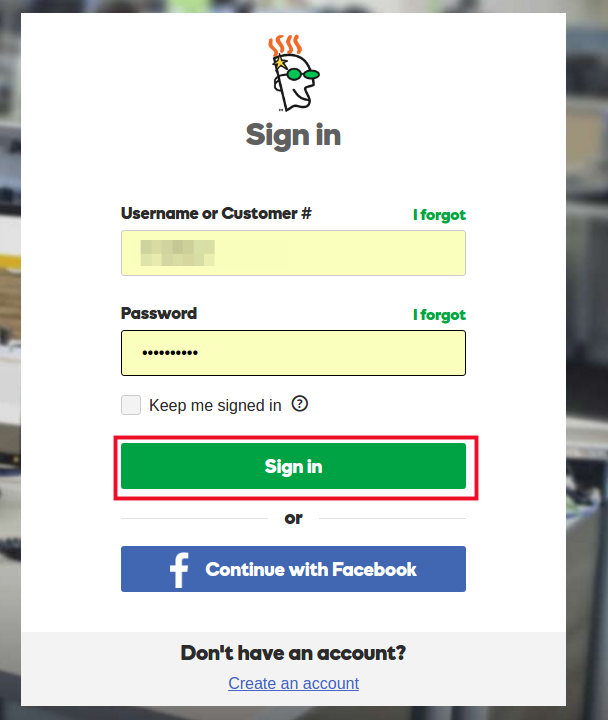
- Log into your GoDaddy Account.
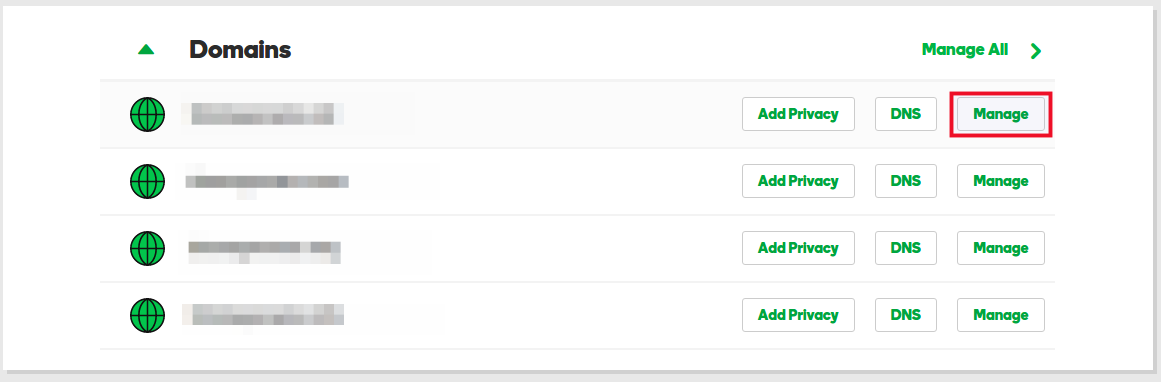
- Select the domain you want to point to InMotion Hosting and click Manage.
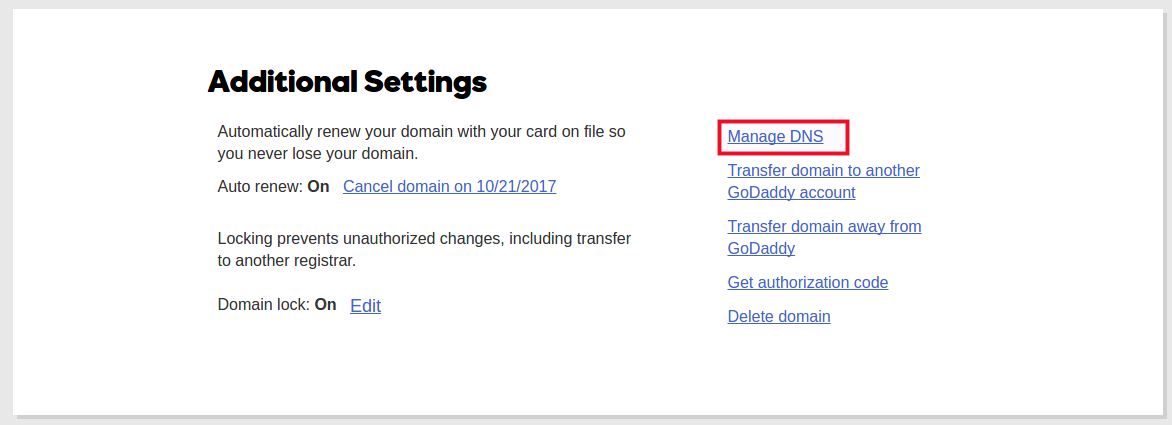
- Under Additional Settings, click on Manage DNS.
- Scroll down to the Nameservers section and click Change.
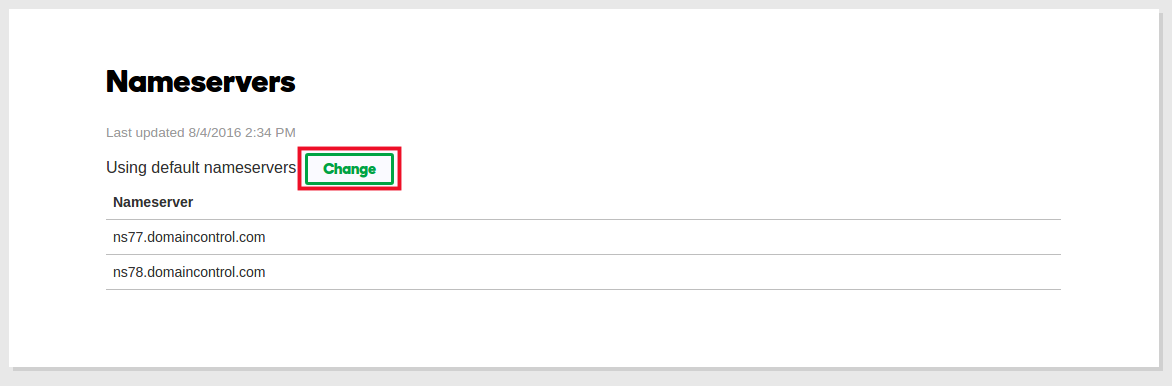
- Switch the dropdown from Default to Custom and under Nameservers fill in the InMotion Hosting Nameserver information:
ns1.inmotionhosting.com
ns2.inmotionhosting.com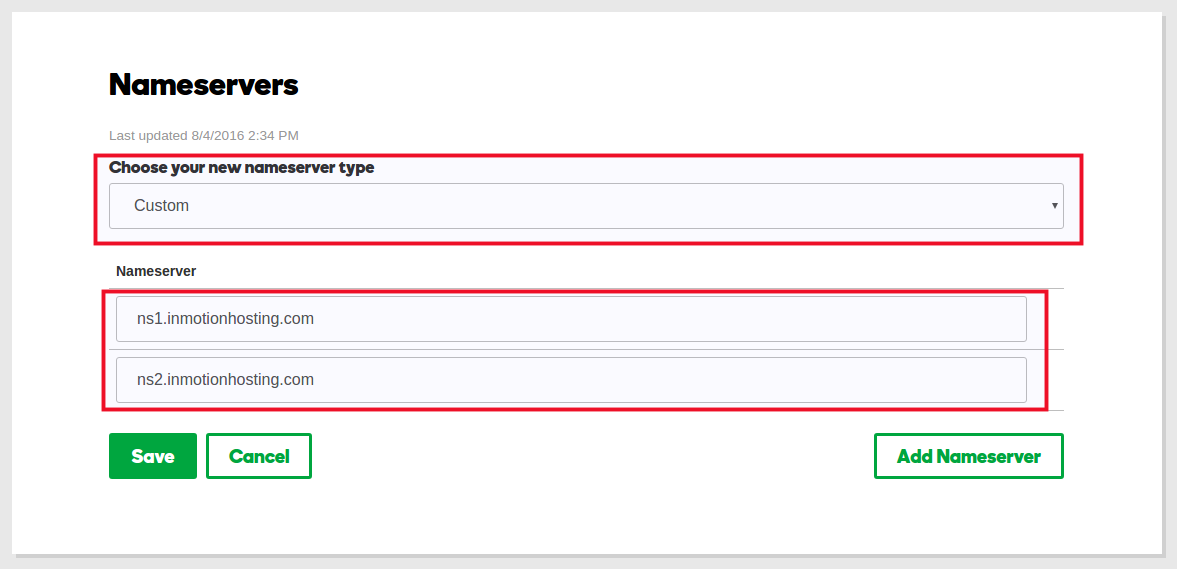
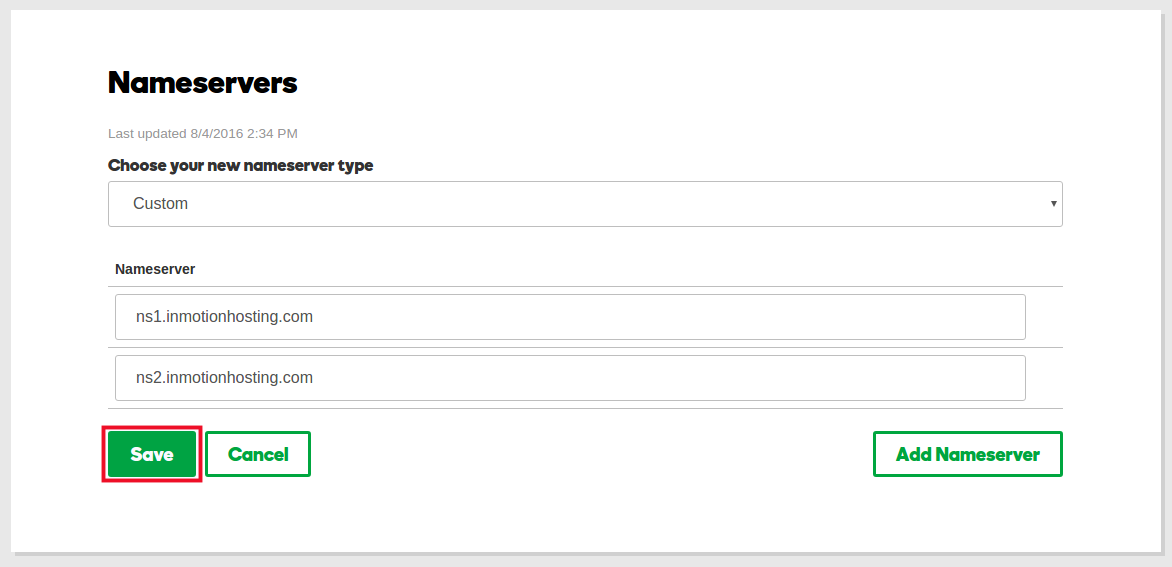
- Click Save.
Congratulations, now you know how to update your Nameservers with GoDaddy to point to InMotion Hosting!