
WordPress by default has comments enabled for most themes. The comments can be disabled in the WordPress Dashboard Settings > Discussion page; however, this does not remove the comments from the page entirely. What happens when the comments are disabled is, the site will display “Comments are closed”. Comments can be removed completely be Commenting out the lines of code in the theme file that displays the Comments. The following code snippets are an example of the code used to display the comments.
<?php comments_template( '', true ); ?> <?php comments_template(); ?>
In this tutorial, HTML comment code will be used to disable the Comments from displaying in the page.php and single.php pages of WordPress. The Main Index Template page will not be touched in this tutorial because that template is the main template and can be disabled or changed in a different way. In this article, the Birdsite theme is used. The following will outline the steps to remove the comments.
Important! Editing the source code of a WordPress theme is a critical change. If the code is not edited correctly, the site WILL break. If you are not comfortable editing the code, please check with a developer before proceeding.
This article will explain how to remove the Comment code from the WordPress theme by using HTML comments.
Disabling the Comments in the WordPress Theme code
- Log into the WordPress Dashboard
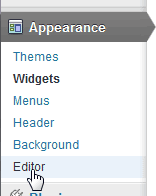
Navigate to the Appearance > Editor in the WordPress Dashboard to the left.
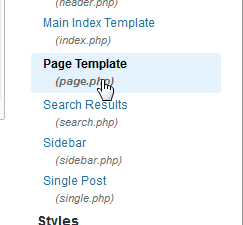
Select the page Template (page.php) in the Templates section to the right.
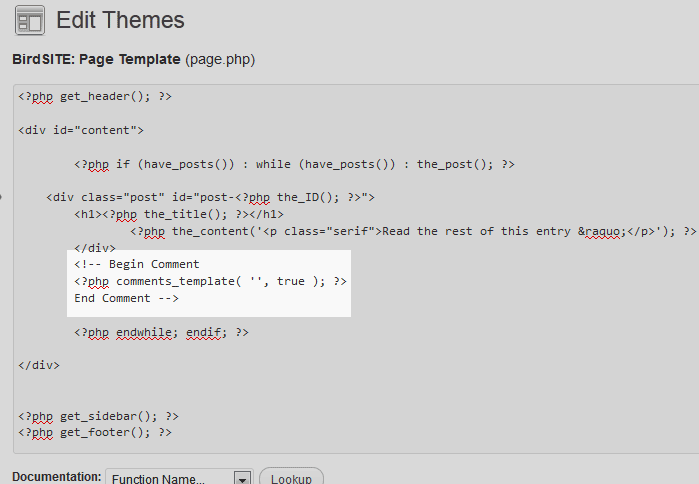
On the Edit Themes page, comment out the code that displays the Comments on the page.php page. In this case, the following code will be commented.
<?php comments_template( '', true ); ?>
Change to
<!-- Begin Comment <?php comments_template( '', true ); ?> End Comment -->
Click Update page.
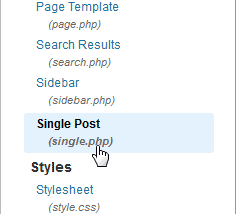
Next, Click the Single Post (single.php).
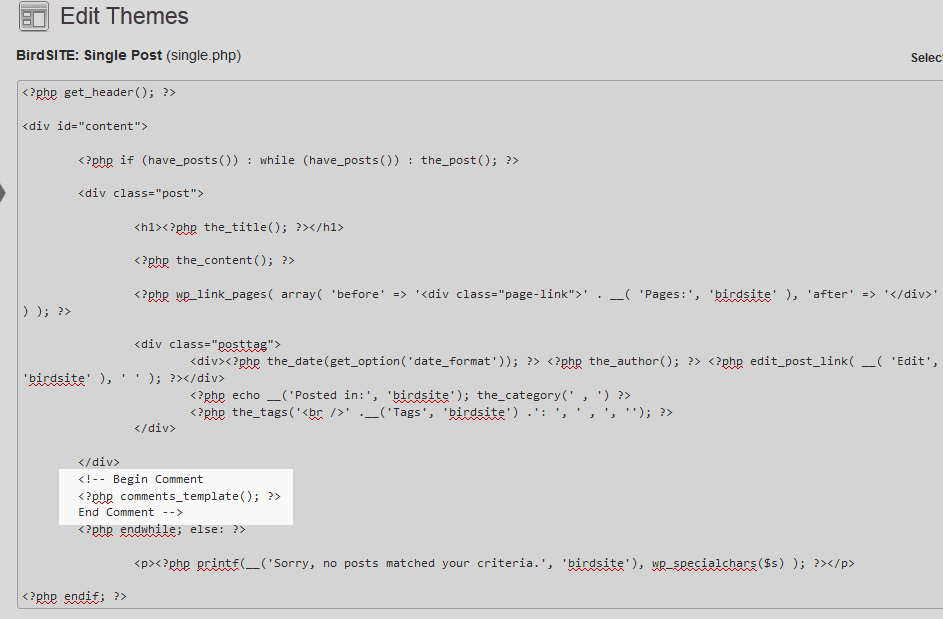
On the Edit Themes page, comment out the code that displays the Comments on the single.php page. In this case the following code will be commented.
<?php comments_template(); ?>
Change to
<!-- Begin Comment <?php comments_template(); ?> End Comment -->
Click Update page.
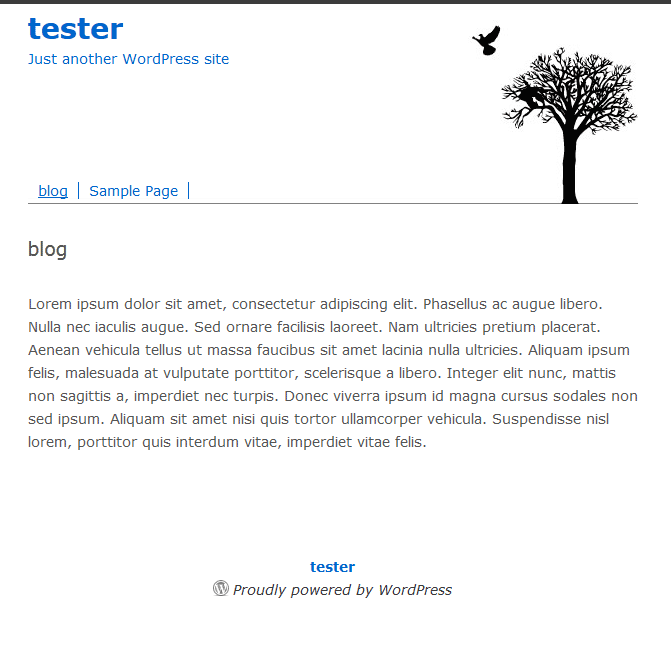
Now the WordPress site will not display the comments on the single.php and the page.php pages.
This concludes this article on How to completely remove Comments from WordPress. To learn more about Widgets, please visit Introduction to Plugins & Widgets
