
If you had email hosting from a previous hosting provider it is likely you had an email account. You can transfer those emails to your InMotion Hosting account. There are different ways to migrate your existing emails. One way to configure the accounts in an email client and copy the emails to our servers. We are going to show you how to do this using the Thunderbird email client. Other clients such as Outlook have the same basic functionality.
How do I transfer my emails using Thunderbird?
Before we get started you will need to create an email account in cPanel. Next, open your preferred email client such as Thunderbird. It’s important to set up your old email hosting in your email client as an IMAP account. Make sure this is done before you cancel your hosting with your previous provider or you will lose your emails. Next, set up a new email account but with the account pointed to our servers.
We have articles on how to set up different clients linked within our email configuration guide. You can read more in-depth information in our Getting Started guide. For this example, we will set up an email account in Thunderbird.
When configuring the accounts, use your servers’ hostnames as the incoming and outgoing mail servers. For example, the average user will use mail.example.com as their incoming and outgoing server name. mail.example.com either points to InMotion Hosting or your previous server, not both. Using a server’s hostname instead of mail.domain.com ensures we are connecting to the correct servers. Your hostname for Inmotion Hosting may look something like biz108.inmotionhosting.com. You should reference your Account Management Panel for the exact server name. You’ll need to contact your previous host to find out the server name of your previous server.
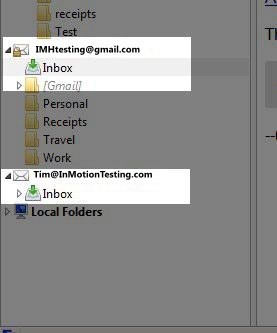
Now that both hosting email accounts are added we can copy the emails. In this example, we will move emails from [email protected] to [email protected]. We are using two different email addresses to make our example more clear. However, when you add your email accounts, they will be the same email address. You will be copying emails from the same email addresses, but with each hosted on different servers. Once both accounts are added you will see them both on the left menu of your email client:
Making the Transfer
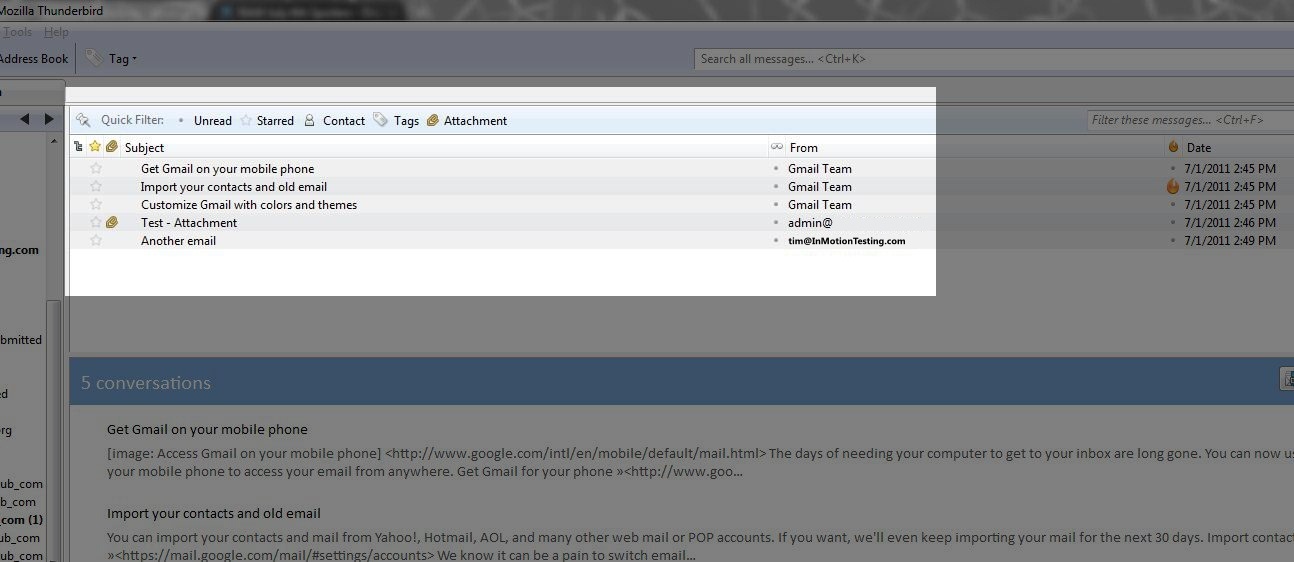
- To begin the transfer process, highlight all the emails you want to transfer. You can highlight them by clicking on “Edit” in the menu bar and then “Select All“:
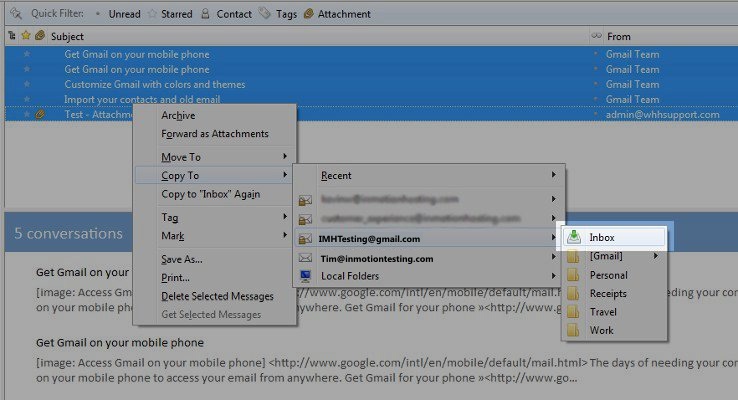
- Right click on the email messages. In Thunderbird, mouse over “Copy To” and then select the inbox you want to copy the emails. Remember this will be the email account set up with InMotion Hosting:
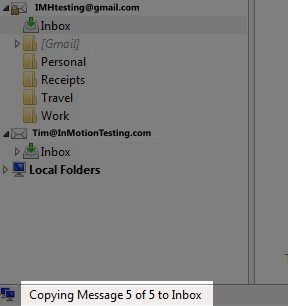
- Once you click on the folder you want the emails moved to, a transfer will begin. It will display at the bottom of the page so you know it is copying:
- Finally, you can click on the new inbox to make sure the emails are transferred. You can confirm the emails were copied by simply checking the inboxes of both accounts. The emails in each account should be identical. You can check both the old and new accounts to confirm the process was successful:
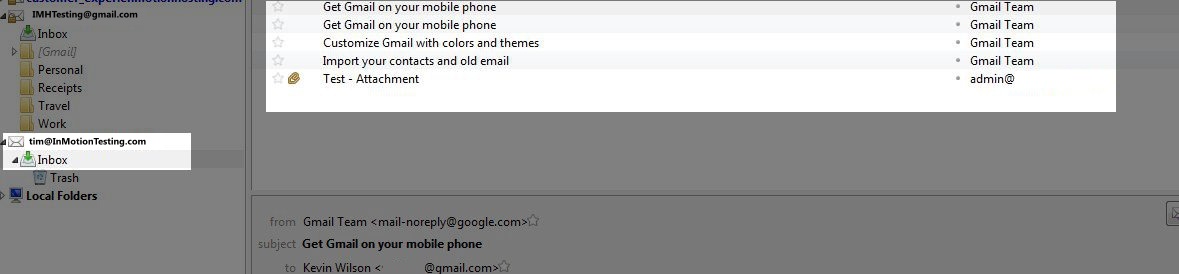
If your emails show in the inbox on our server the transfer was complete! Depending on the number of emails this can take anywhere from a few minutes to hours. You can also confirm that the emails copied by logging into webmail.