
A cron job is an automated background task scheduled to happen at a specific time. A few examples include checking for updates, backups, or sending out reminder notifications. Cron jobs are important because they automate tasks that reduce manual operations to help with security, performance, and functionality for an administrator and all of the users of the server or website.
You can use cPanel’s Cron Job feature to run Unix commands and/or automate the execution of your PHP, Perl, or Python Scripts. To create a cron job, you would first log in to your cPanel under “Cron Jobs” then select either “Standard” or “Advanced.” You can also specify an email address that the Cron daemon will use to send the job’s results.
Follow the steps below to learn how to set up a cron job in the cPanel and run it manually.
- How to Get to the Cron Job Page in cPanel
- Setting Up Email for Notification and Reports
- How to Set Up a Cron Job
- Using the User Agent String
- Running a Cron Job Manually
- Troubleshooting a Cron Job
Check out InMotion’s shared server hosting plans for economic solutions tailored for your quick website needs!
How to Get to the Cron Job Page in cPanel
- Log in to the cPanel.
- Scroll through the cPanel to find the Cron Job icon. Click on it.

- You will then see the Cron Jobs page. The top half of the page looks like the following:

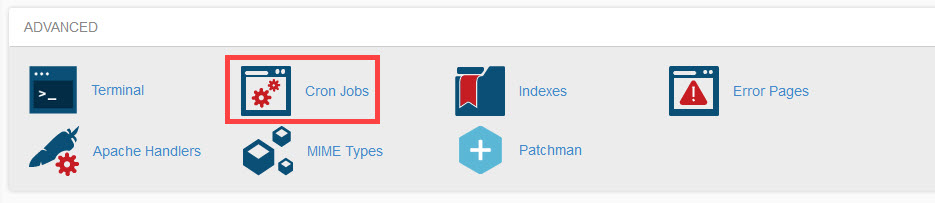
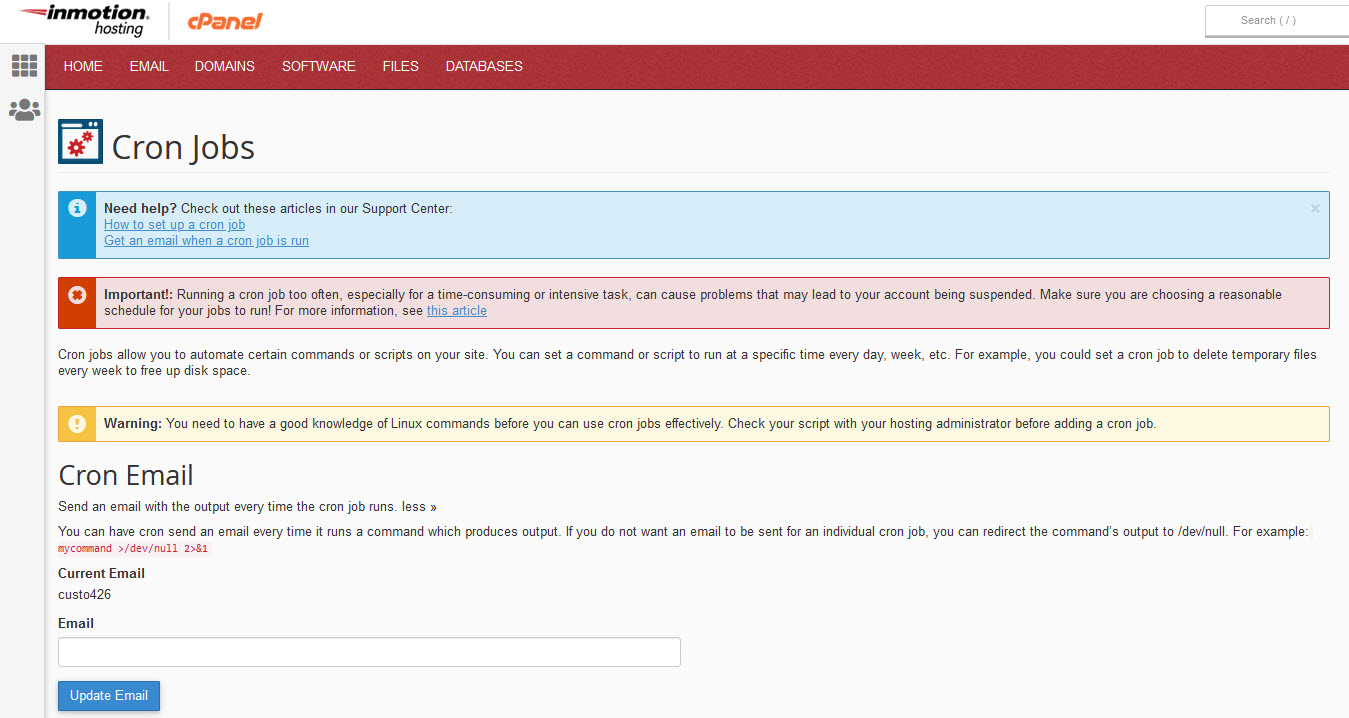
Once you’re on the Cron Jobs page you can add cron jobs, add an email for cron job reports and notifications, and manage existing cron jobs at the bottom of the page where they are listed.
Setting Up Email for Notifications and Reports
In order to receive emailed notifications for the execution and output of a cron job, you will need to add an email address. The cron email in cPanel defaults to the account user but can be specified to another email address in this section of the cron job page.
In some cases, you may not need to have an email produced for every cron job output result. For example, you may be running a cron job that runs 20 times a day. Getting an email sent every time the cron runs could get tedious and add an unnecessary load to your server.
If you intend for the cron job to have no output, then you need to add the following to the cron job command:
mycommand >/dev/null 2>&1You would replace “mycommand” with your cron job command.
How to Set Up a New Cron job
Creating a cron job can be done in a command line or through the cPanel interface. We will show you both methods below.
How to Set Up a Cron Job in cPanel
Setting up a cron job in the cPanel is simplified by providing fields for two major parts of every cron job: the scheduling and the command.
The scheduling section of the cron job is also provided with a drop-down for the commonly used settings.
The most complex part of creating the cron job is adding the command or script. You can easily cause problems with your website or the server if you do not know how to properly set up a cron job. If you are following directions from a third party, use caution and follow the directions carefully. To be safe, make sure to make a backup of your site before adding and running a cron job.
If you’re not familiar with how to use a command or write a script, then it is recommended that you speak or work with an experienced programmer or website manager to set up your cron job.
When you scroll down the Cron Job page you will see the option to Add New Cron Job. This is a screenshot of the interface provided by cPanel to set up a cron job:
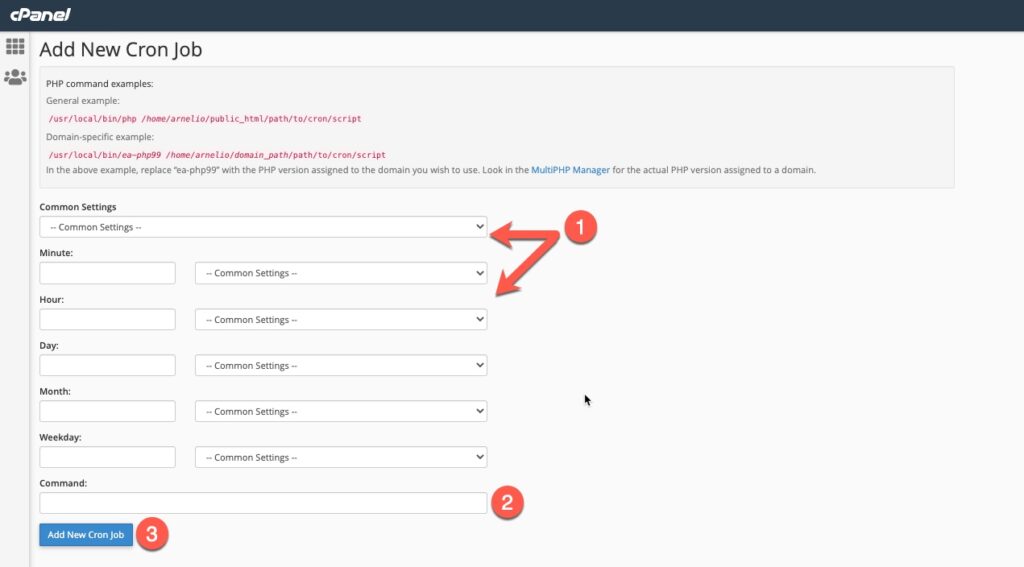
- Schedule your script’s run time.
- Add your command or script that needs to be run in the comand line.
- Click on Add New Cron Job to save your changes.
When the script is saved, you will see it listed in a table further down the page.
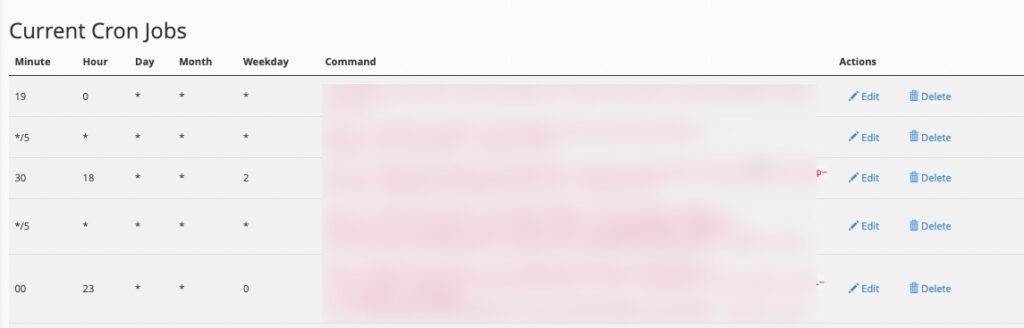
How to Set Up a Cron Job in Command Line
First, you will need to set up the Crontab. This is the section that determines when the cron job will run. The order is:
[minute][hour][day][month][weekday][command]This is an example of adding a cron job in the cPanel. Note that the crontab is the time and date applied to the command or script.

This is how the entry in the cPanel cron page would look on one line of a text file:
41 04***/my/script -vThis code means that the script ("/my/script -v") will run:
- All the days of the week (including weekdays)
- All the months of the year
- At 4:41 AM
Weekday is every day of the week including the weekends. A”weekday” literally means all of the days in the week: Monday – Sunday.
- Common Settings —This drop-down menu includes commonly used time intervals. If you select one, then the system will configure all of the Minute, Hour, Day, Month, and Weekday text boxes for you.
- Minute — The number of minutes between each time the cron job runs, or the minute of each hour on which you wish to run the cron job.
- Hour — The number of hours between each time the cron job runs, or the hour of each day on which you wish to run the cron job.
- Day — The number of days between each time the cron job runs, or the day of the month on which you wish to run the cron job.
- Month — The number of months between each time the cron job runs, or the month of the year in which you wish to run the cron job.
- Weekday — The days of the week on which you wish to run the cron job.
When setting the time, it is also good to set the cron to run at an odd minute, instead of the top or bottom of the hour. The example above runs at 4:41.
The suggestion of using an odd minute is because many cron jobs are always set to run at common times. This means that a server may experience a sudden loss of performance because it’s trying to process many cron jobs at those common times. Setting your cron job to start at an odd hour will help with server performance.
However, if you are on a dedicated server and you know what cron jobs are running, then it is okay to use those common times since all of the system resources will be dedicated only to your site or application.
Specifying the Command to Run
When you use a command for a cron job it will have two parts:
[program to execute (perl/pyth/php)][switches][script]The program to run will specify the type of script you are running and will either be:
- php
- Python
You will need to know where your script has been saved. It will be called on its direct path as it is located on our server, so it will be something similar to /home/userna5/public_html/path/to/script, with “userna5” being your username.
Perl/CGI scripts should be in your cgi-bin, with permissions of 755. Please read our article on file permissions for more information. Here are examples of cron job scripts running PHP, Python, or Perl/CGI scripts:
- To run a PHP script:
php -q /home/usern5/public_html/scripts/testrun.php - For Python scripts:
python /home/usern5/public_html/path/to/script - For Perl/CGI scripts:
/home/usern5/public_html/cgi-bin/yourscript.pl
You can use any type of text editor when you are creating your cron job scripts. Make sure you know where you have saved it (with the correct permissions) as noted above.
Using the User Agent String
The general definition of a user agent from the World Wide Web Consortium (W3.org) is:
A user agent is any software that retrieves and presents Web content for end users or is implemented using Web technologies. User agents include Web browsers, media players, and plug-ins that help in retrieving, rendering, and interacting with Web content.
The use of a user agent string is considered optional but it’s covered in this article for developers who may still want to consider its use.
The wget command is disabled on all the shared servers for security purposes. Most scripts that are run via wget can be used with the lynx or curl command. The new mod_security rules that were applied with the latest PHP updates will prevent lynx and curl from working if a user agent is not set. To set the user agent, you can use the following command:
curl --user-agent YOUR_STRING (URL)lynx -dump -useragent=YOUR_STRING (URL)
Your full cron job command would end up looking like this:
/usr/bin/curl <strong>--user-agent cPanel-Cron</strong> https://example.com/cron.phpRunning a Cron Job Manually
In some cases, there may be a need to run a cron job on an unscheduled, and manual basis. This is often done for troubleshooting scripts or testing, or in some cases, there may simply be a need to immediately run the script for its functionality. For example, you may have a script that clears caching, but you want it to immediately run instead of waiting for its scheduled time.
CAUTION: Be careful when running a cron job manually. Understand what the script does before running it blindly. Scripts can vary from backing up your site to clearing out the cache. It can affect what your viewers see, the operation of your website, and the performance of your server.
When you run a cron job manually, then you are either immediately executing the command line in a terminal or you are running a script that should be accessible through a website.
A cron job is executed based on a schedule. Running it manually removes the time constraint since you are running it immediately.
Example of executing a PHP cron job manually:

Note that you will need to know where that script is located. You can also run a PHP script directly from the browser as long as you have the URL to run it.
For example, you could open any browser and use a URL like this:
https://example.com/scripts/mydailyscript.php
Running a Linux command that is NOT in a script would simply be directly run in a terminal. You would need to access the site through the terminal with the appropriate access rights. Otherwise, manually running a script is the same as you see above for the PHP script.
Cron Job Troubleshooting
Generally, you can tell if your cron job has run based on the notification or output that you received when a cron job runs. If you want to be sure that the cron job has run, then you check the logs. For more information, please see: How to Check if a Cron Job Has Run (Crontab log).
Congratulations! Now that you know how to set up a cron job and run in cPanel, you can add repetitive tasks that you want to control under your own schedule.
Go Unlimited with Exceptional Shared Hosting
Upgrade your Shared Hosting today and take your business to the next level! Get unlimited NVMe SSD storage, cPanel, professional email and over $400 in savings.
 Free Domain 24/7 Human Support 100% Money-Back Guarantee


Ok, thank you
Maybe it’s possible to make it a bit more complicate and great to apply additional restrictions to common commands.
I recently had to add a cron-job on another hosting site and all we needed to do was to out the URL of the PHP-file in the ‘to execute’ field and the schedule and it worked like a champ. Not so here!! I would say there is plenty of space up to improve.
Hi Thomas, sorry to hear that you’re having trouble. While some systems do have set-up wizards that let you set a cron up quickly, they are often limited in what you are able to put in place. Our system allows you to set up a fully configured cron to whatever specifications you need, but you do need to be able to code it. While coding a cronjob for you is outside of the scope of our support, please get in touch with our Managed Hosting team for a consultation on getting one set up for you! Alternatively, please refer to the official cPanel documentation for further details that may help as well!
Hey,
Just wanted to thank you for saving my a….s. I looked for a solution for days until I found this! fantastic job!
I want you to know that you helped me resolve a problem with my cron job on my website, DonCooperProducts.com, that I’ve been working on with one of my developers for months! Thank you so much for posting this informaiton!
Best Regards,
Don