
GitHub offers a convenient SSH key feature for accessing your repositories on the command line. Instead of using usernames and passwords every time you push to or pull from your repository, you can use your key. In this article we’ll learn how to add SSH keys to your GitHub account.
Why use an SSH key?
Using an SSH key is a convenient and secure way to access your account. It’s convenient because you don’t need to remember a long password. And you can make your actual password so brutally long and secure that no human or bot could guess it. The SSH key works like an actual key that only you possess.
How to Create an SSH Key
In order to use an SSH key with Git, you must first create the key on your computer. If you already have an SSH key, you can skip these steps. In order to check if you have a key, you can run this command:
user@server# ssh-add -l
Follow along with the steps below to create the key and copy its contents. You will need to open your computer’s default terminal application.
- Open the terminal app on your computer.
- Enter the following command, substituting [email protected] with your email address:
user@server# ssh-keygen -t rsa -b 4096 -C "[email protected]" - Press Enter to accept the default file location.
- Enter a secure passphrase.
- Press Enter.
- Enter this command to display the contents of your public key:
user@server# cat .ssh/id_rsa.pub - Copy the contents of your key to your clipboard (we will need it later).
It’s important to remember that the SSH key has two parts: a private key and a public key. As the name suggests, the private key is only for private use. Never ever share your private key with anyone (with exceptions made for your system administrator or other trusted people within your organization). This will be important later.
How to Add an SSH Key to your Github Account
Now we have already seen why you might want to use an SSH key. We also demonstrated how to create an SSH key on your computer.
As mentioned above, we have a private key and a public key. In the steps below you’ll learn how to upload your public key to GitHub.
- Log into your GitHub account.
- Click your avatar and choose Settings.

- Select SSH and GPG keys.
- Click New SSH key.
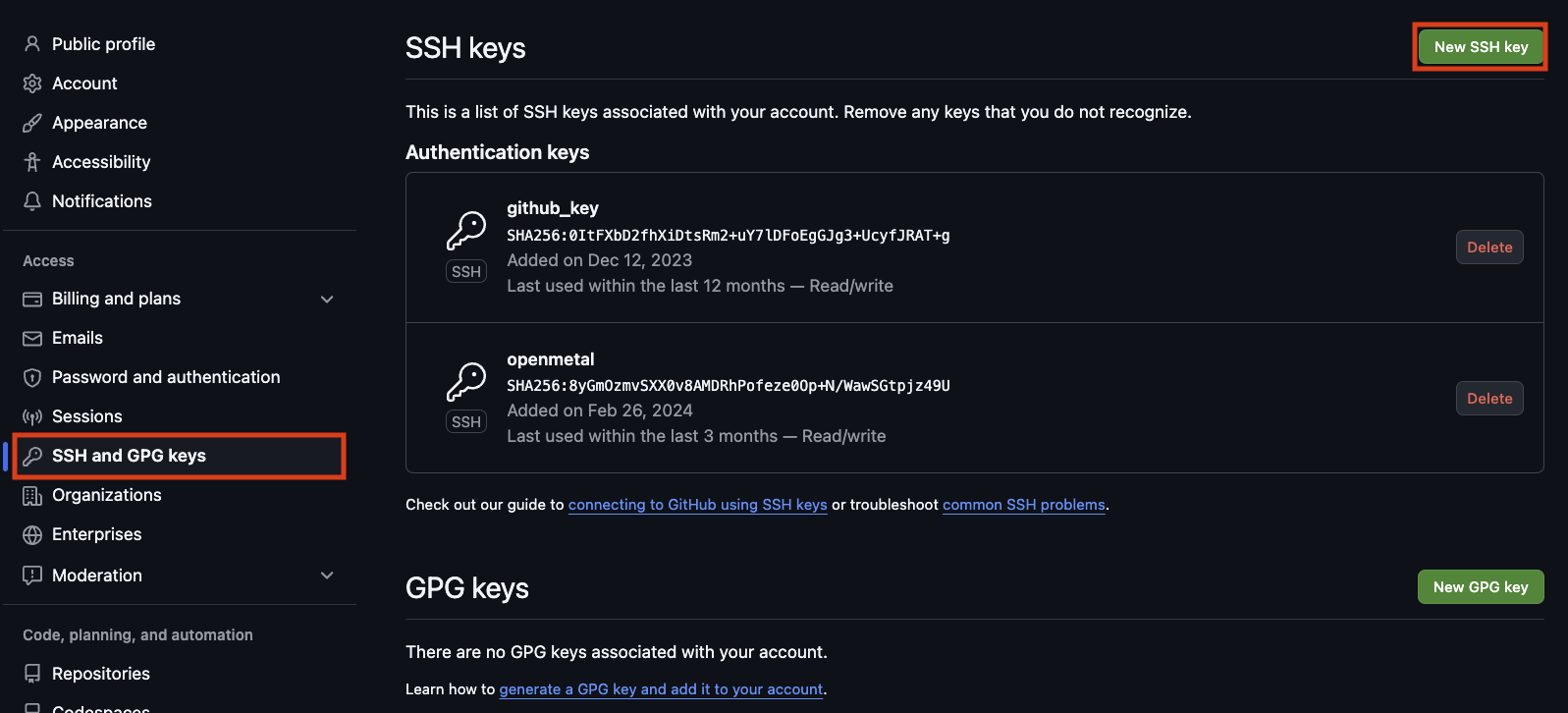
- Enter a title in the field.
- Paste your public key into the Key field.
- Click Add SSH key.
Next Steps
Well done! You now know how to add SSH keys to your GitHub account. Make sure to check out some of our other Git articles:
Looking for a dedicated server? We’ve got you covered.