
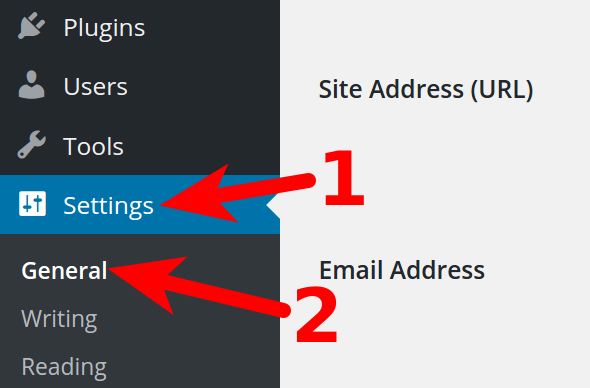
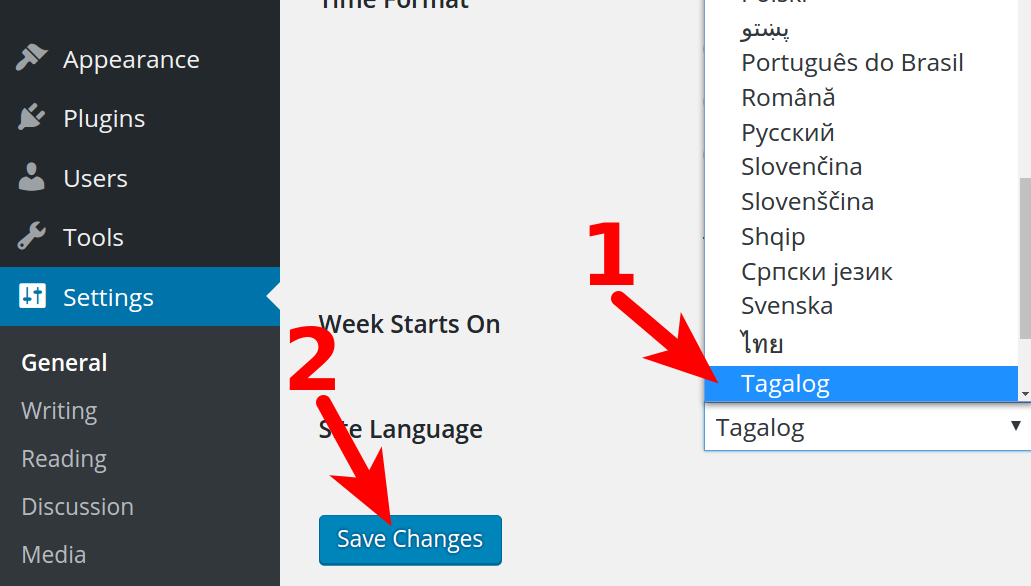
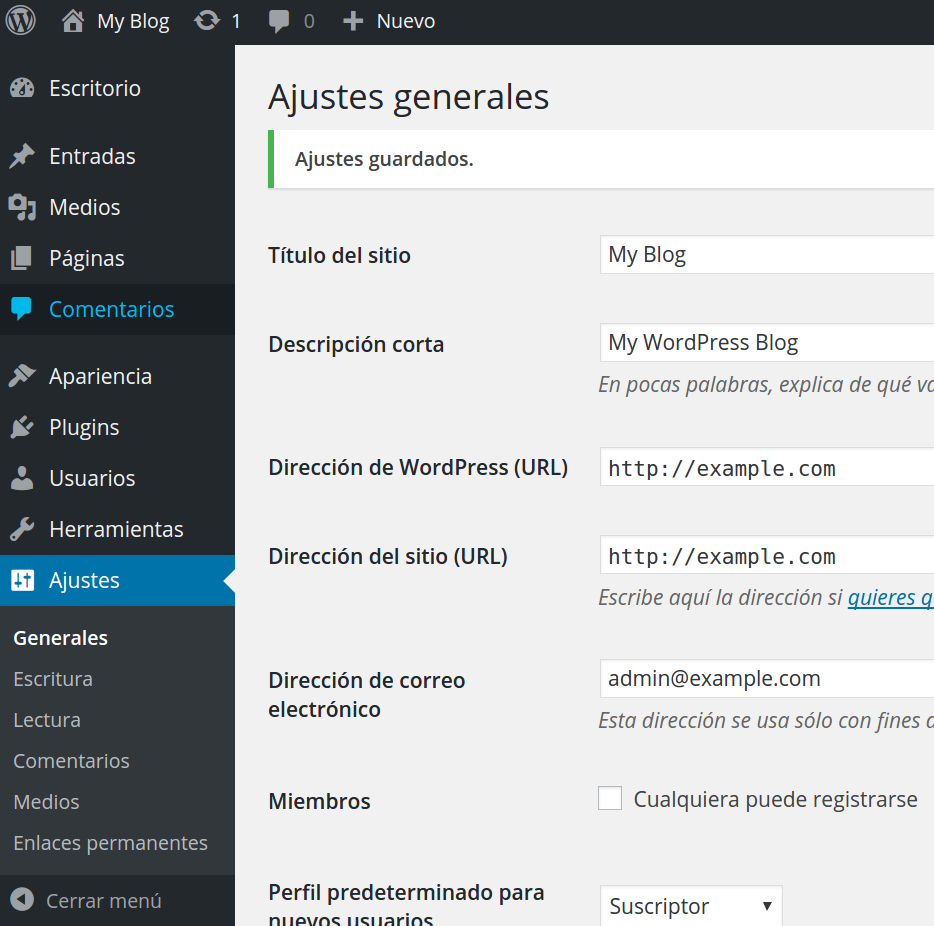
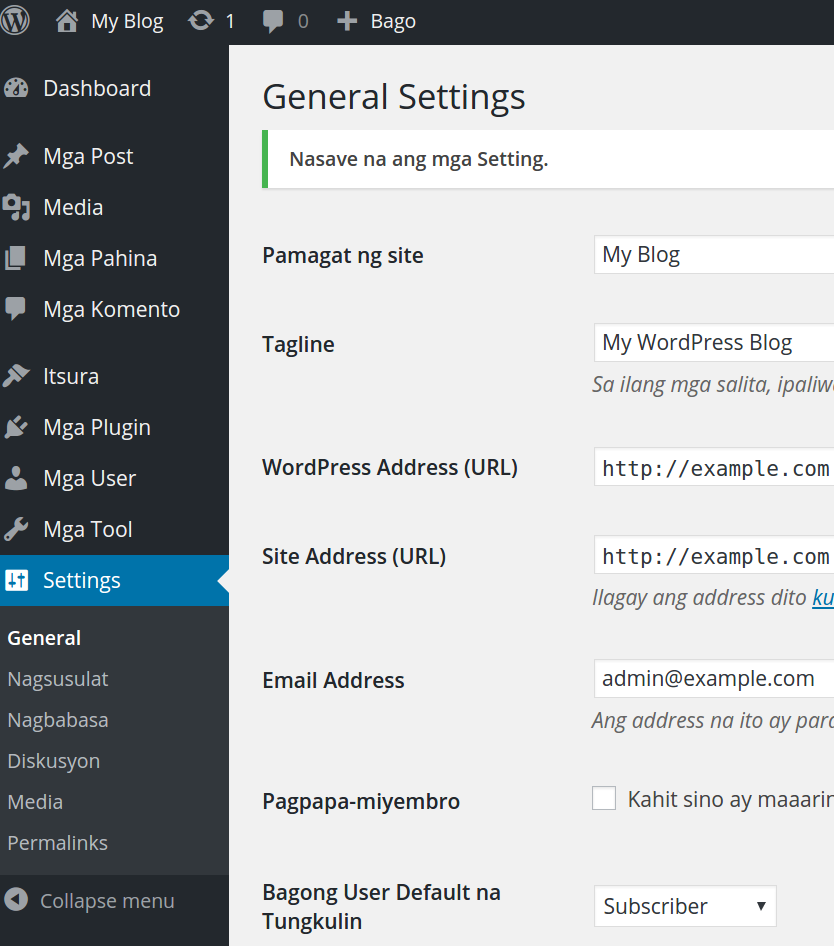
Changing Your WordPress Dashboard Language Updated on July 7, 2023 by InMotion Hosting Contributor 0 Minutes, 58 Seconds to Read When you first install WordPress the Admin dashboard is in English, by default. However, you can easily change the language setting right from your Admin dashboard. Read on to learn more. Are you ready to unleash the full power of WordPress? Be sure to check out the many features WordPress Hosting by InMotion Hosting includes and host your customized website in an environment developed for optimal performance. Changing your WordPress Dashboard Language Important! These steps will only change the language of your WordPress dashboard. It will not translate your website into another language. Log into the WordPress dashboard. Click Settings in the navigation menu, then click General. Click the drop-down menu next to Site Language, and choose your preferred language. Click Save Changes. At this point you will see the website displayed in the language you selected. Here are some examples: Espanol: Tagalog: Congratulations, now you can change your WordPress dashboard language! Are you interested in unleashing the power of WordPress? Our managed platform for WordPress is fine-tuned to deliver superior performance, security, and provide best-in-class hosting. Be sure to check out our optimized WordPress hosting plans. Share this Article InMotion Hosting Contributor Content Writer InMotion Hosting contributors are highly knowledgeable individuals who create relevant content on new trends and troubleshooting techniques to help you achieve your online goals! More Articles by InMotion Hosting Related Articles How to Install WordPress using Softaculous W3 Total Cache – Guide to WordPress Caching Cleaning Up Old Post Metadata in WordPress Getting Started Guide: WordPress How to Enable or Disable Automatic WordPress Updates How to Optimize your WordPress Database with WP-Optimize Settings How to Migrate a WordPress site from BlueHost WordPress Scope of Service How to Create and Add a Logo To WordPress How to Disable the WP-Cron (wp-cron.php) in WordPress

Great ! Thank you for the information. Especially admin-page language selection from “profile” section. Best Mustafa
You would like to change Administration Language.You may go to the options User. Select your profile page. Change Language option under Personal Options.
Thanks, but that’s only a half stisfying solution. Because of faulty translation of a theme I’d like to switch to english for the dashboard language. But I want my site to remain an e.g. italian language website.
Only do this, if the language of you website should be the same like the admin language. Otherwise, search engines will crawl your website e.g. as Espanol, even if you website is in english