
WordPress Templates have a default font applied to them. When you want to change the font globally throughout the site, you will need to edit the CSS that applies to that theme. The change can be made in the styles.css file, but subsequent updates to the theme will remove the modification. You would have to create a child theme to avoid the loss.
However, the current WordPress versions provide a theme Customize option where you can add CSS changes that are not erased by theme updates. To make the change, you will also need to be familiar with the font families that you may want to use. Follow the steps below to learn about the font families and how to make changes to the global fonts using the Customize option provided by WordPress. This tutorial includes:
This article uses the default Twenty Twenty theme from WordPress, but the instructions will apply to any current WordPress theme.
Need help with finding a good home for your WordPress site? We can get you up and running with our WordPress Hosting Plans.
Finding Font Families and Web Safe Fonts
When you’re adding or changing fonts to a website you will need to be familiar with the fonts that are available to you. Some fonts require additional code before you can use them. For example, Google Fonts use an API that you need to reference in your HTML code before you can use them. If you’re unsure of what you should use, then you should use Web Safe fonts to avoid any problems. Web Safe fonts provide the best compatibility between different internet browsers. For more information on font families and font styles, check out the Web Style Sheets CSS Tips & Tricks page from W3C.
Here are a few examples of the code used to change the font:
- {font-family:”Courier New”, Courier, monospace}
- {font-family:”Times”, Times New Roman, serif}
How to Change the Fonts Globally with the Customization Feature
- There are two ways to get to the Customize option in WordPress: Logging into the WordPress Dashboard > Clicking on Appearance > Customize, or by Logging into the WordPress Dashboard > Clicking the Site Name in the top left of the menu bar > then clicking on Customize in the top bar.
-
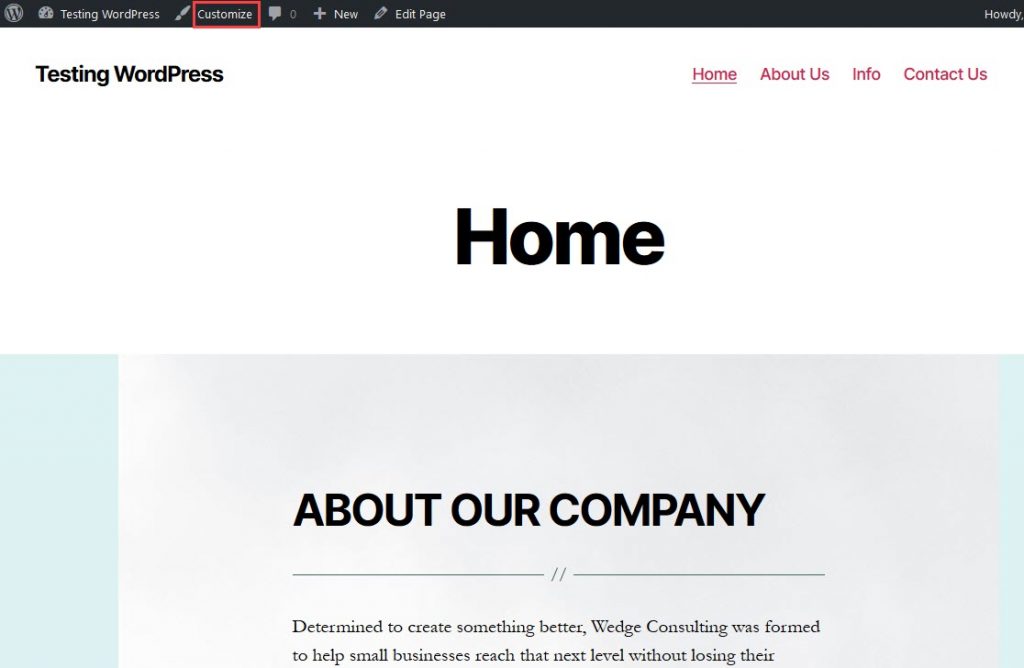 In the menu bar at the top of the page, click on Customize.
-
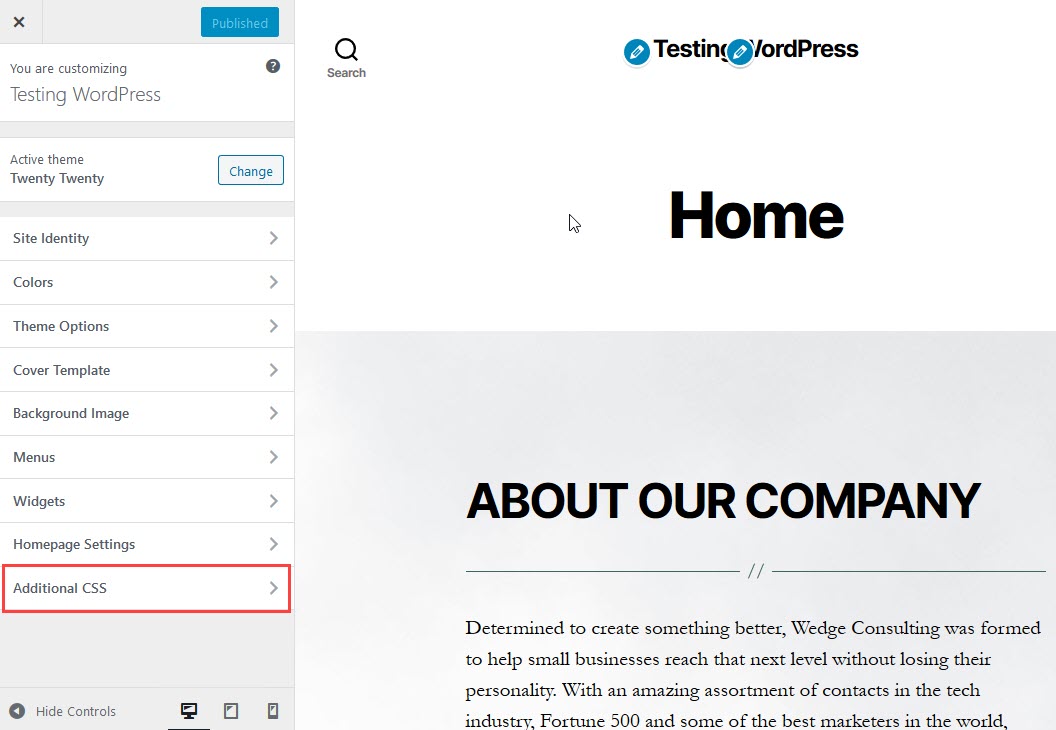 Scroll down until you find the option for Additional CSS. Click on this option to proceed.
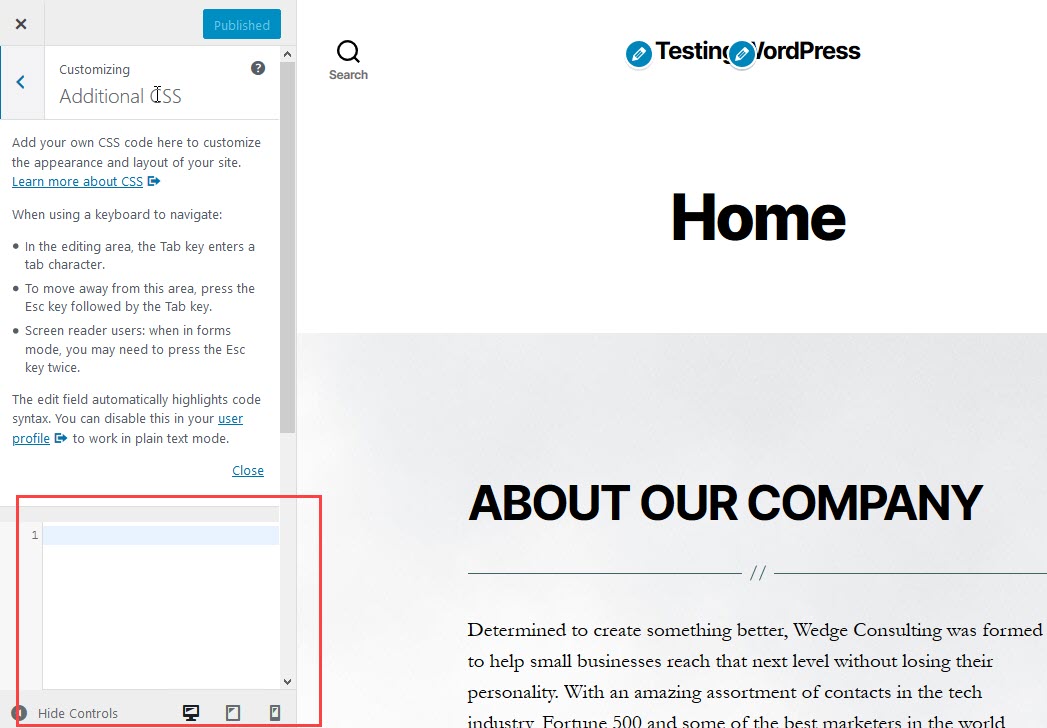
Scroll down the left-hand side of the page and find the field to add the additional CSS code. Click in the field and then add your font family code. Here’s an example of the code you can add:
* {font-family:"Courier New", Courier, monospace}The ( * ) in the CSS code will apply the Font style to all text in the website.
- Your font will immediately change when you paste in the correct code. In order to save your changes, you will need to click on the blue Publish button in the Customize menu column.
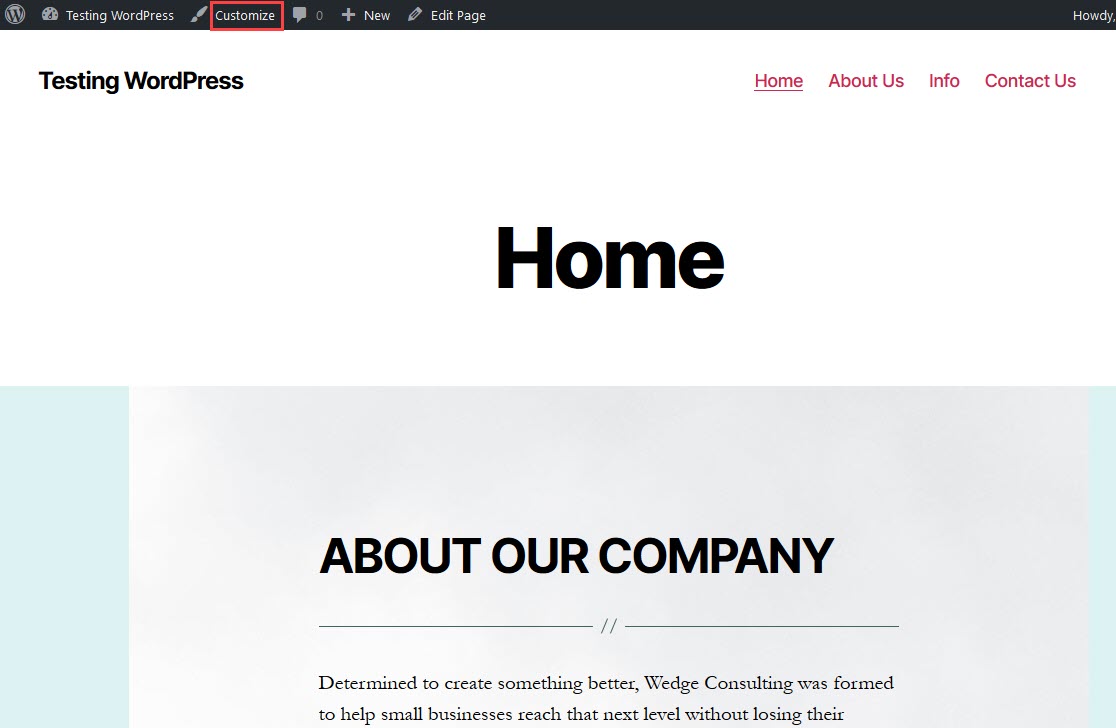
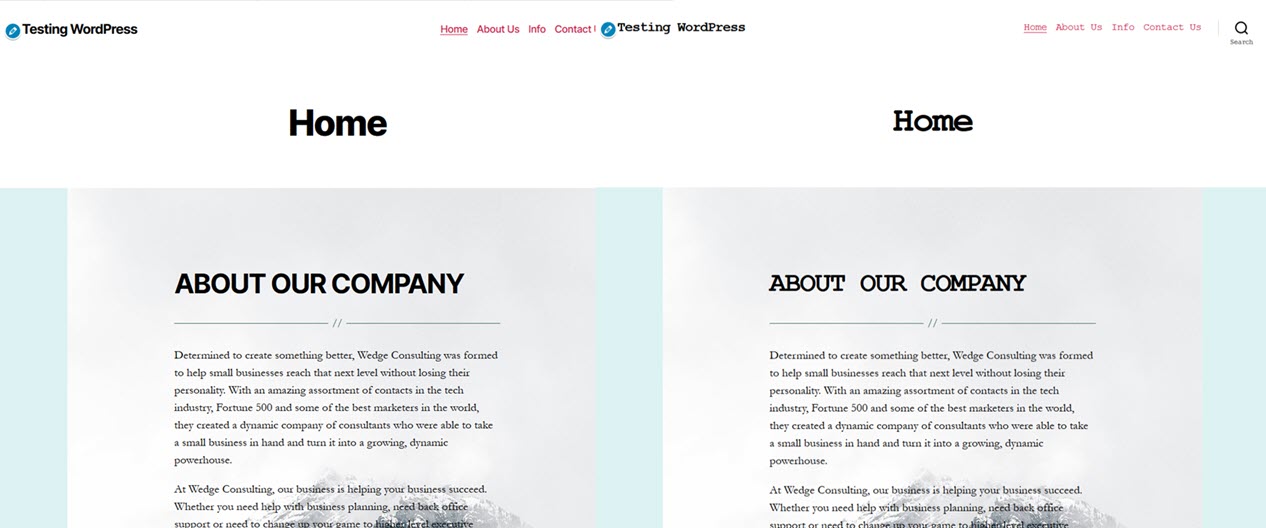
You can see an example of how the font changes in the screenshot comparison above. If you do not see the font change, you may need to clear your browser cache.
