
Drupal 7 comes with many modules pre-installed with the default installation, but not all of then are enabled out of the box. The contact form module is one of the more popular ones. A contact form is a page where visitors will enter information into a form and then submit the information to you. It works by sending an email based with the information the visitor entered on the form page. Creating a contact form is easily done using the Drupal 7 Contact Form module. You’ll need to enable the module first to create a form.
Enabling the Contact Module in Drupal 7:
- Log into your Drupal 7 dashboard
- Go to Modules
- Find the “Contact” module, place a check mark next to it and click “Save configuration“
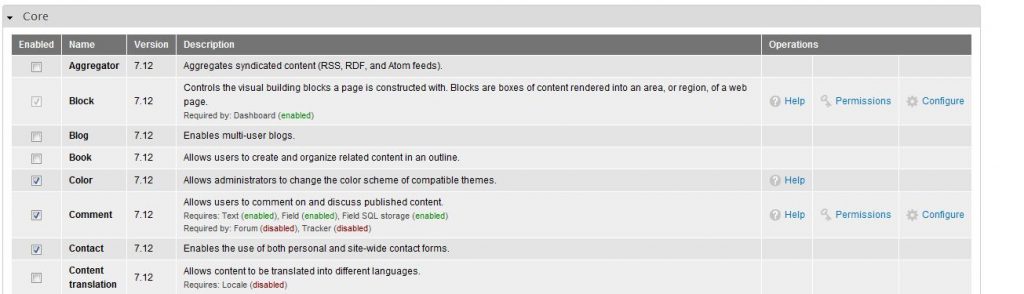
- Close the overlay by clicking the “X” in the right corner
- Now that your contact form is enabled, you’ll have to change the permissions so everyone can use it. Click “People” in the top admin menu bar
- Click the the “Permissions” Tab in the right corner
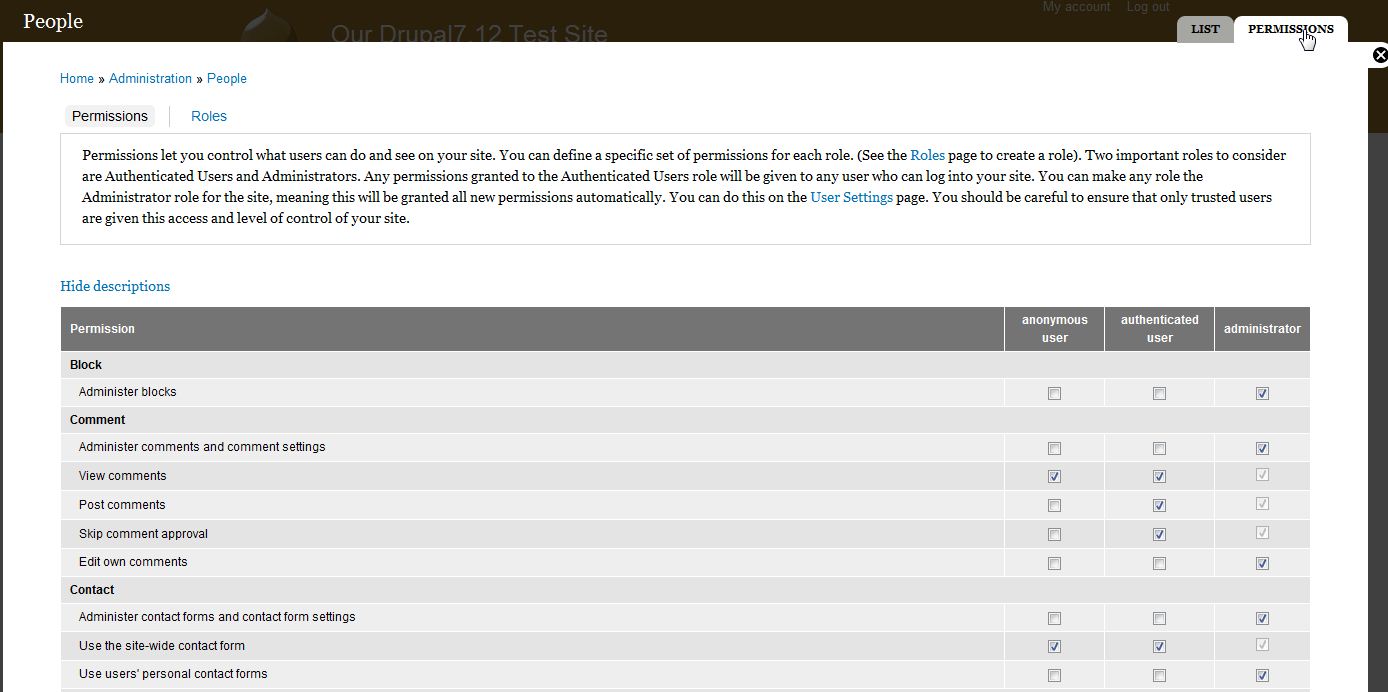
- Scroll down to the contact section and check the boxes you want to apply to the permissions. If you want everyone to be able to use your form, set Use the site-wide contact form to both ANONYMOUS USER and AUTHENTICATED USER.

- Click “Save Permissions” at the bottom of the overlay
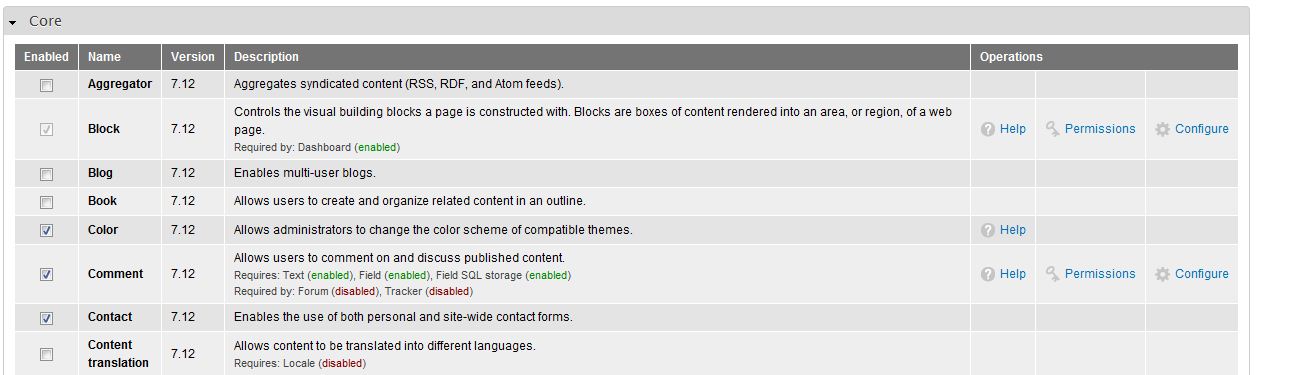
Your default contact form is now ready to use. However, there’s no link on your website for it. For more information on configuring the contact form and adding a link in your menu to it, please see our other articles.
For more step-by-step guides and practical tips, visit our Drupal Education Channel.