
This article will cover how to update a WordPress theme to it’s latest version.
WordPress updates are released for good reason. Ensuring that your WordPress themes are kept up-to-date can help keep your WordPress site secure, and updates often even provide improved functionality and bug fixes.
Typically, you’ll want to update WordPress themes right after you update WordPress itself to the latest version. It is possible that after updating to the current version of WordPress you may have issues with a theme.
Updating the theme to the newest version will usually resolve these issues.
Prior to updating your WordPress theme, it’s always recommended to go ahead and backup your database, as well as backup your website files. This way if for some reason something goes wrong in the updating process you can then easily restore your WordPress site back to how it was when it was still functioning properly.
Update WordPress themes
The steps below will guide you on how to quickly upgrade all of your outdated WordPress themes.
- Login to your WordPress admin dashboard.
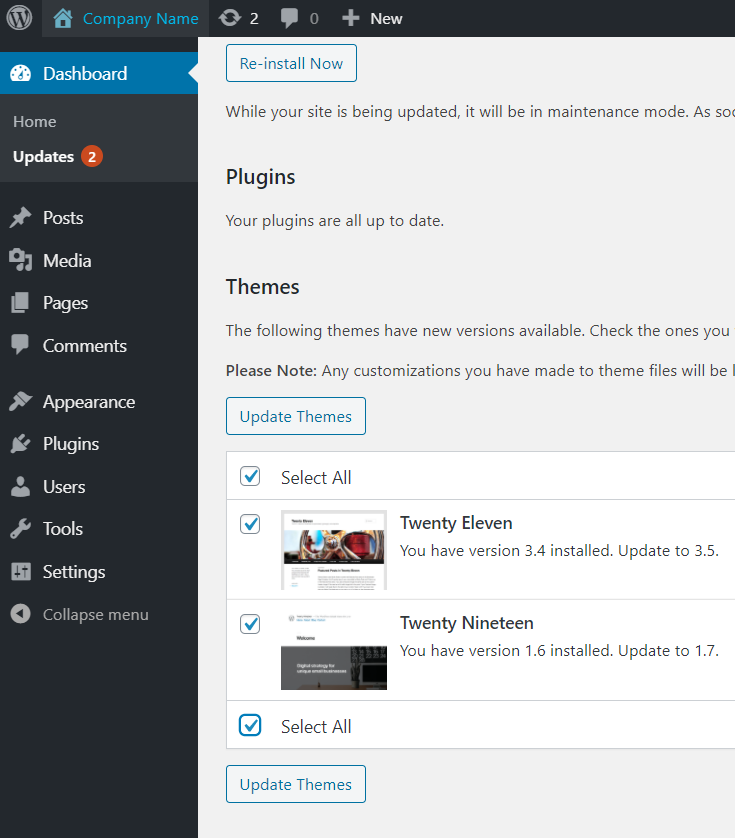
- Click on either the update icon at the top of the admin dashboard, or on the Updates link in the left-hand menu.
- Under the Themes section, place a check beside Select All, then click on Update Themes.
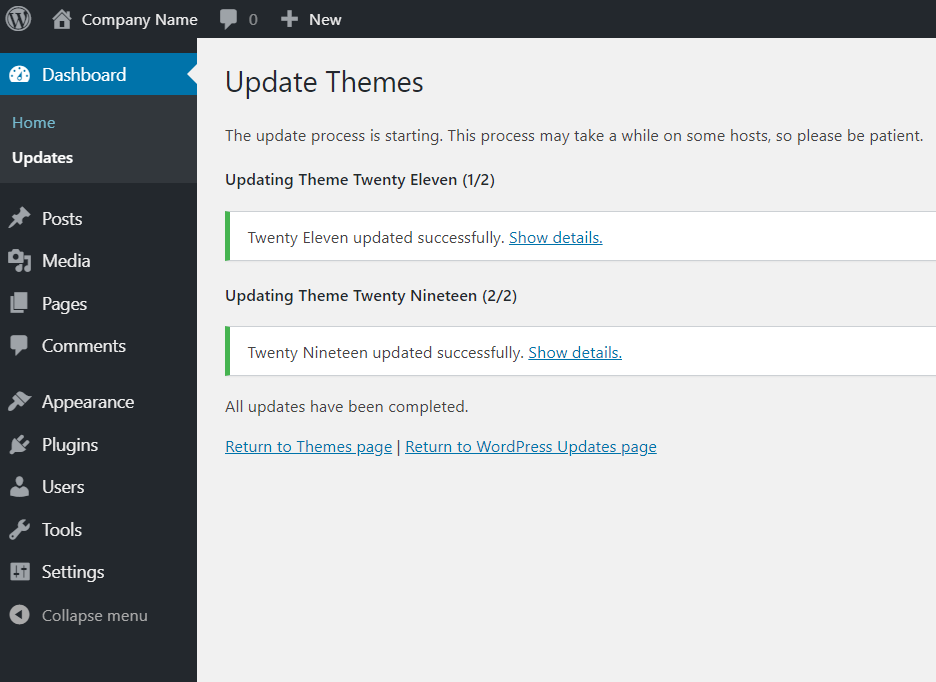
After your WordPress themes successfully update you should see a success page.
You should now know how to update a WordPress theme so that you are running the latest version of a theme released from the theme developer.
If you haven’t done so already, you should update WordPress plugins.
Making sure WordPress, all its themes, and plugins are current and up-to-date is the best way to ensure maximum speed and security, and that you’re getting the most out of your WordPress Hosting experience.
Learn more about the power of WordPress Themes and how they can simplify your website building and maintenance.
