It has come to our attention that many Outlook 2013 and Office 365 users are having issues within synchronizing IMAP folders recently. This appears to be happening across all hosts due to a recent update that Microsoft has pushed out to all of its users.
What causes the issue?
This issue is caused by installing one of the following updates that have been pushed out by Microsoft on 11/12/13:
KB2837618 or KB2837643
If you have not already done so, please avoid this update for a bit until Microsoft corrects the issue. If you cannot avoid the update, we will provide you with further steps regarding a temporary fix for the issue.
What does this issue affect?
This issue with Microsoft Outlook 2013 and Office 365 will cause IMAP folders to not successfully synchronize, therefore inhibit your ability to receive new mail to your inbox.
How do I fix this issue?
There are a few ways to resolve the issue:
Uninstall the recent updates (KB2837618 or KB2837643)
One option is to remove the recent update that has been pushed out by Microsoft to Outlook 2013 and Office 365 users. To do so, complete the following steps:
- Open your Start menu and click visit your Control Panel.
- Click Programs and Features
- Click View Installed Updates
- Locate either the KB2837618 or KB2837643 updates and remove them.
Disable the “Show only subscribed folders” option in Outlook
There have been reports that the problem can also be resolved by removing the setting that states to show only subscribed folders in Outlook. To do so, complete the following steps:
- Right-click the name of your account with the issue, then click the IMAP Folders… link.
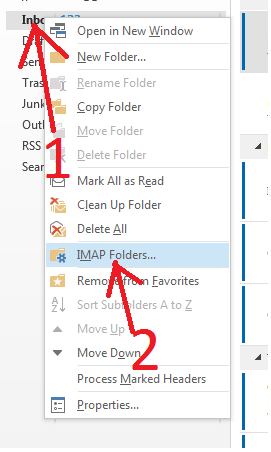
- Outlook will open a box with IMAP folders.There is a checkbox that says, “When displaying hierarchy in Outlook, show only the subscribed folders.” Uncheck that box.
- Force sending/receiving within Outlook and everything should synchronize up properly.
Changing the root folder path
Be sure to back up any existing emails or transfer to an offline location before making this change. Replacing the root folder can possibly cause the loss of saved emails in the account.
Visit your Account Settings, then Advanced for the mail account that you are having trouble with. This can be located at one of the following:
- Go to Change Account>More Settings>Advanced Tab
- File>Account Settings>Account settings>Change…>More Settings…>Advanced
- In the Folders option, look for “Root folder path” and enter “INBOX” (with all caps).
- Save your settings and force a Send/Receive
We will keep this article updated as much as possible while the issue persists. If you have any further fixes that worked for you, let us know in the comments.