Once pages are created in TikiWiki, you can begin to edit them. Because the TikiWIki site is accessible for anyone to edit, occasionally you may have a person deface a page. This article will explain how to edit, delete, and restore pages in TikiWIki.
Deleting and Restoring pages
The nice thing about TikiWiki is that when a page is created that is either not relevant or that is defaced by a disgruntled editor, the page can be deleted or restored. Pages that are deleted are actually removed from the site while being saved in the back end as different versions. This allows deleted pages that were removed by mistake to be restored again. The following section will explain how to delete or remove and restore in TikiWiki.
Deleting or removing pages
Removing pages due to vandalism or spamming can be done easily in TikiWiki. The following steps will explain how to delete or remove a page from TikiWiki.
- Log into your TikiWiki.

Navigate to the page you want to delete. Towards the bottom click Remove.
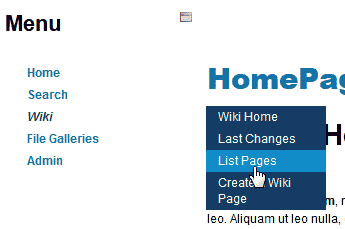
Pages can also be deleted in bulk by going to the Wiki > List pages link on the left menu.
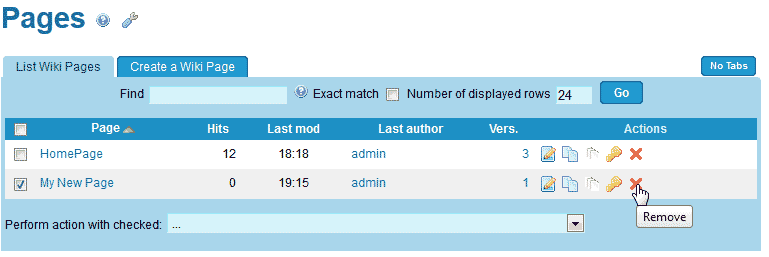
Select the check box next to the pages to delete and click the red X.
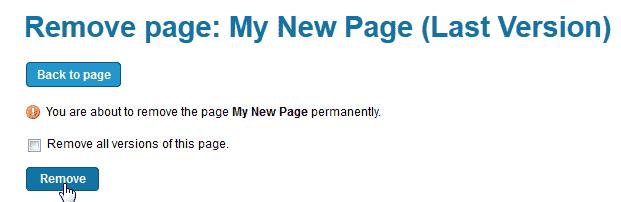
On the Remove page screen, click Remove. If you want all versions of the page removed you will need to have the remove all versions of this page check box selected.
Restoring pages from previous versions
When editing TikiWiki pages, each edit is stored as a version in the system This allows pages that were revised incorrectly to be restored from a previous version. The following will explain how to restore a page from a previous version in TikiWiki.
- Log into your TikiWiki.
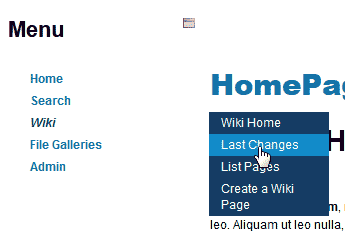
Navigate to Wiki in the menu on the left and click Last changes.
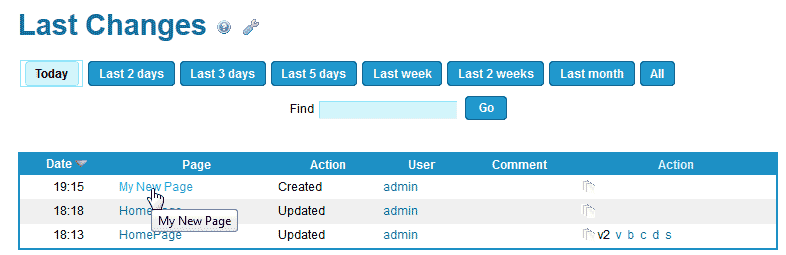
Find the article you want to restore in the list of pages.
Click the page title.
- Edit the page and Click Save.
