
The Moodle Frontpage is the home page that all visitors will see. When setting up a Moodle site, the Frontpage can be edited to display nice HTML formatted content. By default, Moodle has no text on the frontpage summary. This tutorial will explain how to add content to the Moodle 2.3 Frontpage.
Adding content to the Moodle Frontpage
- Log into the Moodle Dashboard
Important! Keep in mind that Editing must be turned on in the Settings section in order to edit any of these options.

Click the Edit Summary
 icon at the top left of the Frontpage.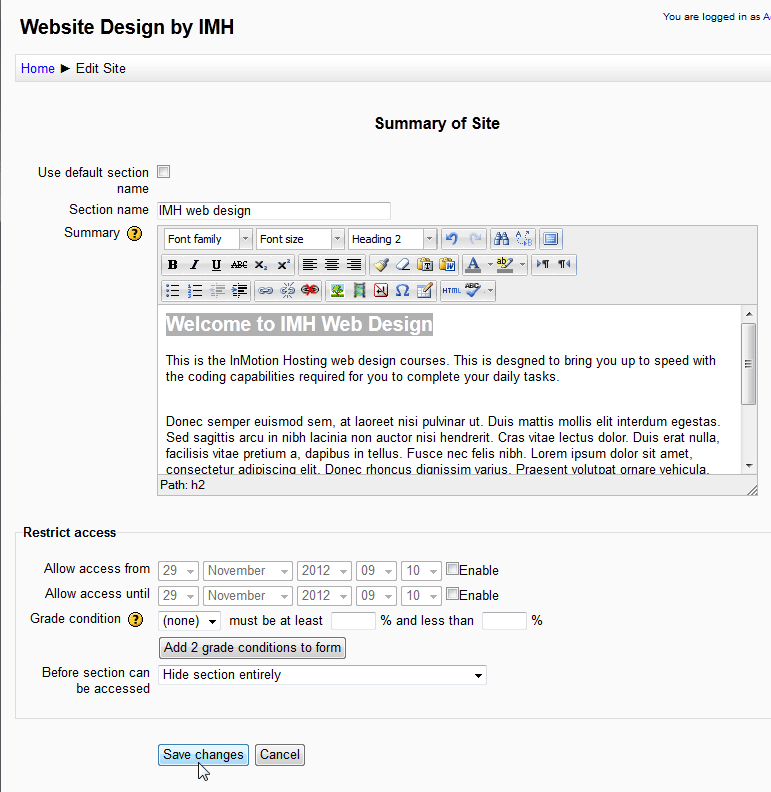
On the Summary of site page, fill in the information for the home page content. The Use default section namebox should be unchecked in order to add the Section name. The Restricted access section will allow the Frontpage to be viewed during certian dates, grade conditions, or hidden entirely.
Click Save changes.
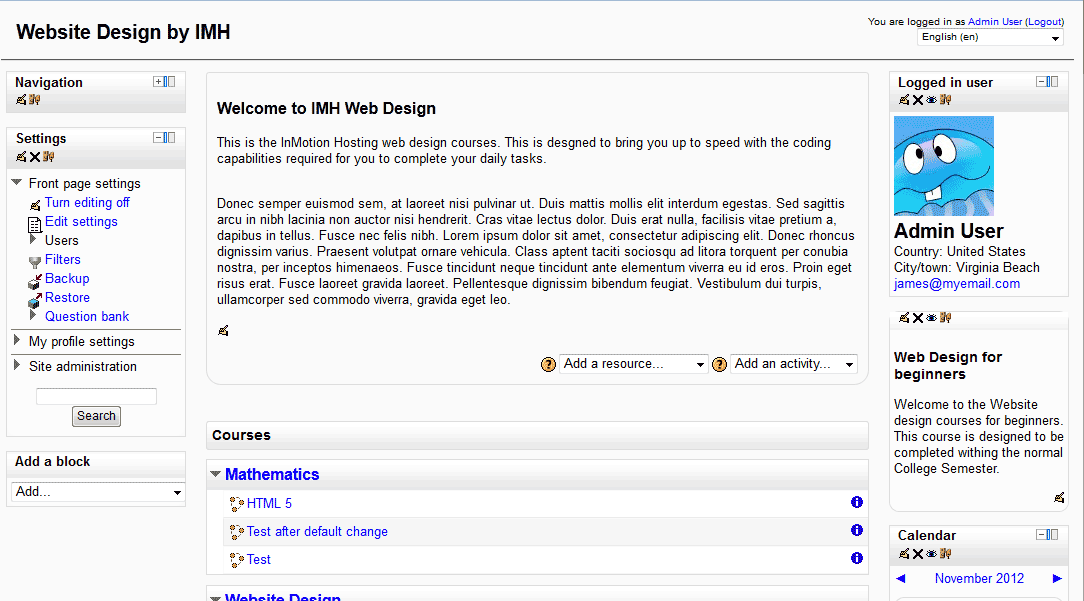
Congratulations, the Frontpage will now display the text that was inserted similar to the image on the right.

This concludes the article for Editing the summary on the Frontpage. For more information about articles in this Education course, please visit Getting Started with Moodle.