
Now that course settings are understood from the last tutorial What are the Moodle Course settings?, learning how to back up Moodle is the next topic. Moodle has its own back up feature where the site can be backed up through the Moodle dashboard. The following article will outline the process of backing up Moodle through the Moodle Dashboard.
Create a backup of Moodle through the Moodle Dashboard
- Log into Moodle
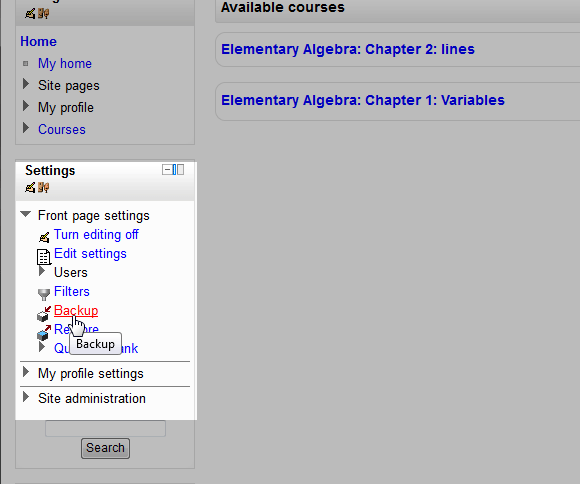
Click Backup in the Settings on the left.
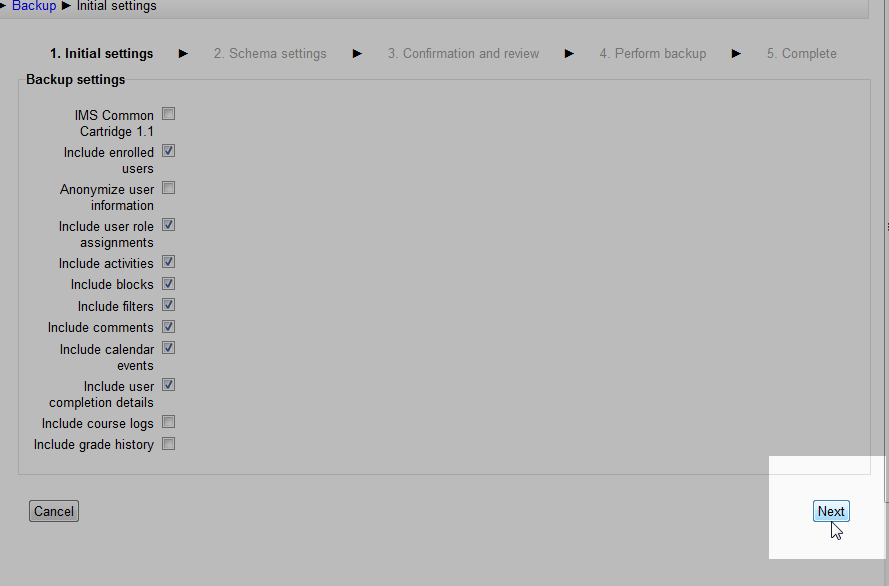
The Initial settings page should display. There should be a list of Backup Settings that can be selected for configuring the Moodle backup. Select the values that need to be backed up and click Next.
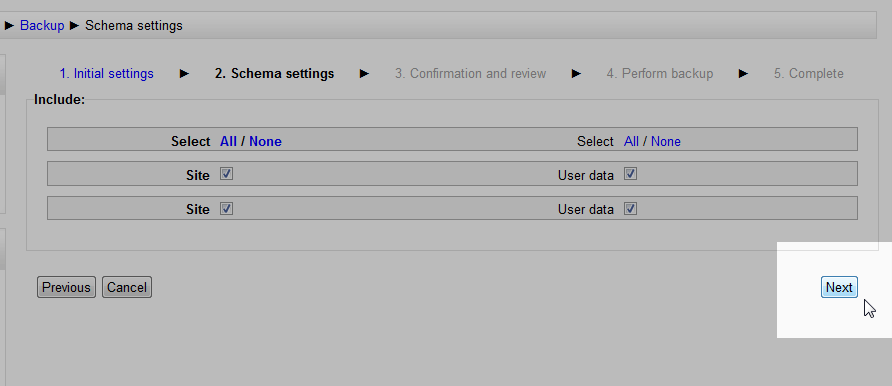
The next page that displays is the Scheme Settings. This is the database information that Moodle will need for the restore. To back up the entire site, select ALL. There is the option to only backup specific database information; However, for learning purposes, All the database information will be selected in this example. Click Next.
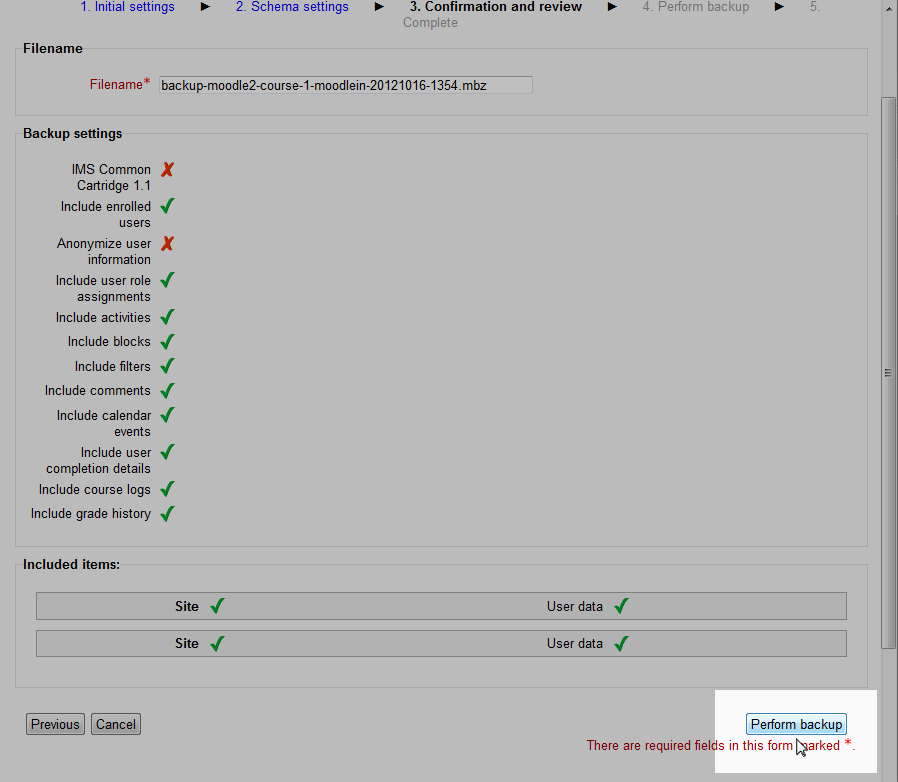
The Confirmation and review page should load. This page will display the backup settings and the database information that is being backed up. Click Perform backup.
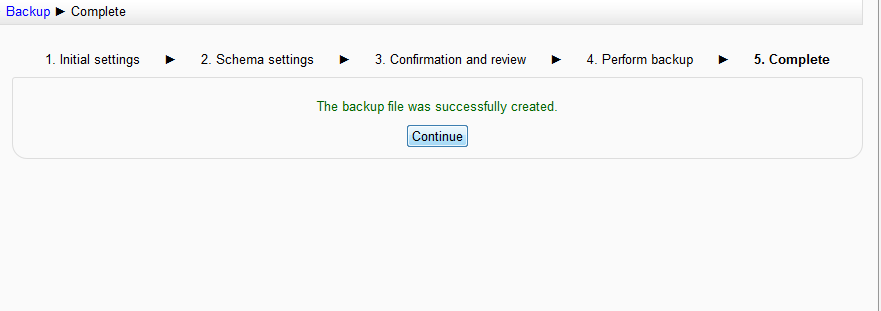
After the Perform backup runs, the page should show “The backup file was successfully created.” Click Continue. Congratulations, the backup of the Moodle site was successful and can be restored at a later date.
Now that the Moodle site is backed up, the backup can be restored at a later date. Please see the following tutorial on Restoring Moodle from a backup. For more information creating courses, please visit our education channel on Creating and restoring backups in Moodle. this article is also in the Getting Started with Moodle after the tutorial on Managing the Moodle question bank