
When loging into Moodle by default, the login information is transmitted over an HTTP connection. HTTP connections are not secure connections and a perpetrator could snoop on the network connection and potentially gain access to your username and password. To prevent this, you may want to consider setting the Moodle login to work over HTTPS. HTTPS is an encrypted connection that encrypts the data in transit over the network, preventing the data from being read by hackers. Moodle 2.3 has a setting that enables the HTTPS connection for the login, while keeping the rest of the website HTTP.
VERY IMPORTANT! Before you set the Login to work on HTTPS, the server that hosts your Moodle site will need to be able to access through an SSL connection. If there is no SSL connection, the LOGIN WILL BREAK, locking you out of your Moodle software. To find out if your server has an ssl connection, visit your site by going to:
https://example.com
You will need to change example.com to your domain where your moodle site is installed. If the server does not have an SSL installed, there will be an error when visiting the site like the following snapshots.
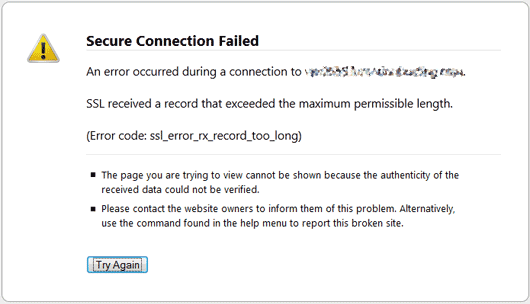
|
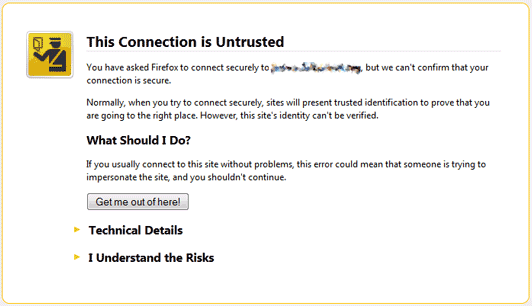
|
For more information on SSL and HTTPS connections, please click here. Now that the details are explained, we can go through the steps of setting up Moodle for logging in on an HTTPS / SSL connection.
Forcing HTTPS login
- Log into the Moodle Dashboard
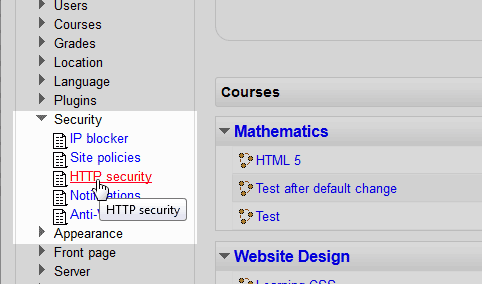
Navigate to Site administration > Security > HTTP security in the Settings section.
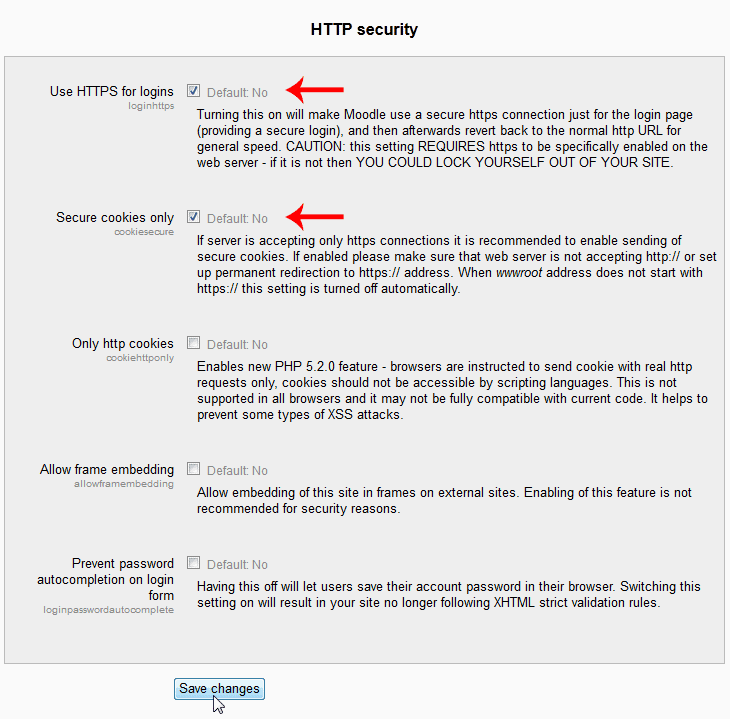
On the HTTP security page, select the Use HTTPS for logins and Secure cookies only check boxes. Click Save Changes.
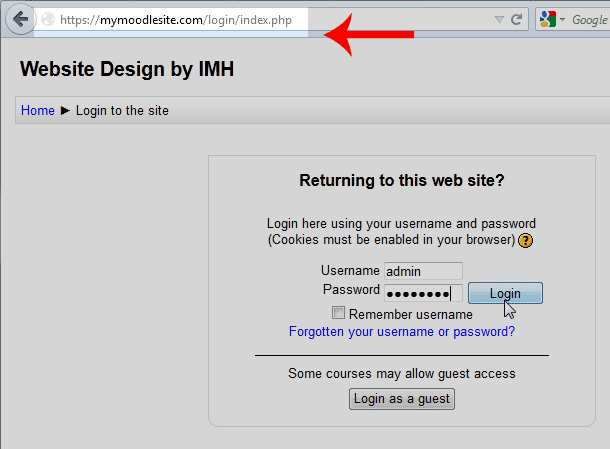
Now when going to the Moodle login the site will go to HTTPS instead of HTTP. If the HTTPS is working correctly, the data will transmit securely.
This concludes the article for Setting the Moodle login to work over HTTPS.