
As students take quizzes in the Moodle courses, occasionally the teacher may need to change a students grade. In some cases, the student may successfully contest an answer to a quiz question. The teacher can subsequently change the grade, as apposed to making the student take the quiz again. The following tutorial will explain how to manually change a grade in the Moodle 2.3 Grader Report. If you missed how to configure the Grader report, please see the article on Changing the Grader Report / Gradebook preferences in Moodle.
Changing Grades Manually in Moodle
- Log into the Moodle Dashboard
Important! Keep in mind that Editing must be turned on in the Settings section in order to edit any of these options.
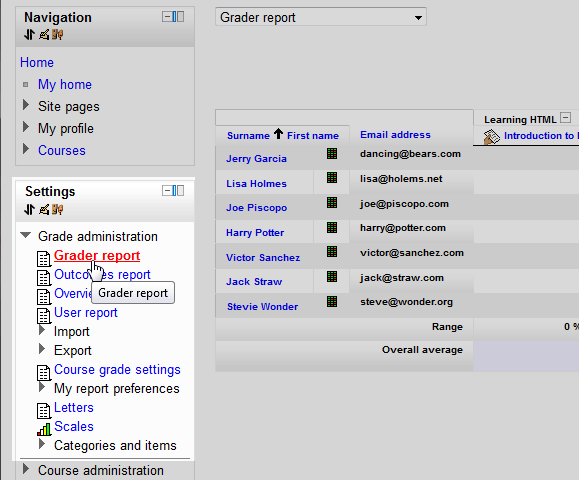
Select the Course for the specific Grader Report. In the Course administration section, select Grades. In the Grade administration, select Grader report.
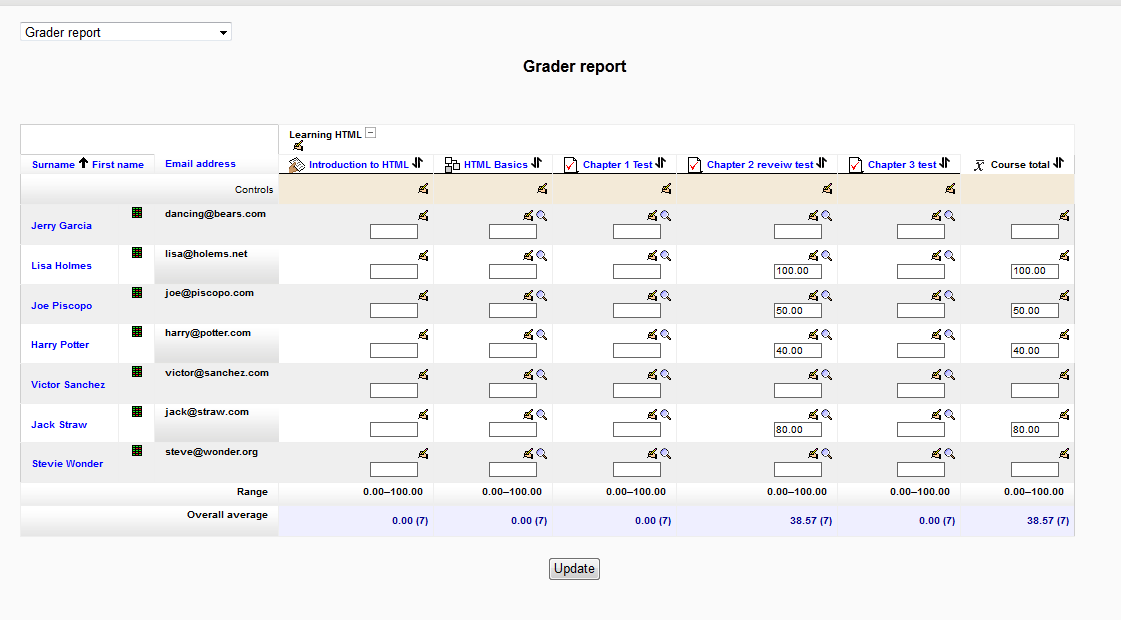
With the editing turned on, the Grader report will have the option to change the individual grades for the students.
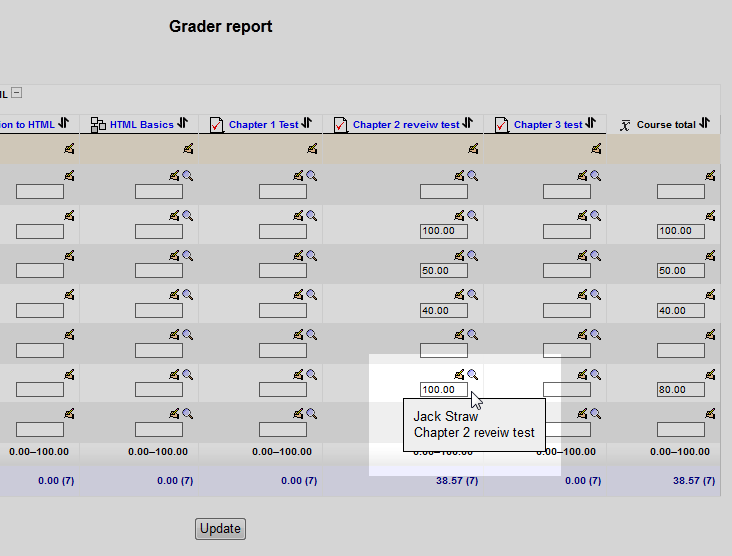
In the Grade box for the student, type the desired grade for the particular users Quiz score. Click Update when done.
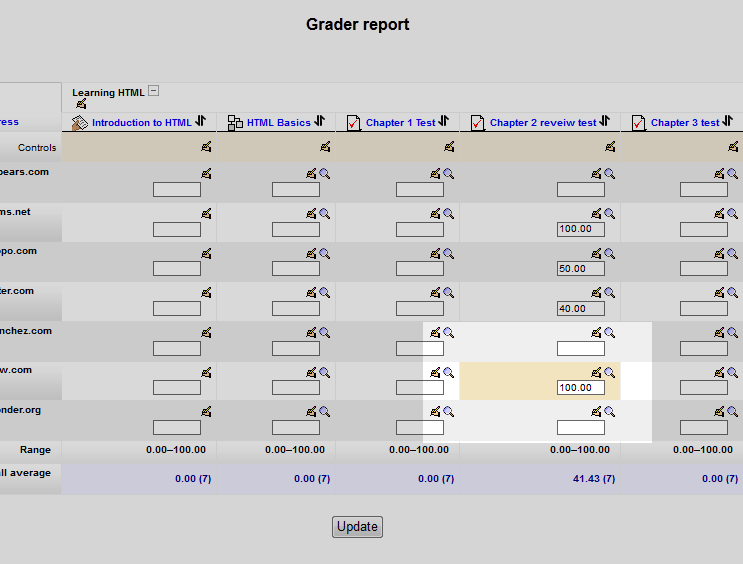
Any grade that was changed in the Grader report will display a Champagne like color around the the grade that was edited.
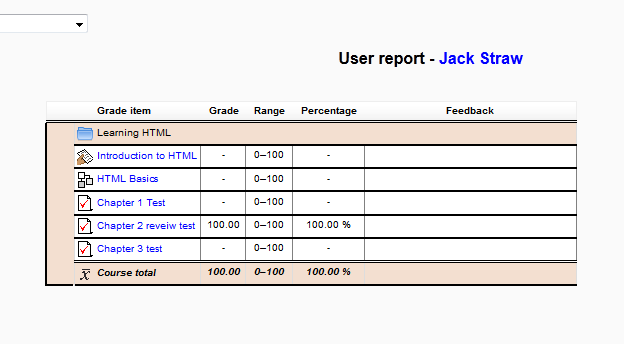
Once edited, when the student views their grade, the User Report will show the changed grade.
This concludes the article for Manually changing a grade in the Moodle Grader report. To discuss how to customize Moodles grades, please check the next article on Changing the default grade letters in Moodle. For more information about this course, please visit Moodle Grading and Reports .