
The previous article explained the Moodle Course Formats. Once the basic course set up is completed, the sections within the course will need to be set up according to the course outline. This article will focus on editing the Weekly, Topic, and Social formatted courses. The SCORM format will not be discussed as it is not the scope of the tutorial. The Moodle version used in this article is Moodle 2.3.
Changing and Adding the Section name and summary
- log into the Moodle Dashboard
Important! Keep in mind that Editing must be turned on in the Settings section in order to edit any of these options.
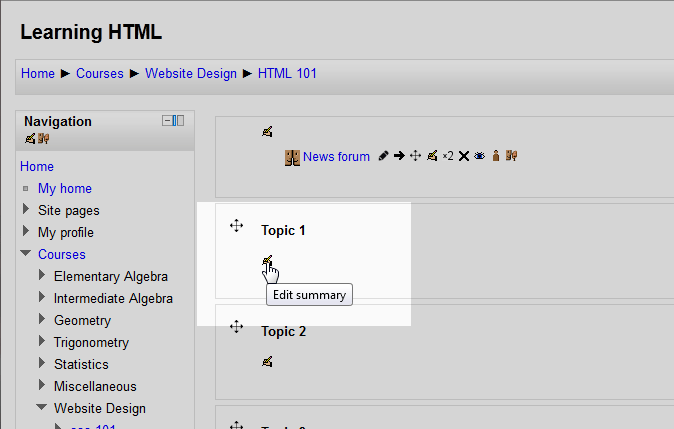
Select the course on the left in the Navigation section and click the Edit Summary icon. The Weekly and the Topic format will have the same edit icon. The Social format will have a button named Add a new discussion topic.
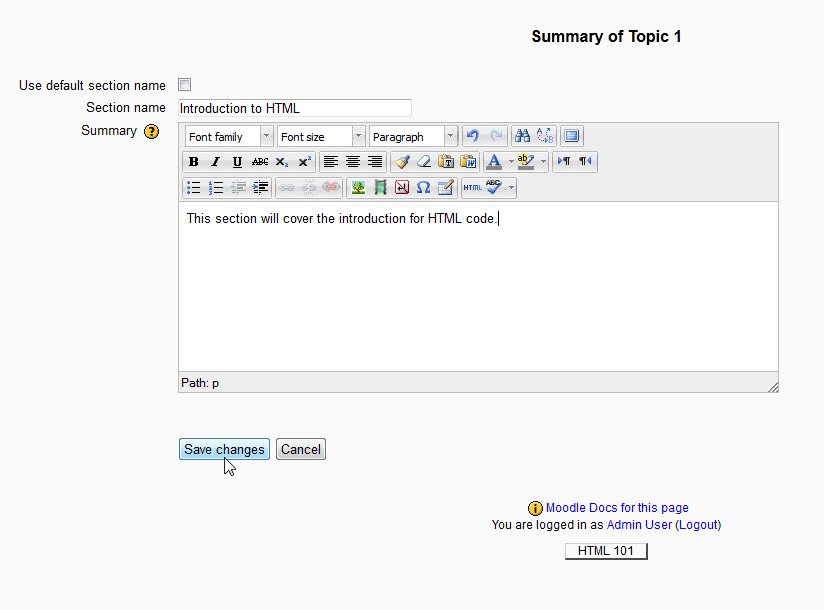
For Topic Format, uncheck the Use default section name box. Enter the section name and the Summary and click save changes.
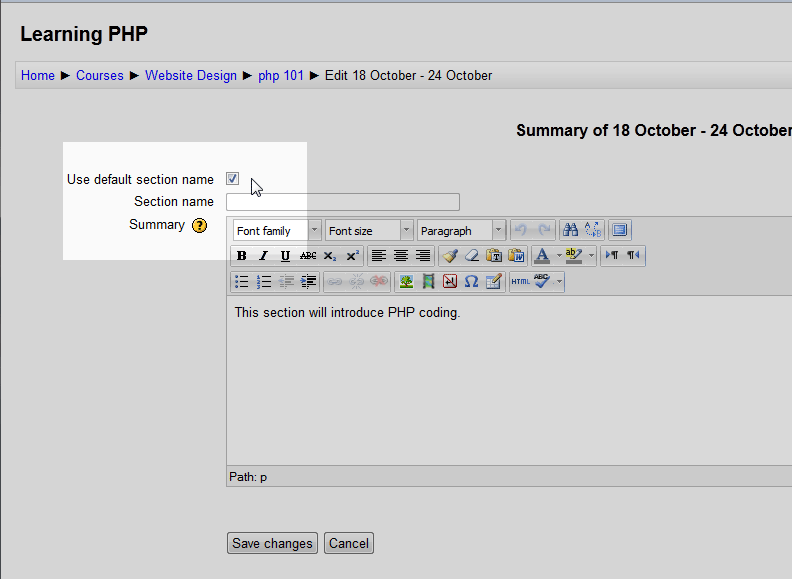
For Weekly formatted courses. Leave the Use default section name box checked. If the Use default section name box is unchecked for the Weekly format, the date will be removed from the section.
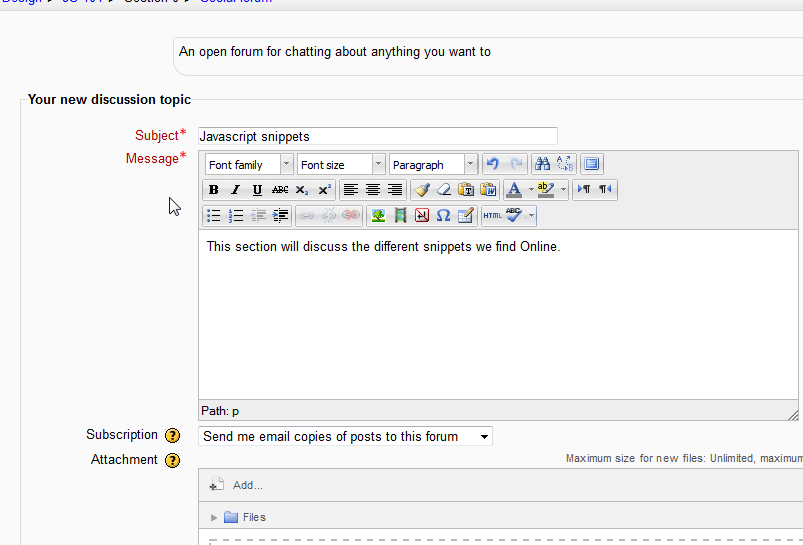
For the Social formatted courses, click the Add a new discussion topic and enter a subject and Message to start a discussion topic.
- The Final result should look like the following snapshots.Topic Format
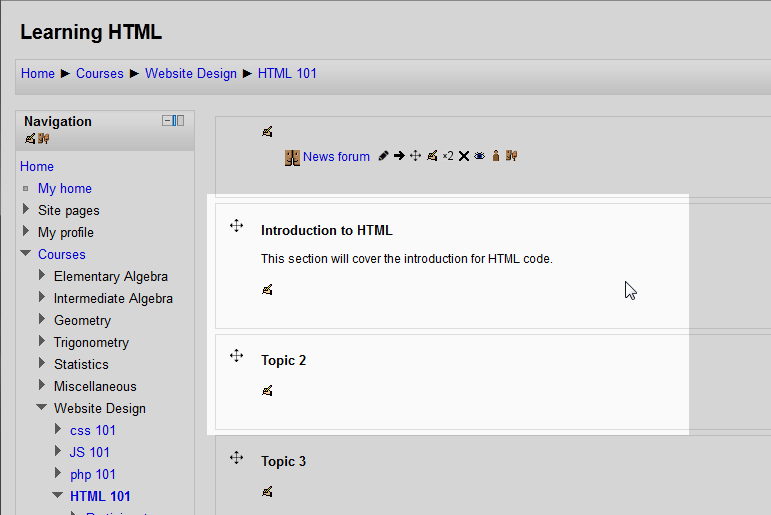
Weekly Format

Social Format
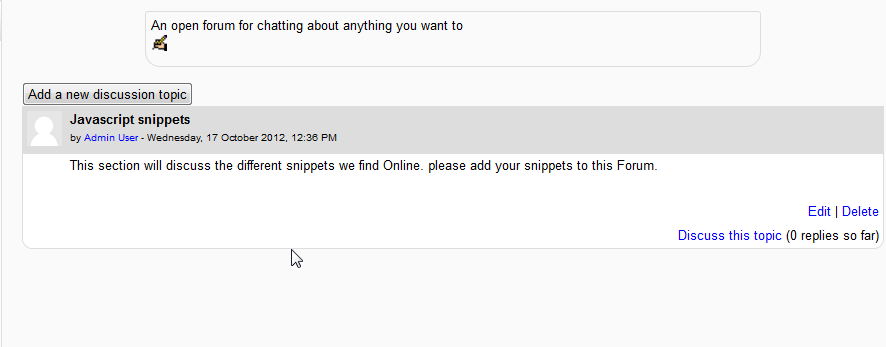

This Concludes the tutorial on editing the Topic, Weekly, and Social sections in Moodle. The next article will focus on Changing the Course defaults in Moodle. For more information creating courses, please visit our education channel on Creating Courses in Moodle