
Moodle 2.3 has the option to create different navigation functionality using the Moodle Blocks feature. Blocks can be moved, deleted, and added to the sites navigation sidebars. This allow Logins, News updates, Messages, RSS feeds and many many more options to be shown on the site navigation. An example of a common block would be the Logged in User block. The logged in User block will display the users Image, username, email address and other information about the student when they are logged in in the navigation sidebar. This article will overview the Moodle block options.
Moodle blocks overview
- Log into the Moodle Dashboard
Important! Keep in mind that Editing must be turned on in the Settings section in order to edit any of these options.
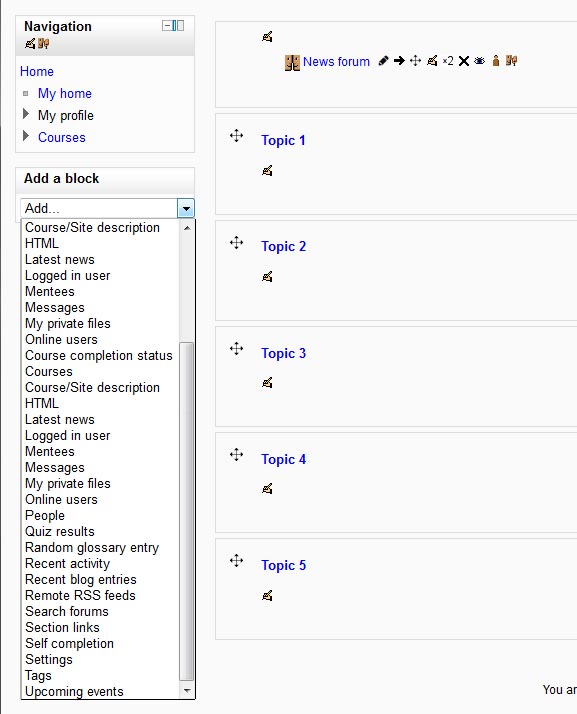
Select the Add a block drop menu. Below is a table with a brief description of each section.
| Moodle blocks | ||
|---|---|---|
| Activities | 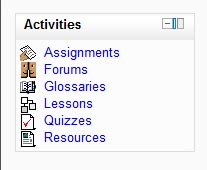
This will display the Course Activities when the administrator is logged in. This provides a quick navigation for the administrator. |
|
| Admin bookmarks | 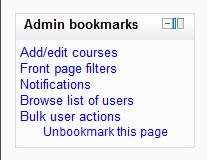
This block is for the administrator. The bookmarks allow the administrator to save specific links to pages in the Moodle site. |
|
| Blog menu | 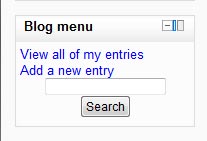
Links to blog entries. New posts can be added in this block. |
|
| Blog tags | Creates a tag cloud for the blog entries. (No Image) | |
| Calendar | 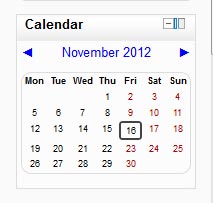
This block views the site wide events for the Courses. Also the Users and groups can be viewed in the calendar block. This is added to the navigation by default. |
|
| Comments | 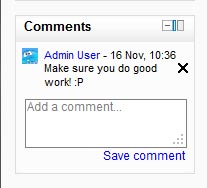
Displays comments. |
|
| Community finder | 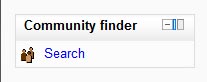
This block includes a link to search public community hubs. Theses hubs have downloadable and enrollable courses. |
|
| Course completion status | 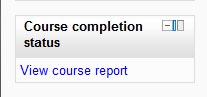
Displays a link to the students progress in the Course for the teacher and the student. |
|
| Course/site description | 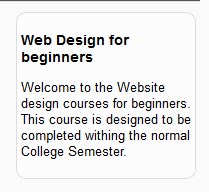
Displays a summary of the Course. |
|
| Courses | 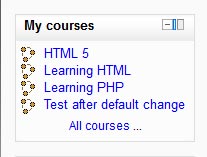
Displays navigation links to the courses for enrolled users. |
|
| HTML | 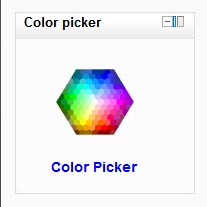
This block enables HTML to be displayed. Embedded Video, audio, and other functions can be added to this block. |
|
| Latest news | 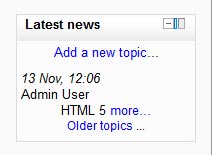
Displays the latest news. New topics can be added through this block as well. |
|
| Logged in user | 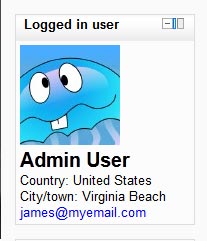
Displays the logged in users. |
|
| Login | 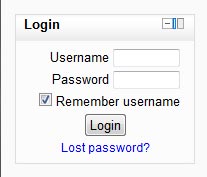
Displays the login prompt. |
|
| Main menu | 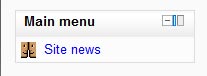
Displays the front page links. This is added to the navigation by default. |
|
| Mentees | Provides access to the Mentees profile. (No Image) | |
| Messages | 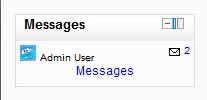
Lists the new messages on the navigation. |
|
| My private files | 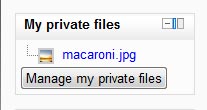
Allows users to display their private files in the Navigation. |
|
| Navigation | 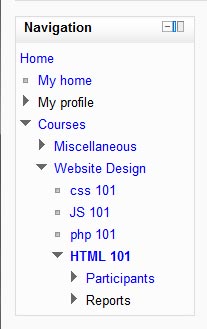
This is the default navigation block set by default. Displays the Home, Site pages, My profile, and My courses. |
|
| Network servers | Allows the user to navigate to other Moodle sites. (No Image) | |
| Online users | 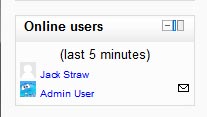
Displays the logged in Users in a particular course. |
|
| People | 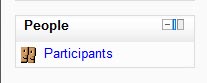
Shows a link to online users in a course. |
|
| Quiz results | 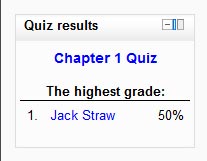
Displays the users quiz results. |
|
| Random glossary entry | 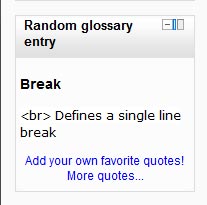
Displays random glossary terms. |
|
| Recent activity | 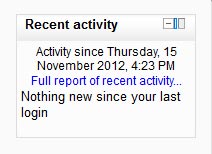
List the recent use of course activities, resources, posts and more. |
|
| Recent blog entries | 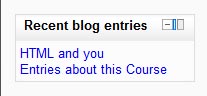
Shows the recent blog activity in the navigation |
|
| Remote RSS feeds | 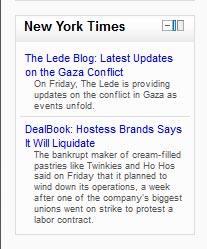
Lists external RSS feeds. When the external RSS feed changes the Remote RSS feed block will update. |
|
| Search forums | 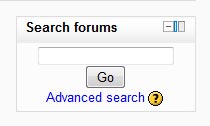
Adds a search box for the forums to the navigation. |
|
| Section links | 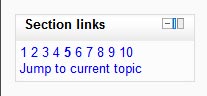
Provides links to each course section in a Course. |
|
| Self completion | 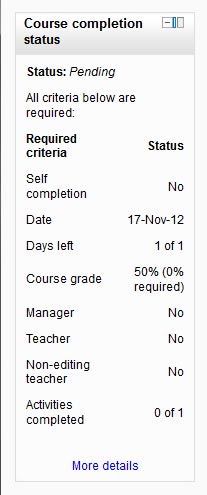
Shows the students completed course submissions. |
|
| Settings | 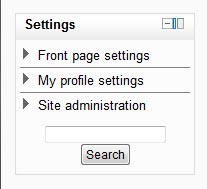
Displays the Front page settings, My Profile settings, Site administration, course administration and other necessary functions for developing the Moodle site. |
|
| Tags | 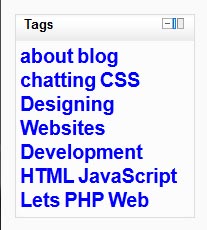
Creates a tag cloud from tags. |
|
| Upcoming events | 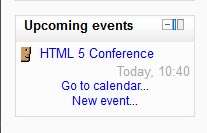
Summarizes the future events in the navigation. |
|
This concludes the article for the Moodle blocks Overview. To review the last article Manually installing a theme for Moodle 2.3 The next article is on Changing the Appearance of the Calendar in Moodle. For more information about articles on the Moodle 2.3 appearance, please visit Changing the Appearance of Moodle.