
Moodle 2.3 has the ability to add blocks and remove blocks from the sidebar navigation. This is useful for customizing the appearance of the Moodle site navigation. For example, if the students are required to view their messages frequently, the Messages block can be added to the sidebar for easy access. This tutorial will explain how to add and delete blocks from the Moodle sidebar.
Adding blocks in Moodle
- Log into the Moodle Dashboard
Important! Keep in mind that Editing must be turned on in the Settings section in order to edit any of these options.
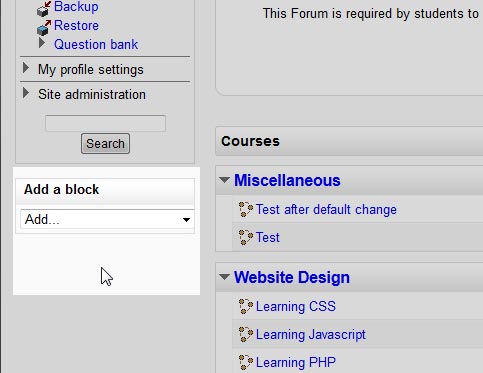
Once logged in to Moodle, go to the left side where it says Add a block.
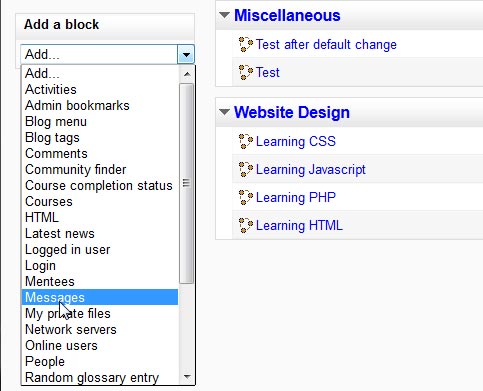
Select a block to add to the navigation. In this tutorial, the Messages block will be selected to add to the navigation.
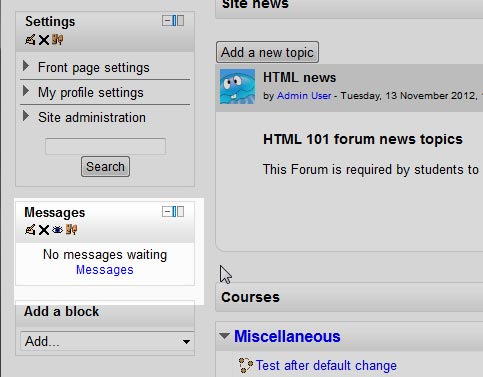
Now the block will display on the Navigation sidebar.
Deleting blocks in Moodle
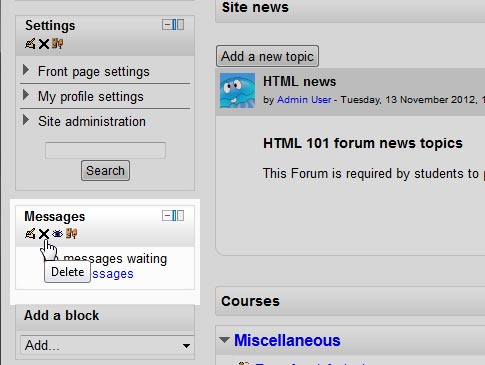
Select the
 icon on the block header.
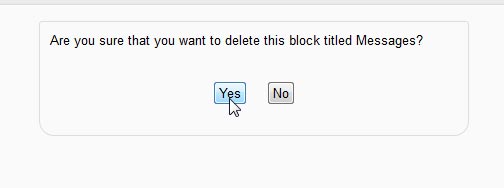
Click Yes on the Are you sure that you want to delete this block titled Messages? page. Don’t worry, if you remove a block by accident, it can always be added back from the Add a block drop menu. Now the block will be gone from the navigation sidebar.
This concludes the article for Adding and Deleting blocks from the Moodle sidebar. To review the last article Configuring the Navigation block in Moodle. Check the next article on Adding a Remote RSS Feed block in Moodle. For more information about articles with a similar topic, please visit Changing the Appearance of Moodle .