After you learn how to create and edit pages in MediaWiki, you will want to add and format the content in your wiki site. This article is not an exhaustive resource for formatting content in MediaWiki and will only touch on the basic functions like bold, headline, and numbering the text.
Wiki format editing functions
Editing a MediaWiki site is much different than your standard CMS program. Wiki code is designed specifically to use special characters format text in the content. The following section will explain the formatting options available in MediaWiki and what their functions are.
- Log into MediaWiki
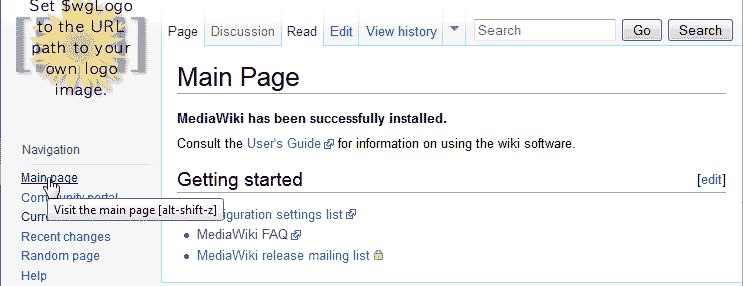
Click the Main Page link.
The Default Main Page will look like the snapshot to the right.
Clicking the edit button will load the Edit capabilities. Click Edit.
The following table will explain what code and what each formatting option is used for.
MediaWiki Formatting Options Bold 
Bolds text.
Code syntax:'''Bold text'''
Italic 
Makes Text Italic.
Code syntax:''Italic text''
Internal Link 
Creates pages and links to internal pages.
Code syntax:[[Link title]]
External link 
External Link. Must contain the https:// prefix.
Code syntax:[https://www.example.com link title]
Level 2 Headline 
Separates sections and labels as a Header.
Code syntax:== Headline text ==
Ignore Wiki Formatting 
Negates any code that may contain Wiki formatting.
Code syntax:<nowiki>Insert non-formatted text here</nowiki>
Signature 
Adds Your signature with timestamp to your talk.
Code syntax:--~~~~
Horizontal line 
Adds a Horizontal line to separate content MediaWiki says to use this sparingly.
Code syntax:----


Bolding and Headlining text in MediaWiki
- Log into MediaWiki.
- Select the page you want to add content to or create a new page and edit the content.
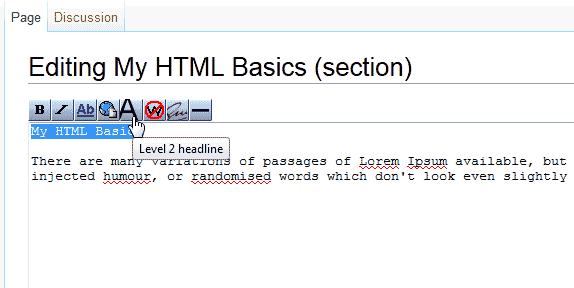
Enter text for the headline. Highlight the text and click the Level 2 Headlineicon.
MediaWiki will render that text as a headline.
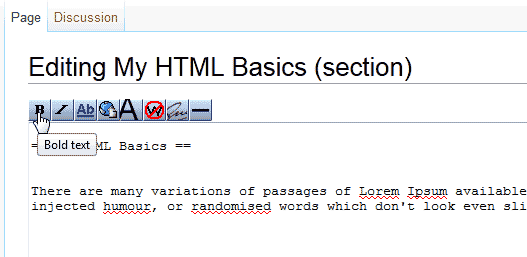
Add text and highlight text to make the text bold. Click the Bold Iconin the editor.
This text will now be bolded.
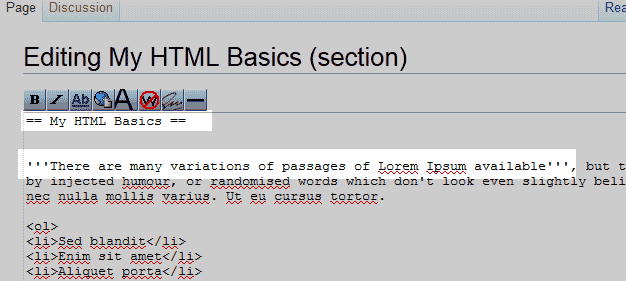
The code for the bold and headline will look like the image to the right.
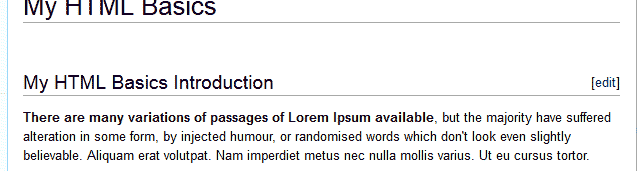
The view the user will see looks like the snapshot to the right.
How to make a numbered list
- Log into MediaWiki and select the page to add the numbered list to.
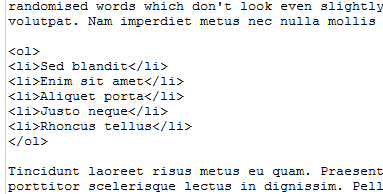
MediaWiki does not have a bulleted or numbered list code in the editor so the HTML code will need to be used. Add the following code to your page.
For a numbered list add the following:
<ol> <li>First</li> <li>Second</li> <li>Third</li> <li>Forth</li> <li>Fifth</li> </ol>
For a bulleted list add the following:
<ul> <li>First</li> <li>Second</li> <li>Third</li> <li>Forth</li> <li>Fifth</li> </ul>
Just change the First, Second, Third, etc. with your bulleted or numbered points.
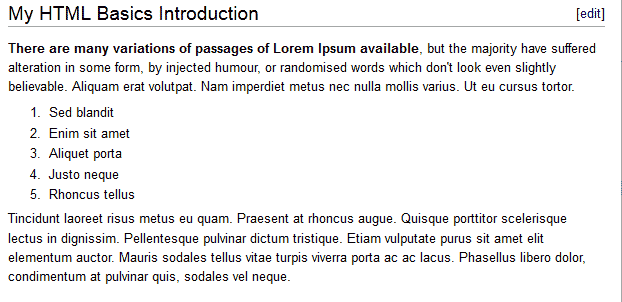
Save the page and the numbered list will look like the snapshot to the right..
How to create subsections in a wiki page
- Log into MediaWiki and navigate to the page you want to add a subsection to.
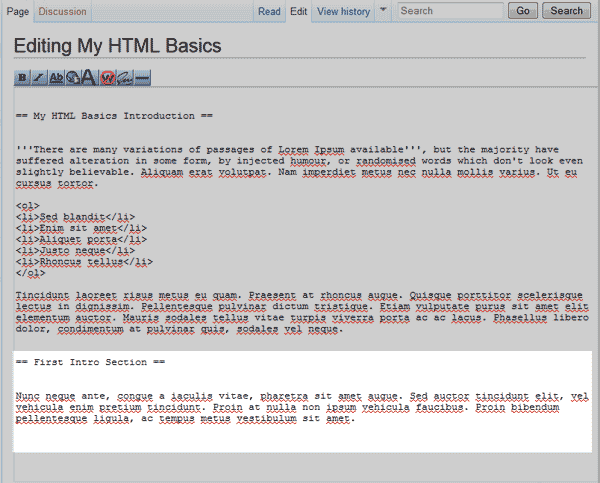
Enter the text for your subsection and apply the Level 2 Heading to it.
Add text below the second header you created for the subsection.
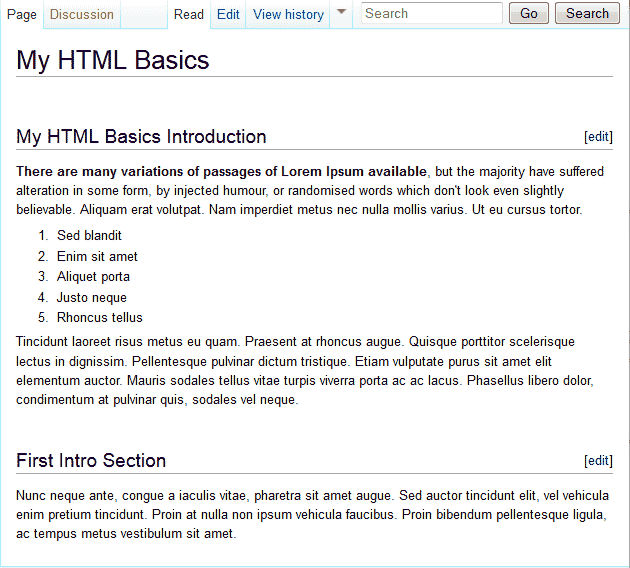
Save the page and you will see a second section with sub content in the page.
See image to the right.
