
If you have ever lost or forgotten your password to access the WordPress dashboard, it can be very frustrating. WordPress provides quite a few options to reset or change your WordPress password.
- Change password from WordPress dashboard
- Reset password via email
- Reset password via phpMyAdmin
- Reset password via FTP
- Reset password with the Emergency Password Reset Script
If you’re unable to login after two attempts, consider waiting at least 15-30 minutes before trying again. Otherwise, you risk temporarily locking your WordPress site from logins.
Change WordPress Admin Password from Dashboard
Follow the steps below to change your WordPress admin user’s password directly from the WordPress dashboard, or you can watch our video on YouTube.
- Login to your WordPress Dashboard.
- From the left navigation menu, click on Users.
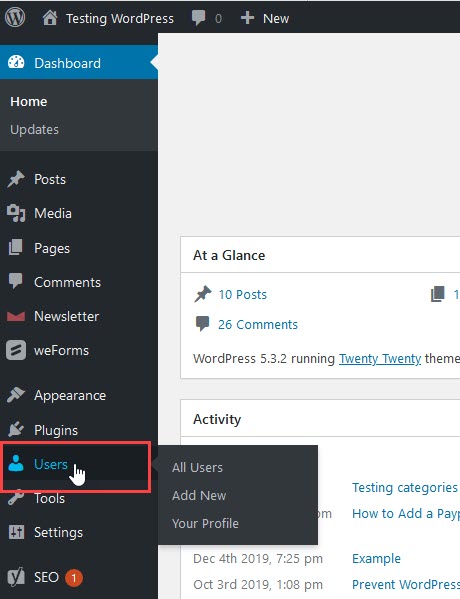
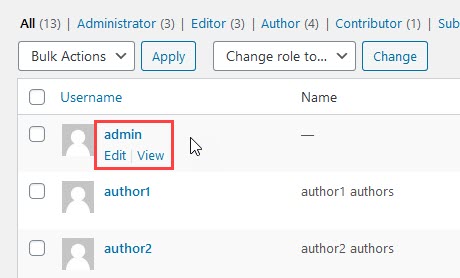
- Hover over your Admin user and then click on Edit.
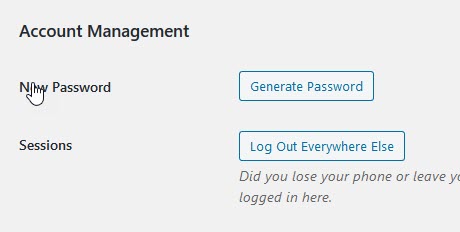
- When you see your Admin profile, scroll down until you find the option labeled New Password. Click on the button labeled Generate Password.
- You will see a random password generated that you are welcome to use. However, if you want to create your own password, simply click on the field and start typing a new password.
Note that your password will be rated for strength. Be sure to include capital letters, numbers, and a symbol to help make the password strong and hard to crack. If you have trouble with long passwords, then use a password manager to help you track your passwords. Many internet browsers allow you to track your passwords as a part of their feature set.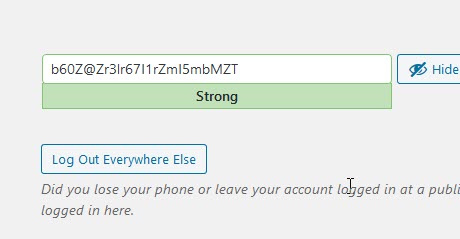
- Once you have finished changing your password, scroll down the page until you see the blue button labeled Update Profile. Click on this button to save your changes.
Reset Your WordPress User Password via Email
If you’ve forgotten your WordPress admin password, you can reset it via email from the WordPress dashboard login page following these steps:
- Go to your WordPress login page (example.com/wp-admin)
- Click on Lost your password? located below the login box.
- Enter the Username or Email of your WordPress admin user, then click on Get New Password.
- You should get an email with the subject [WordPress Site] Password Reset. The body of this email will contain a link to reset your password. Proceed by clicking on that link.
- Type in your new password, confirm it, then click on Reset Password.
Changing Your WordPress Password via phpMyAdmin
You can directly change your WordPress password in the database using phpMyAdmin if you forgot it.
You should only use this method if you’re comfortable with working with databases in this fashion. It’s also recommended that you always backup your database in cPanel prior to making any database modifications directly.
Follow the steps below to reset your WordPress password using phpMyAdmin, or you can watch our video on YouTube.
- Login to cPanel.
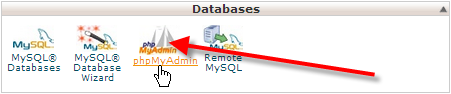
- Under the Databases section, click on phpMyAdmin.
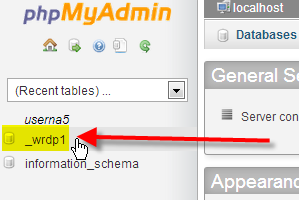
- Click on the name of your WordPress database.
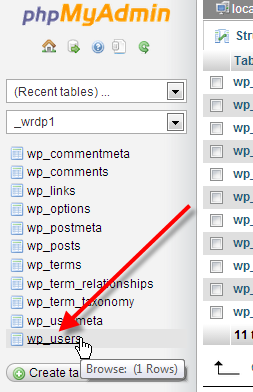
- Next click on the wp_users table.
- Click on Edit beside your WordPress admin user.

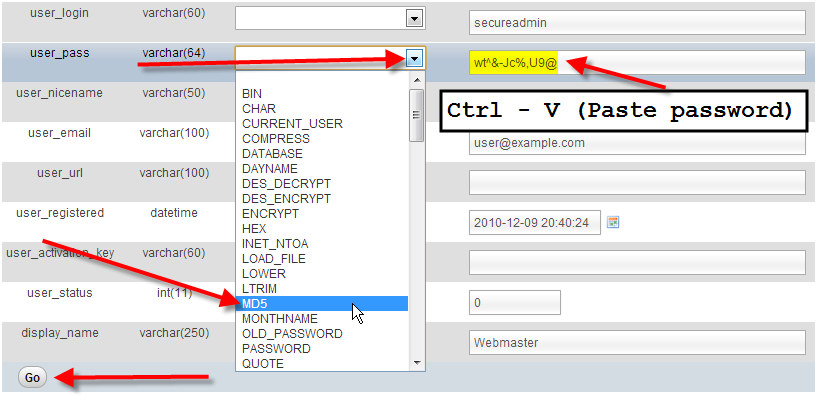
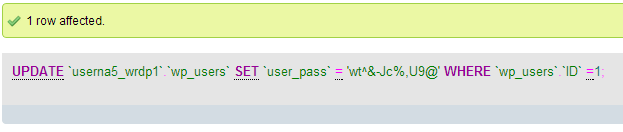
- In the user_pass field, paste your password by pressing Ctrl – V. From the drop-down, select MD5. Finally click on Go.
- You should now see a success message from phpMyAdmin saying the database record was updated.
Change Your WordPress Password via FTP
If you don’t have access to your WordPress database, you can also reset you password with FTP.
- Login to your website via FTP and navigate to your theme’s functions.php file and download it to your local computer.
In my case this was /home/userna5/public_html/wp-content/themes/twentyfourteen/functions.php
- On line 2, right after the first <?php line add this:
wp_set_password('password','admin');
In this example, we’re setting the password to password, and we’re updating it for the user admin, if your admin user has a different username you’ll want to be sure to use that.
You’ll also want to make sure that you’re using a secure WordPress password. - Upload this modified functions.php file back to your /themes folder on the server.
- Login to your WordPress dashboard using the new temporary password you just set.
- Now that you’ve successfully reset your password, remove the wp_set_password line from your local functions.php file, and re-upload it. This way WordPress doesn’t reset the password every single time the admin dashboard is accessed going forward.
Use the WordPress Emergency Password Reset Script
If other solutions did not work, then you may wish to try using the Emergency Password Reset Script. It is not a plugin but rather a PHP script.
Important Notes
- Using this script requires you know the admin username.
- The script updates the admin password and sends an email to the admin’s email address.
- If you do not get the email sent, the password is still changed.
- The script is to be placed at the root of your WordPress installation.
- Removing the script when finished is extremely important for security reasons.
How to Use the Emergency Script
- Copy the emergency script from Emergency Password Script and place it into a file called emergency.php in the root of your WordPress installation.
- Visit the script in your web browser. (https://example.com/emergency.php)
- Enter in the WordPress admin username (typically admin) and the new password, then click Update options.
- Delete the emergency.php file from the server when you are done. Leaving this script on your account is a security risk as someone else could use it to change your password.
Don’t Have a WordPress Hosting Account Yet?
If you don’t have a WordPress Hosting account, you are missing out on the speed and performance your website could see on WordPress-optimized servers. Now is the time to experience WordPress Website Hosting that is highly recommended by BoldGrid.
