There are times when you may forget your password. In these instances, you can have the PrestaShop admin password changed via email. If, for some reason, you do not receive the email for the new password, you will not be able to log into the admin area with it.
There is a fix, however.
You will need to change your password by modifying the database directly. This can be a bit awkward and intimidating, however following the steps below should allow you to change your PrestaShop admin password in your database without any trouble. Click here for more information on PrestaShop Hosting.
This article assumes you are using a hosting account that uses cPanel software for managing your hosting account.
Modifying your admin password via database in PrestaShop 1.5
- First you will need to log into the cpanel for your hosting account.
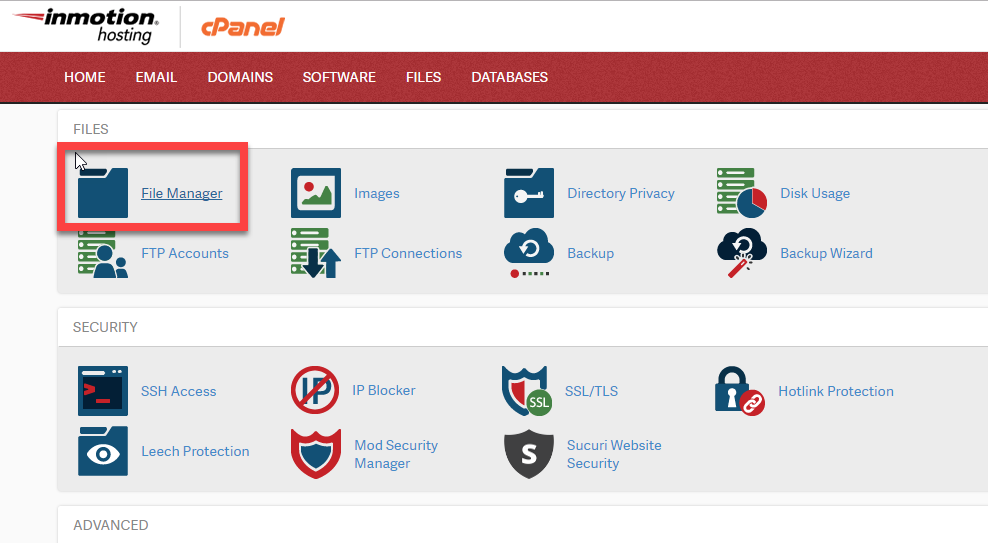
Once logged in, you will need to locate the File Manager, found in the Files category, and click on the icon.
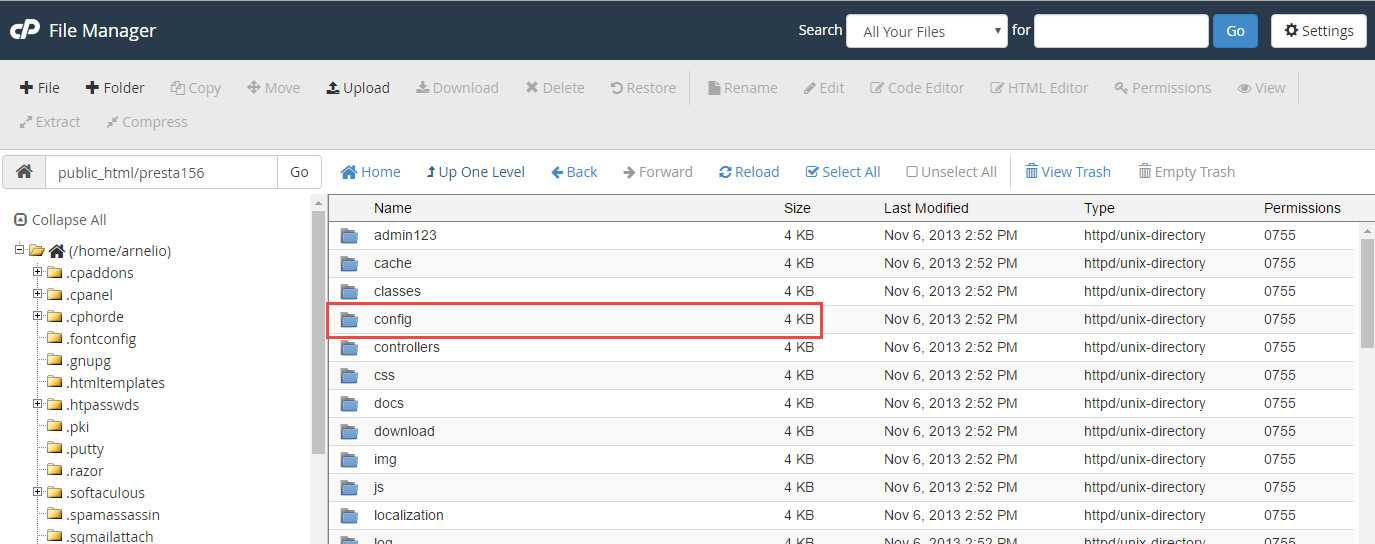
Once in the File Manager, find and double click on the config folder. This will take you to a list of all files within that folder.
-
Look for the settings.inc.php file. Highlight it by clicking on it once. Then, using the icons across the top, find and click on the Code Edit feature. Click Edit from the pop up that will appear to continue.
<
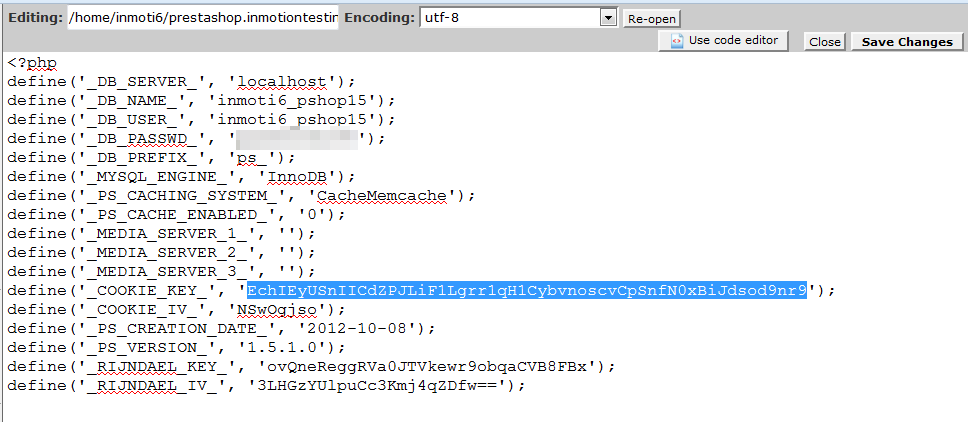
Once inside the settings.inc.php file, locate the setting named _COOKIE_KEY and copy the string. You can see the area below that we highlighted. You may want to save it temporarily to a word processing document such as notepad, Notepad++, MS Word, etc. Close the file once you have the key.
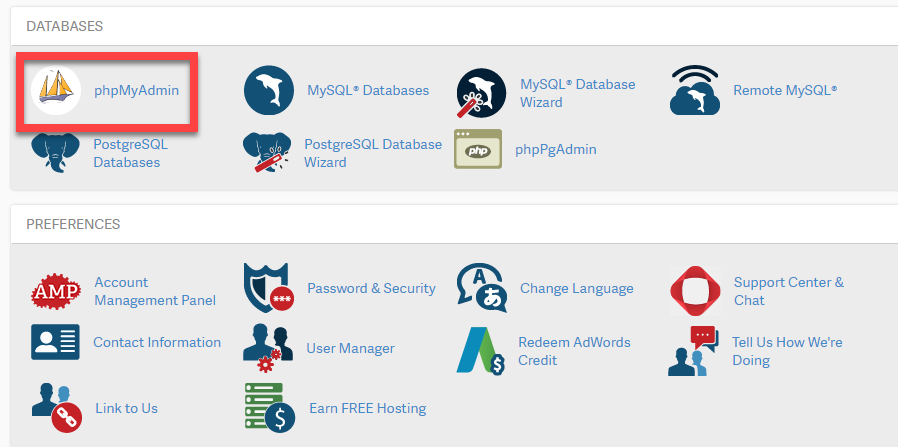
Go back to your cPanel and find the Databases category. From there, click on the PhPMyAdmin tool.
- Once inside, select (click on) the correct database for your PrestaShop 1.5 application from the list of databases on the left hand sidebar.
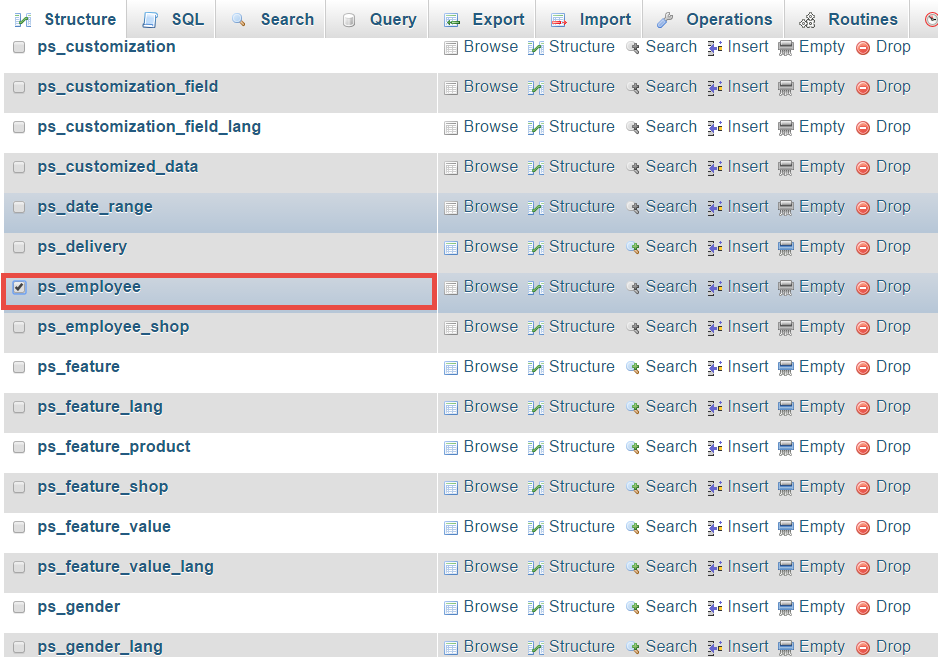
You will then see a list of the database tables in the left sidebar. Scroll down and select the one named ps_employee.
Note that your PrestaShop database prefix might not begin with ps_
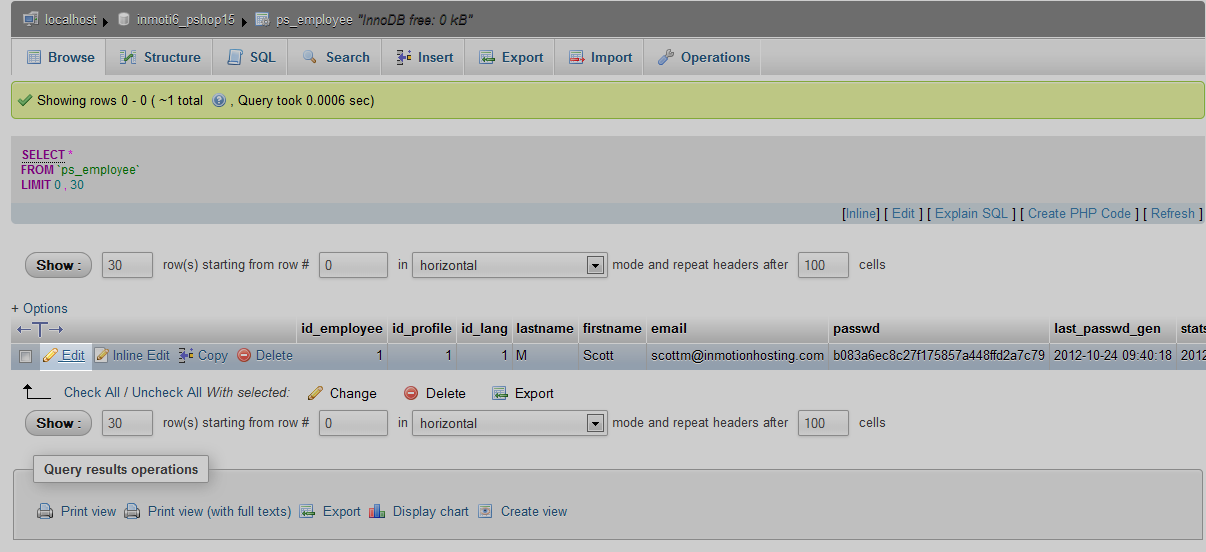
This opens the table data information. Find your admin user from the list of data rows and click on the Edit link on the right side of that particular row.
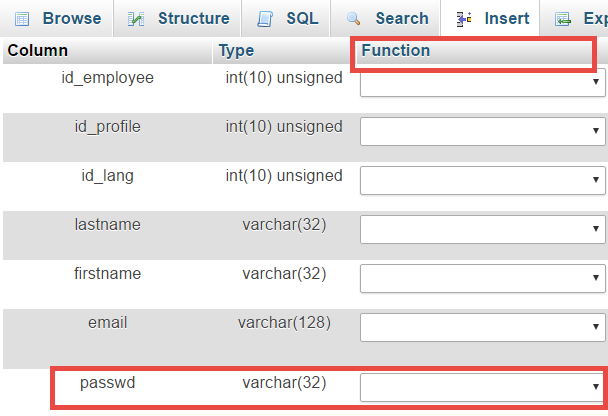
Find the password row, it is named passwd. There are two columns you will need to edit. The first is the Function column.
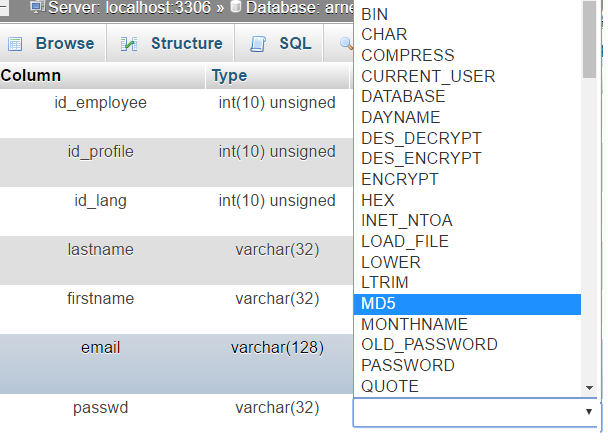
Use the dropdown and select the MD5 option.
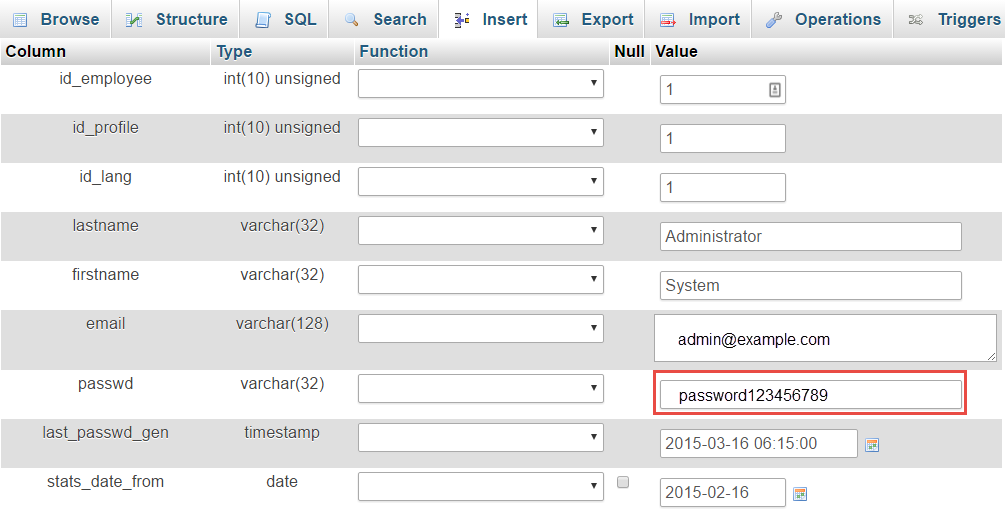
The second column is the Value column. For this column, paste the _COOKIE_KEY value you saved earlier and attach your new password directly to the end of the key with no spaces. Be sure to use a real password and not anything easy like NEWPASS1234 that we used in the example.
- After you have entered the new password, scroll down to the bottom of the page and click the GO button to save the new information.
You should now be able to log into your admin area with your new password.