
While maintaining users in Moodle, there are times when the administrator will need to submit a bulk request across all users. For example, if a specific lot of users need a message sent to them, or if all the users of a course need to be deleted, the User bulk actions feature is a handy utility. The following article will explain the basics of bulk user actions. For further information on the last tutorial in t his series, please visit Editing User profile fields in Moodle.
Performing bulk actions on users
- Log into the Moodle Dashboard
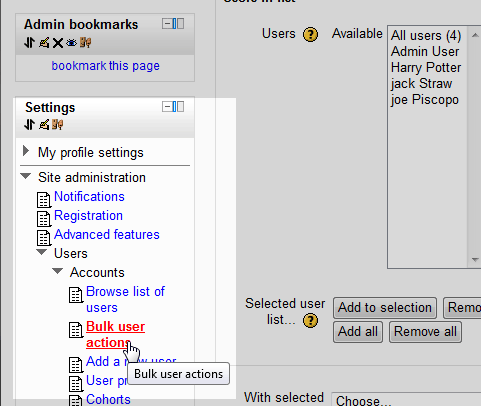
Navigate to Settings > Site administration > Users > Accounts and select Bulk user actions.
Important! Keep in mind that Editing must be turned on in the Settings > Front Page Settings section in order to edit any of these options.
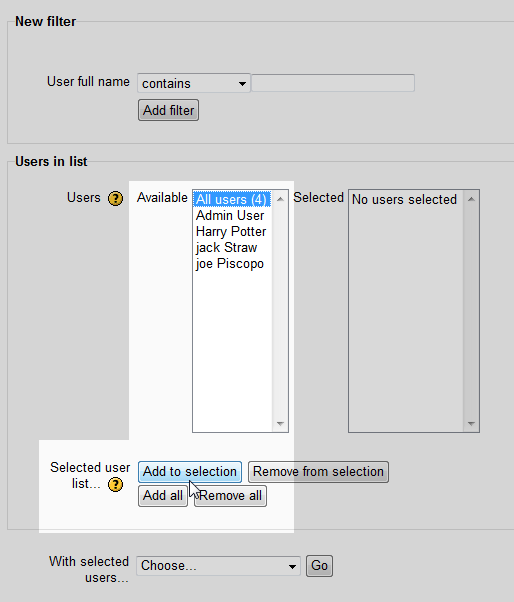
Next the Bulk user actions page will display. In this section, users can be filtered by the User Full name. The Users in list section is for selecting the users for the actionn. All users or particular users can be added from the Available to the Selected areas and vise versa. For testing, Add users to the Selected area.
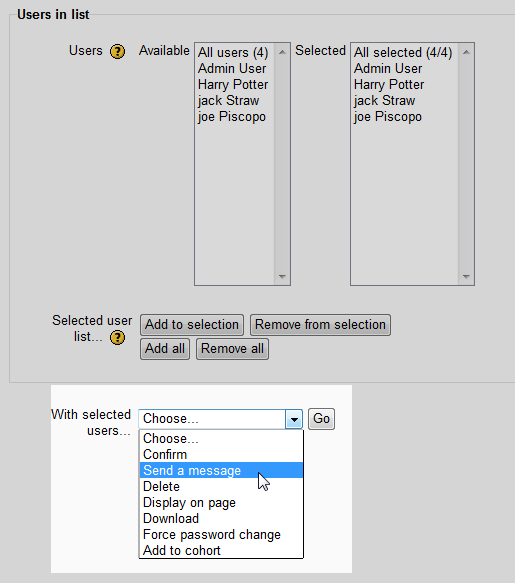
In the With Selected users ‘Choose’ Drop box, select the option to run on the users that were added to the Selected area. In this tutorial, the Send a message option will be used.
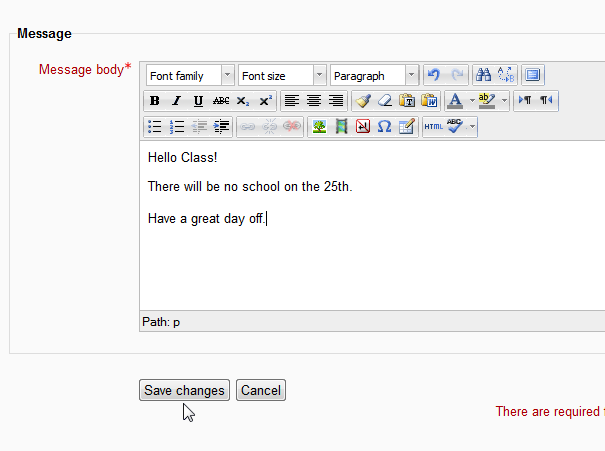
Type the email message that is being sent in the Message body of the Message box and click Save Changes.
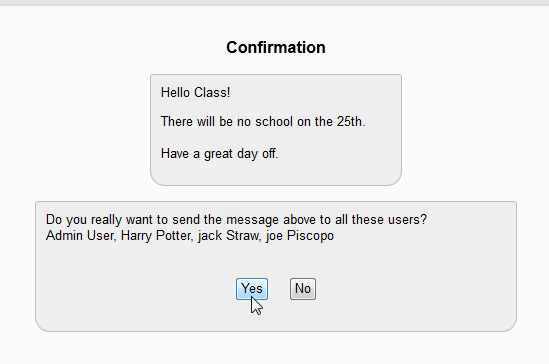
Next, there will be a Confirmation page asking “Do you really want to send the message above to all these users?” Click Yes.
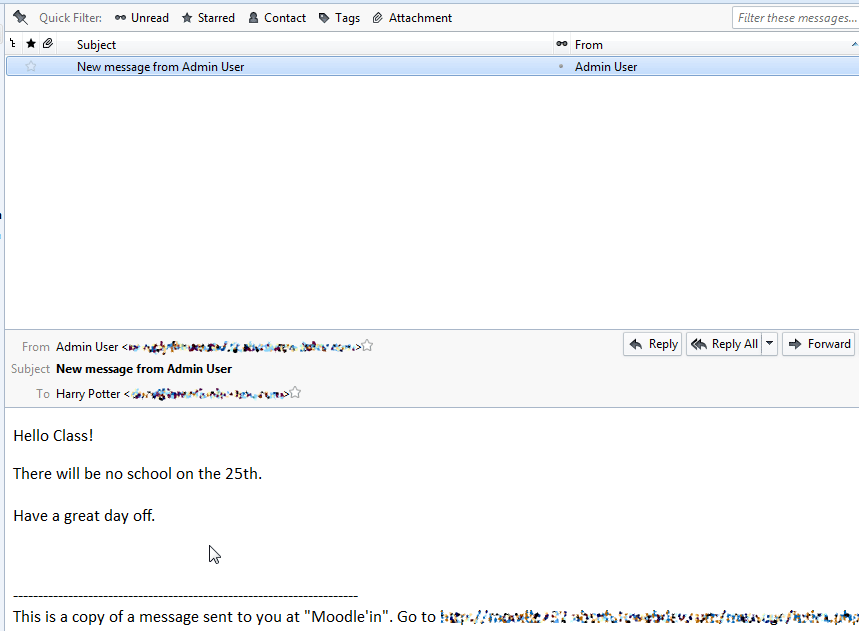
All the users that were Selected will receive an email similar to the following snapshot. Other actions can run on users using the User bulk actions like Delete, Display on Page, Confirm, Download, Force Password Change and Add to cohort.
This concludes the tutorial for the Running bulk user actions in Moodle. Please check the next article on Browsing and filtering users in the Moodle Site Administration. For more information on this Education Channel please visit Managing users and roles in Moodle