
Once the users are set up in Moodle, the administrator may need to view certain users in the database. The Browse list of users in the Site administration section is available for this. The following article will walk through the basics of how to search users in Moodle 2.3. If the last article was missed, please visit Running bulk user actions in Moodle.
Viewing, filtering, and browsing the list of users
- Log into the Moodle Dashboard
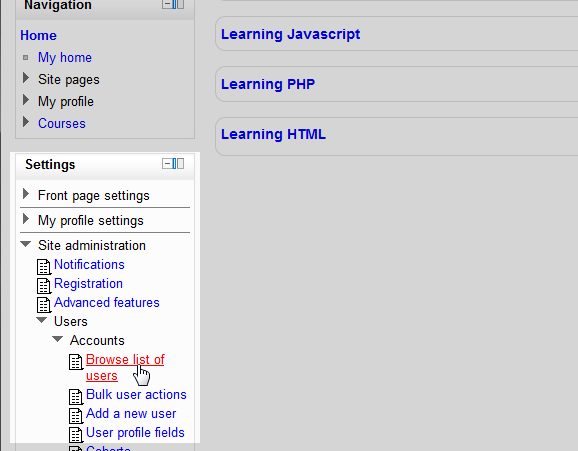
In the Settings section on the left, navigate to Site administration > Users > Accounts > Browse list of users.
Important! Editing must be turned on in the Settings > Front Page Settings section in order to edit any of these options.
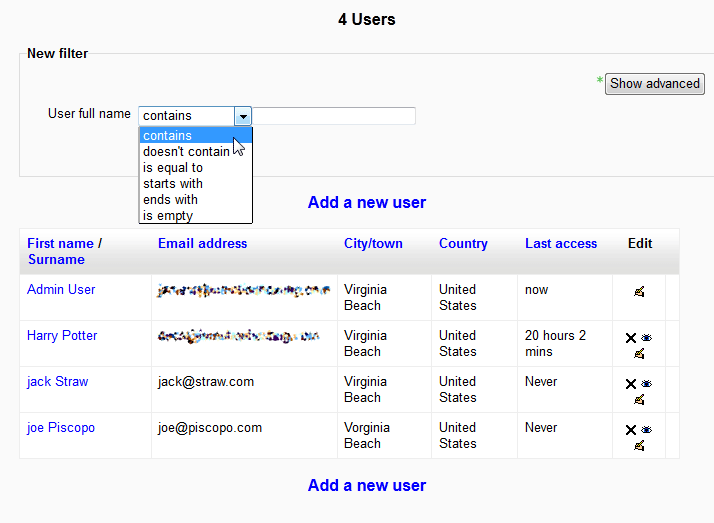
In this section, the users will list according to the First name / Surname. The fields shown when viewing the list of users are First name / Surname, Email address, City/town, Country, Last access, and Edit. The list can be filtered in the New Filter box. The users by default can be filtered by User Full Name. For more Filtering options, click the Show Advanced button.
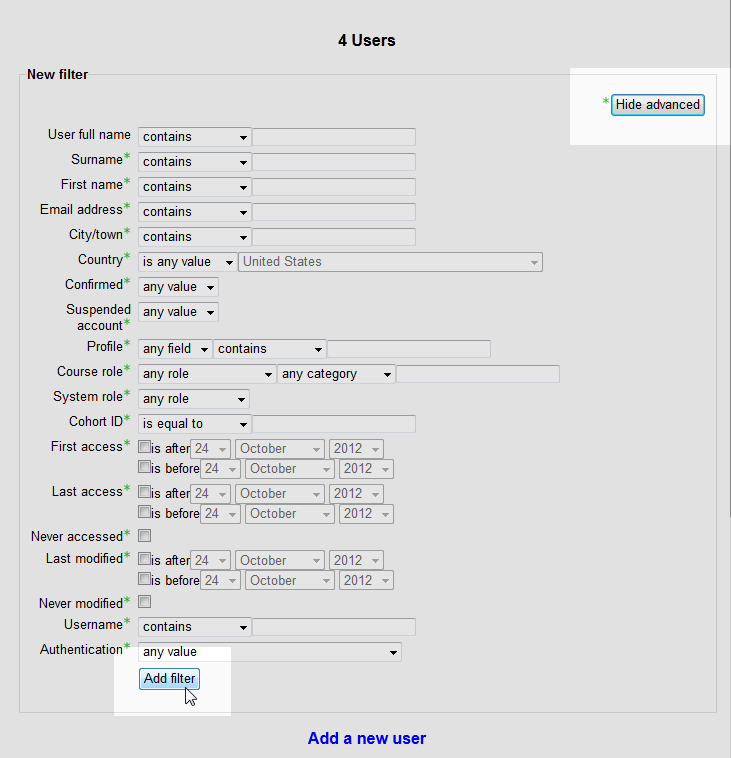
In the Advanced filter section, additional options for searching users is available. First name, email address, City/Town, Country, the user role, modification dates. and site access are available for searching. In this tutorial, a filter for finding a misspelled City/Town will be set up. Once the parameters are set click Add filter.
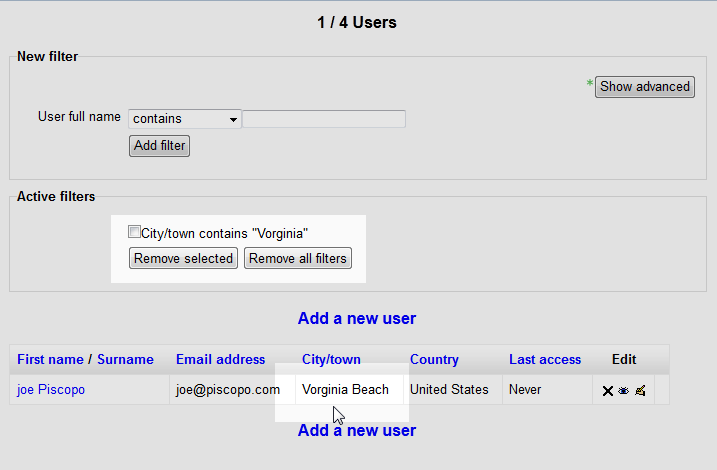
Next the list will show with the filtered parameters.
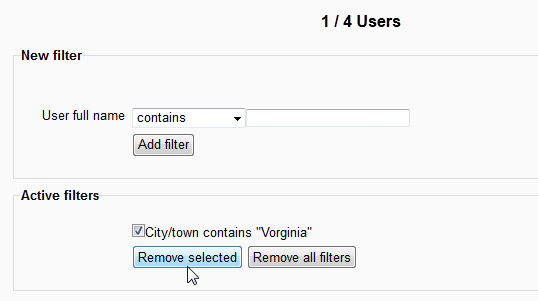
To remove the filter, check the check box next to the filter and click Remove selected. To remove all filters click Remove all filters.
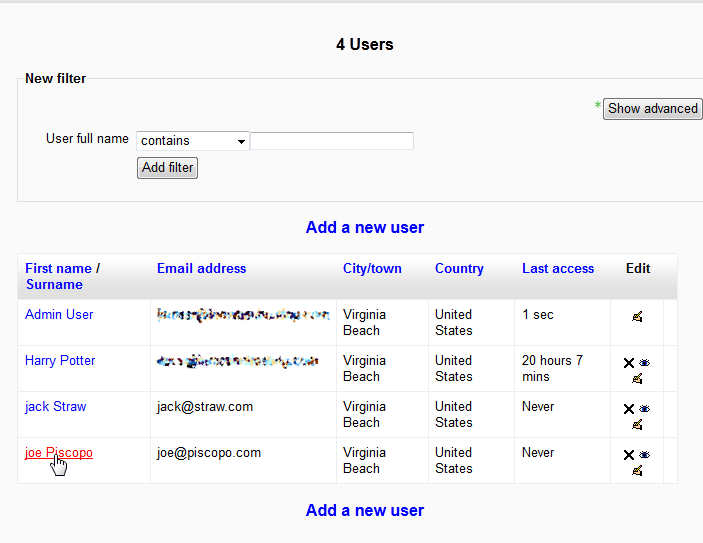
To view a specific profile for a user click the First name / Surname of the user.
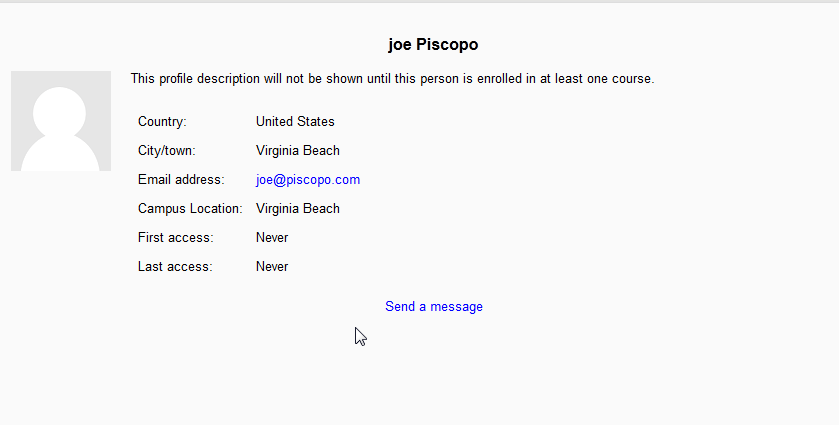
The Users Public Profile will load.
This concludes the tutorial for Browsing and filtering users in the Moodle Site Administration. Please check the next article on Creating Cohorts in the Moodle site administration. For more information on this Education Channel please visit Managing users and roles in Moodle