
Users can edit their profiles within the My profile settings of the Settings section in Moodle 2.3. The User profile can be customized and fine tuned for specific Course related information. Extra fields can also be added to the profile. See the Editing User profile fields in Moodle tutorial on this. This tutorial will briefly explain the User profile settings.
Modifying My Profile Settings in the Moodle Edit Profile page
- Log into the Moodle Dashboard
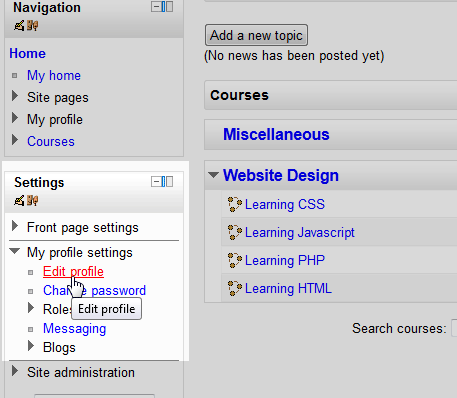
Navigate to My profile settings > Edit profile in the Settings section on the left.
Important! Keep in mind that Editing must be turned on in the Settings section in order to edit any of these options.
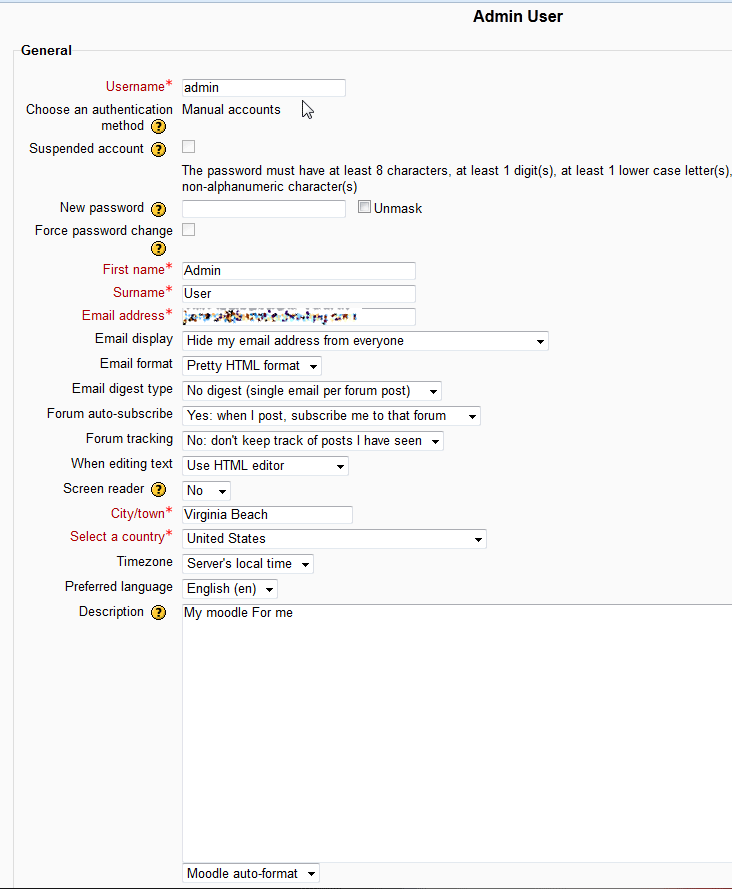
Next the User Profile page will load. The first section is the general information for the user. In this section, the Username and password can be changed. Also the basic information like First name and Last name (Surname), Email address, City/Town, Country, Language, and Description can be changed or edited here.
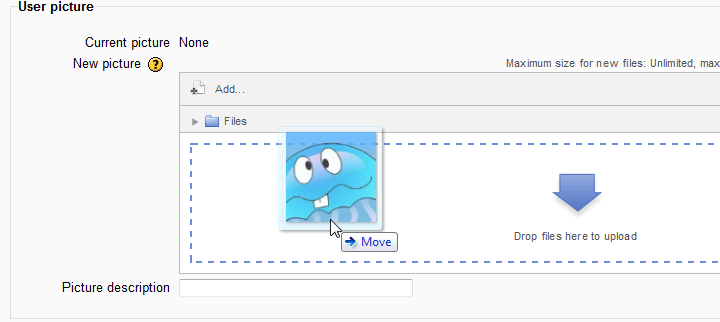
The user can upload an Avatar or profile picture in the Edit Profile page. In the User Picture section, drag an image to the New picture block. This will automatically upload an image to the user profile.
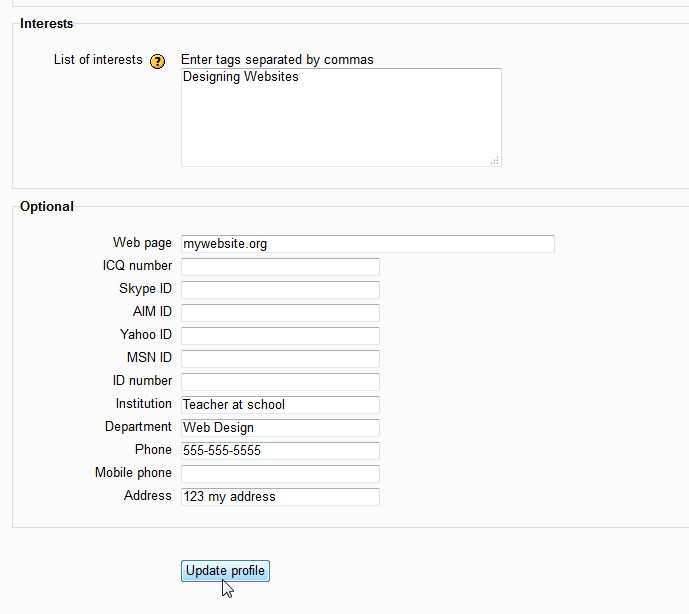
The Interests box if for listing Course related interests that will display on the User profile. Also, the Users webpage, phone number, Instant Messenger IDs for Skype, AIM, Yahoo, and MSN can be added in the Optional area. When done with the User Profile page, click Update profile.
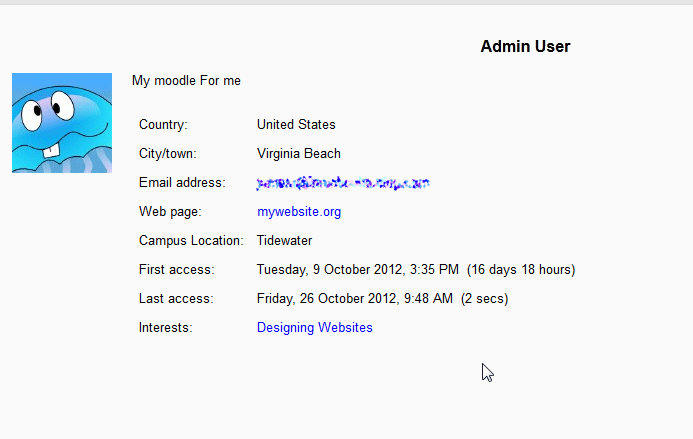
Finally, when viewing the profile, the View profile page will look like the following snapshot.
This concludes the article for Editing the User profile in the My Profile Settings of Moodle. Please check the next article on Configuring notification methods for incoming messages in Moodle. If the previous tutorial was missed, please visit Please check the next article on Restoring Moodle from a backup to review the article. For more information on this Education Channel please visit Getting Started with Moodle – Moodle